
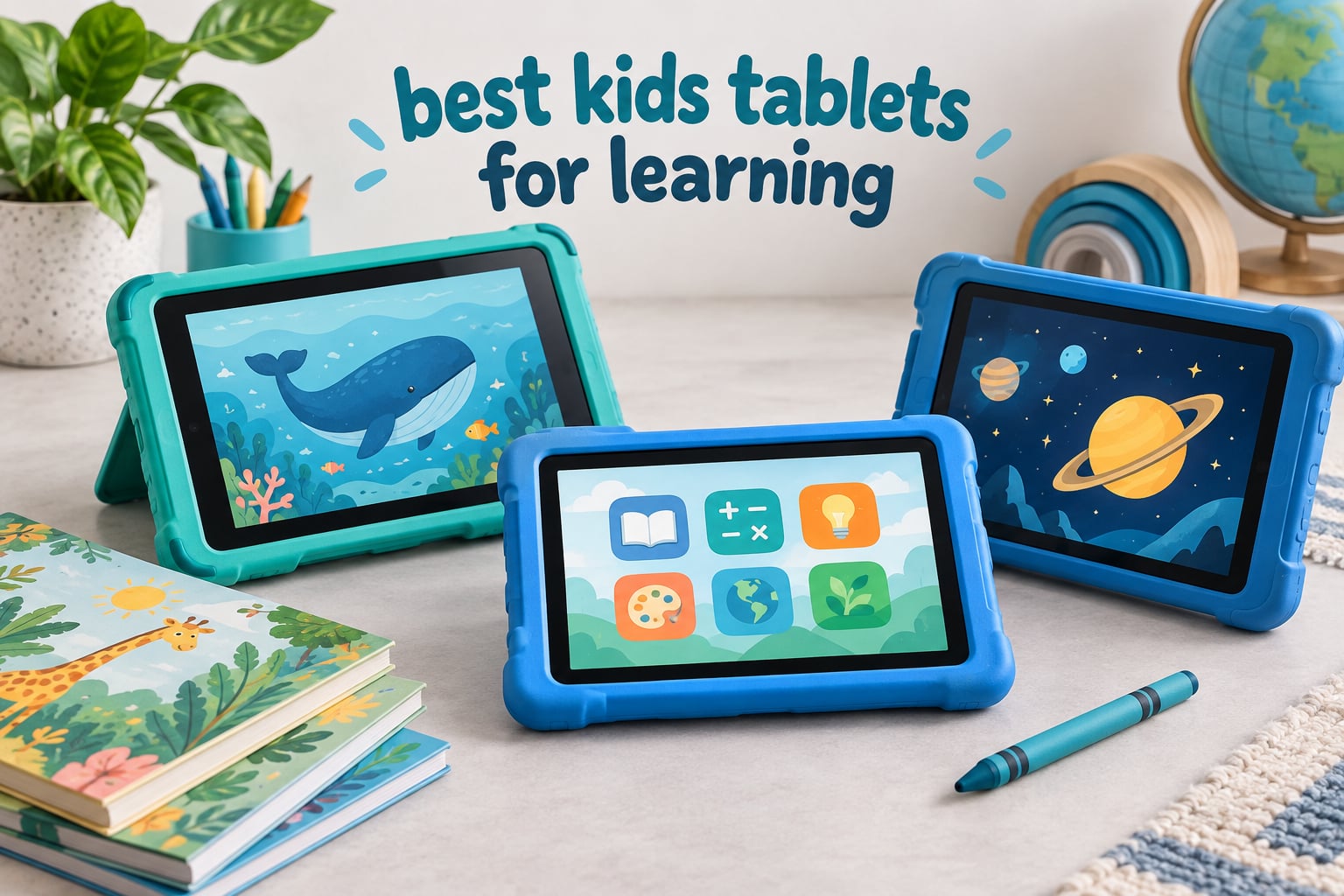
If you want one tablet that a child can use alone without wandering into the open web, the Amazon Fire 7 Kids is the best kids tablet for learning in 2026. It includes a kid-proof case, a year of ad-free Amazon Kids+ content and a two-year worry-free guarantee. For preschool-age children the LeapFrog LeapPad Academy has deeper built-in curriculum, and for a big colour screen on a full Android system, the COLORROOM 10-inch tablet is the choice.
We worked through ten kids tablets that carry substantial owner review histories, read the feedback in detail, and compared what each one actually does after setup: screen quality, battery, storage, how locked down the child profile is, how much of the educational content is included rather than sold, and how well the hardware holds up when a five-year-old takes it to the park. Every rating and review count below is taken straight from the current listing, so you can see how much real-world history each model has behind it.
Two things shaped the list more than anything else. The first is age. A tablet that works beautifully for a nine-year-old reading chapter books is a poor choice for a two-year-old, and the reverse is just as true. The second is what happens after the trial ends, because several of these devices include a year of content and then start charging for it, which changes the real cost of the purchase over a three-year ownership period.
If your child is older and moving toward Android apps rather than a curated child profile, our guides to the best Android tablets for kids and the best Android tablets for reading cover the full-size adult tablets that bridge the gap. Everything below is aimed at the smaller, tougher, more locked-down machines built specifically for learning.
Table of Contents
Top 3 Picks for the Best Kids Tablets for Learning in 2026

Amazon Fire 7 Kids
- Ad-free Amazon Kids+ content included
- 2-year worry-free guarantee
- 10-hour battery life
- 16 GB expandable via microSD

COLORROOM 10-Inch Android 15
- Android 15 with Google Kids Space
- 10.1-inch 1280x800 anti-blue-light display
- 6000mAh battery
- 10 GB RAM and 64 GB storage

LeapFrog LeapPad Academy
- 20+ educator-approved learning apps
- Stylus and shatter-safe 7-inch screen
- LeapFrog Academy trial included
- Parent controls with time limits
All 10 Kids Tablets Compared in 2026
Every tablet below appears in the same order as the detailed reviews further down, so you can scan the list first and jump to the one that fits your child. The features column is deliberately short: the things that actually change the decision rather than every spec on the listing.
| Product | Specifications | Action |
|---|---|---|
| Amazon Fire 7 Kids |
|
Check Latest Price |
| COLORROOM 10-Inch Android 15 |
|
Check Latest Price |
| LeapFrog LeapPad Academy |
|
Check Latest Price |
 HOTTABLET 7-Inch Android HOTTABLET 7-Inch Android |
|
Check Latest Price |
 hahaland 5-Language Learning Toy hahaland 5-Language Learning Toy |
|
Check Latest Price |
 LeapFrog LeapPad Ultimate LeapFrog LeapPad Ultimate |
|
Check Latest Price |
 LeapFrog My First Tablet LeapFrog My First Tablet |
|
Check Latest Price |
 zcobro 7-Inch Kids Tablet zcobro 7-Inch Kids Tablet |
|
Check Latest Price |
 YINOCHE 7-Inch Android YINOCHE 7-Inch Android |
|
Check Latest Price |
 TABWEE K10 10-Inch TABWEE K10 10-Inch |
|
Check Latest Price |
Which tablet for which age? From twelve months to eighteen months, the LeapFrog My First Learning Tablet introduces basic concepts with lights and sound and nothing else to break. Between three and five, the LeapPad Ultimate Ready for School or the LeapPad Academy give structured letter and number work in a closed environment a small child cannot break out of. A six to nine year old is well served by the Fire 7 Kids or the COLORROOM, where the screen is big enough for reading practice and the controls are still firm. From ten upward, the TABWEE with its included stylus and multi-user mode handles homework, drawing and online school work.
1. Amazon Fire 7 Kids – The Best Kids Tablet for Learning Overall
- Ad-free content with a year of Amazon Kids+ included
- Simple Parent Dashboard with age filters and time limits
- Kid-proof case in the box
- Tens of thousands of parent ratings
- Fire OS is more locked down than standard Android
- Kids+ renews monthly after the first year
- Performance and storage feel dated
This is the model we keep coming back to. It holds a 4.3 rating across more than 20,000 owner reviews, which is the largest review history of any tablet on this list, and that depth matters. When a model has two decades of accumulated feedback, the recurring complaints are known and the hardware failures have already surfaced. The Fire 7 Kids is built around one idea: a child gets a colourful, simple interface with no browser to escape into, and a parent gets a dashboard that decides what appears there.
The technical basics are sensible for a machine a child will hold with two hands. A 7-inch display, up to ten hours of battery life, 16 GB of internal storage and a microSD slot that takes it to 1TB, plus a kid-proof case in the box. Owners consistently single out the ad-free experience and how straightforward the Parent Dashboard is to set up, with age filters, educational goals and time limits all in one place.
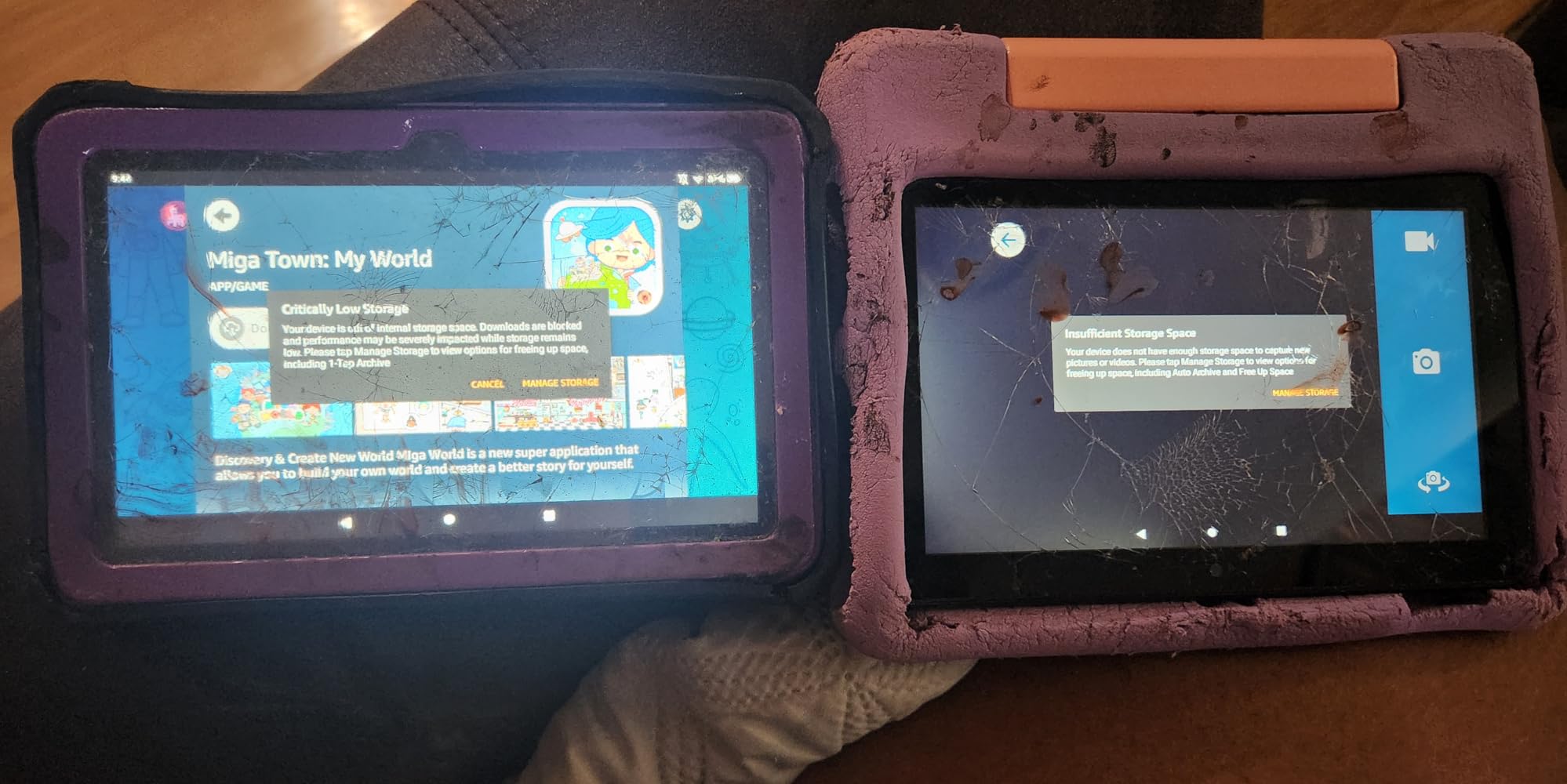
The two-year worry-free replacement guarantee is the quiet advantage. Parents describe cracked screens from drops constantly on the general discussion boards, and having a straight replacement path changes the economics of handing a child an expensive device. The guarantee sits alongside the included case rather than replacing it, and most owners treat the two together as the reason the tablet survives a household.
What you give up is flexibility. Fire OS does not run the full Google Play catalogue, so if a child’s school requires a specific Android app this is the wrong machine. Storage of 16 GB also fills quickly once a family starts downloading books and videos. The included Kids+ year converts to a monthly charge afterwards, which is worth budgeting for across a three-year ownership period rather than treating as a free extra.
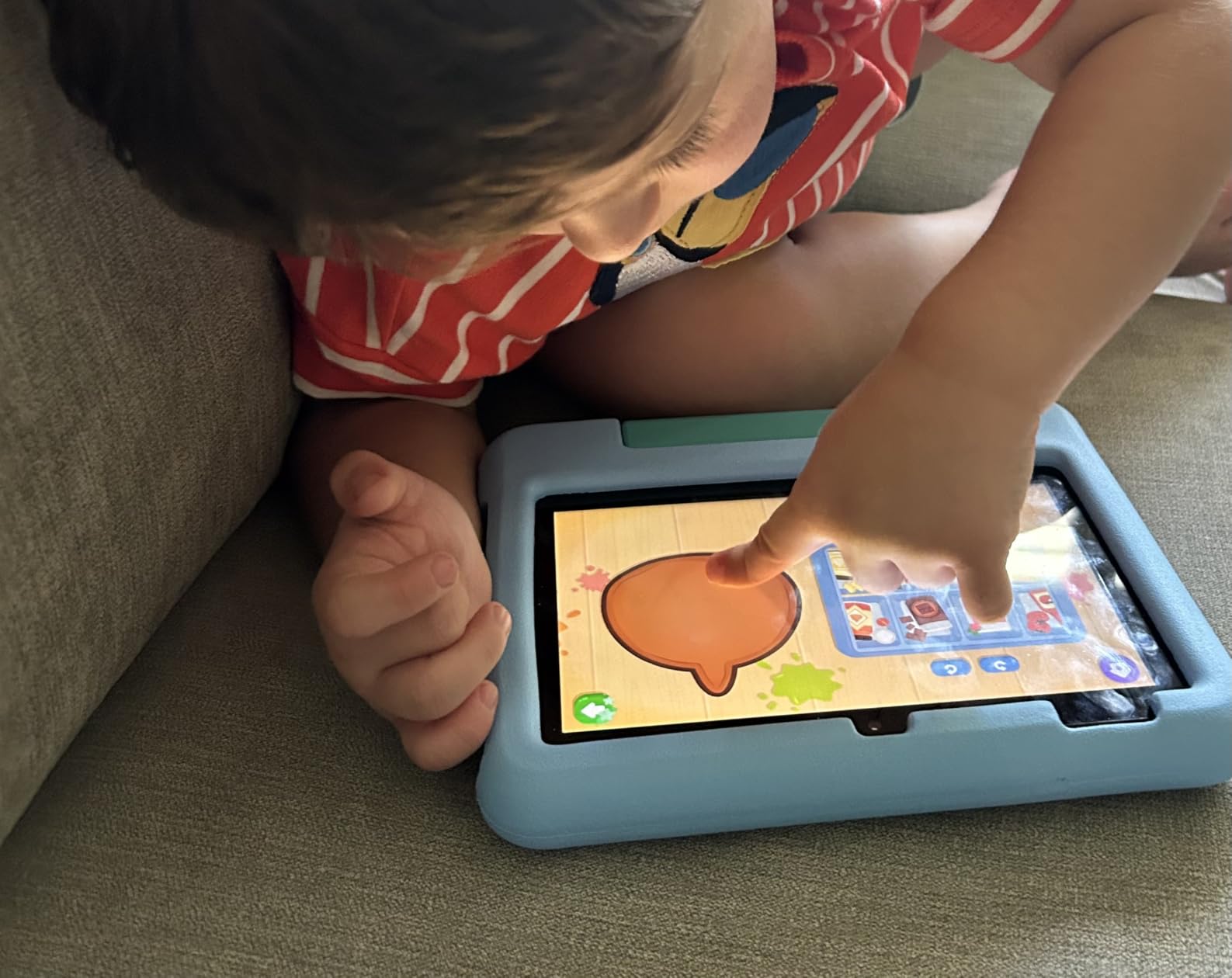
Why this is the safest first tablet for a primary-age child
The child profile is hard to escape without a parent password, which removes an entire category of problem. A parent on r/Parenting described the recurring worry that a child can break out of the curated area and land in the general browser or the storefront; on this tablet that path is closed by default rather than something you have to hunt down in settings.
The trade-off is that a child who outgrows it will eventually want real apps. That is the moment to move up rather than fight the limits, and it is a comfortable transition because the parent dashboard habits carry over to the next device.
Where it falls short for older children
At roughly eight or nine, the 7-inch screen starts to feel cramped for reading a chapter book or splitting a video call beside a worksheet. Owners also describe performance and storage as dated once several apps run at once, which is exactly the multitasking a school-age child does during online classes.
If your child is heading into online school or you need Google Classroom on the device, treat this as a two-year purchase rather than a four-year one. The COLORROOM or a full-size Android tablet is the better long-term answer, and our Android tablet guide covers that step properly.
2. COLORROOM 10-Inch Android 15 Kids Tablet – Best Big-Screen Learning Pick
- Full Android 15 with Google Kids Space
- Large 10.1-inch screen with anti-blue-light display
- EVA case with handle in the box
- 10 GB RAM and 64 GB storage for the money
- Battery runs shorter than the listed 8-12 hours for some users
- A minority report a critical-battery power-on error
- Can feel laggy under heavier use
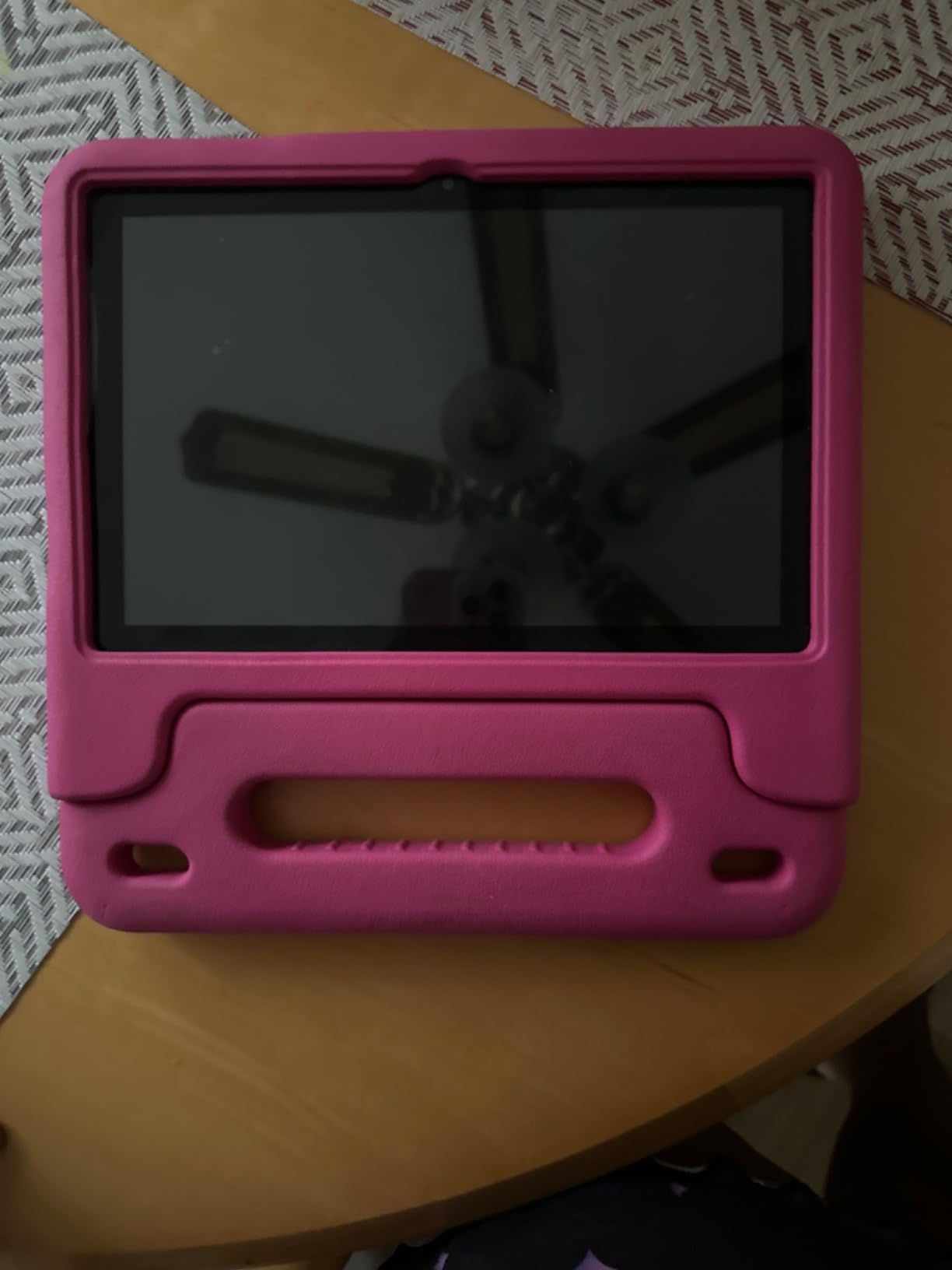
Most kids tablets in the lower tier are 7-inch plastic with a dated operating system. This one is different in a way that matters: it runs Android 15, the newest platform in this group, with Google Kids Space preloaded and educator-endorsed apps already installed. That combination gives a parent a real child profile and a real app store in the same device, which resolves the single most common complaint parents raise about locked-down Fire tablets.
On paper the specification is generous for the money. A 10.1-inch 1280×800 IPS panel with anti-blue-light eye protection and automatic brightness, a Unisoc octa-core T606 processor, 10 GB of RAM including an expandable portion, 64 GB of storage expandable to 1TB, and a 6000mAh battery rated at eight to twelve hours of reading and video. The EVA protective case with a handle comes in the box, which is unusual at this level.
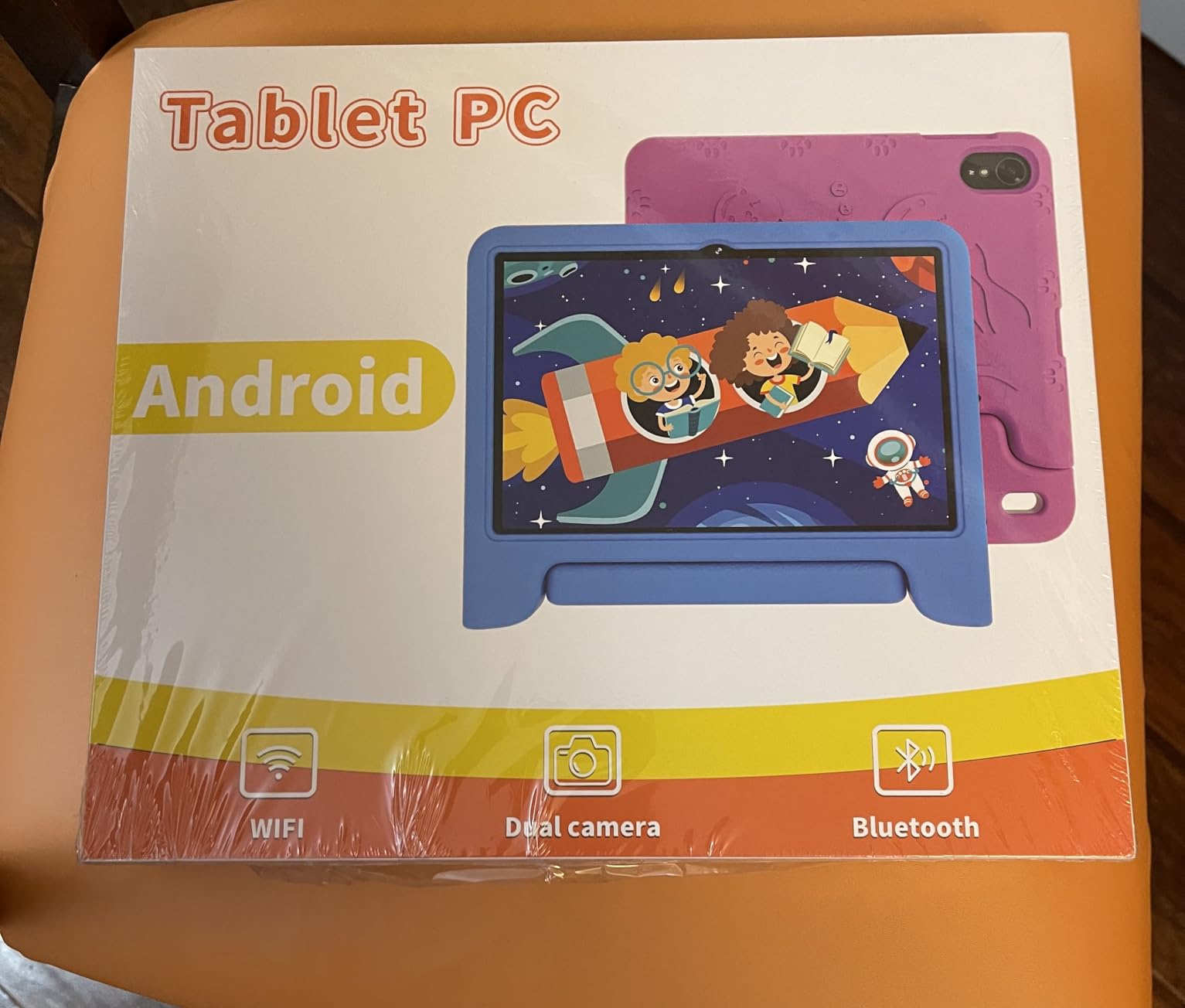
Owner feedback lines up with the spec sheet. Parents report clear screen and sound, fast charging, and detailed parental controls for filtering, goals and time limits. The blue-light protection matters more than it sounds for a child doing reading practice in the evening, since it reduces the harshness of a bright panel in a dim room.
There is a minority of negative feedback worth taking seriously. Some users report battery life falling well short of the listed eight to twelve hours, some describe lag once heavier apps are running, and a small number mention a critical-battery error that stopped the unit powering on. The 4.2 rating across roughly 2,600 reviews reflects a good device with a normal amount of early-production variance.
Why this works for a child who needs real Android apps
Because it is a full Android tablet with a child profile layered on top, a school that hands out an app or a family that relies on Google services can install them. Parents looking at this category usually arrive after being blocked by a Fire tablet, and this removes the blocker without giving up time limits or content filtering.
The 10.1-inch screen is one of the two largest in this roundup, which gives reading practice and video calls noticeably more room than a 7-inch panel. For a child moving into chapter books or working alongside a worksheet on screen, that extra area is a genuine upgrade rather than a spec-sheet win.
Where you should be cautious
Reliability reports are thinner here than on the Fire and LeapFrog models because the review base is younger and the brand has a shorter track record in tablets. The listing also carries a 180-day money-back window with five years of worry-free protection, but a five-year claim is only as good as the support behind it.
If you buy this, spend the first weekend setting up the parent profile properly rather than handing it over as it comes. The hardware will not stop a determined older child from opening a browser, and the difference between a well-configured Android child profile and a default one is large.
3. LeapFrog LeapPad Academy – Best for Preschoolers
- 20+ educator-approved apps that grow with the child
- Granular parental controls with pre-approved websites
- Stylus support for tracing and writing games
- Kickstand built into the bumper
- Most apps and games cost extra once the trial ends
- LeapFrog Academy is a paid annual subscription
- Some owners report weak battery and occasional freezes
The LeapPad Academy is the pick for a child between three and eight who is learning letters and numbers rather than browsing. Where most kids tablets give you a store full of apps and expect a parent to choose, this one arrives with more than twenty educator-approved learning apps covering math, reading, writing, coding and creativity. A three-year-old handed this has something structured to do on day one, which removes the single hardest part of introducing a tablet.
It is also the most thoughtfully built for small hands. The 7-inch LCD is shatter-safe, the removable silicone bumper doubles as a kickstand, and a stylus is included so tracing and handwriting games work properly. Storage is 16 GB with microSD expansion, and a 2500mAh battery covers a session rather than a full day.
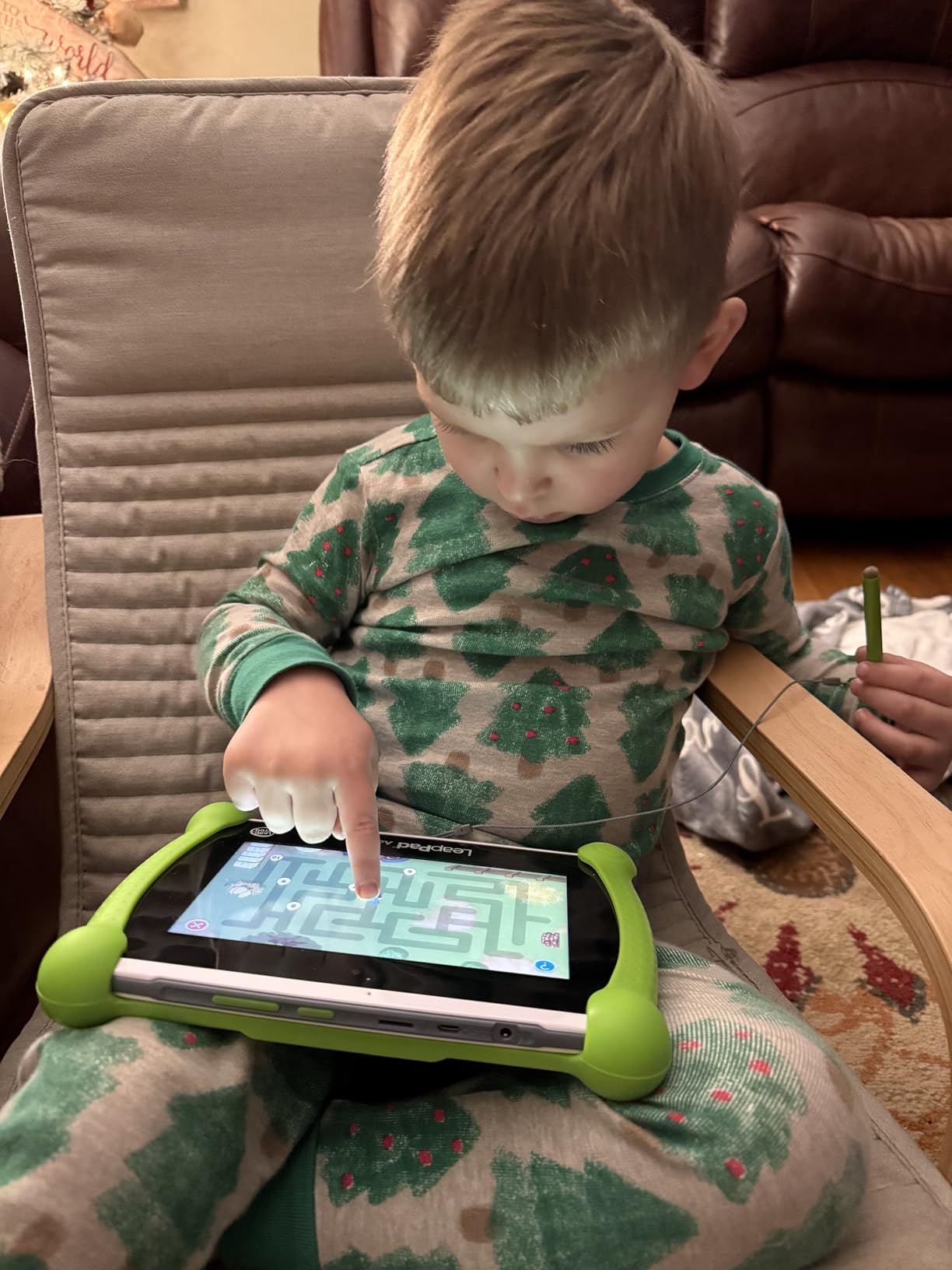
The parental controls here are the tightest on this list. Leap Search returns child-appropriate results, and you approve specific websites rather than filtering a general browser after the fact. Parents in the online-school and homeschooling communities repeatedly ask for exactly this kind of granular control, because a locked-down learning profile is what makes a tablet usable as a school device rather than just a babysitter.
The catch is cost, and it is significant. Most apps and games in the LeapFrog ecosystem are sold separately, and LeapFrog Academy itself is a paid annual subscription. Owners also report occasional freezes and, on some units, charging-port or power-on failures, alongside a battery that some find weak.
Why it suits a child who cannot read yet
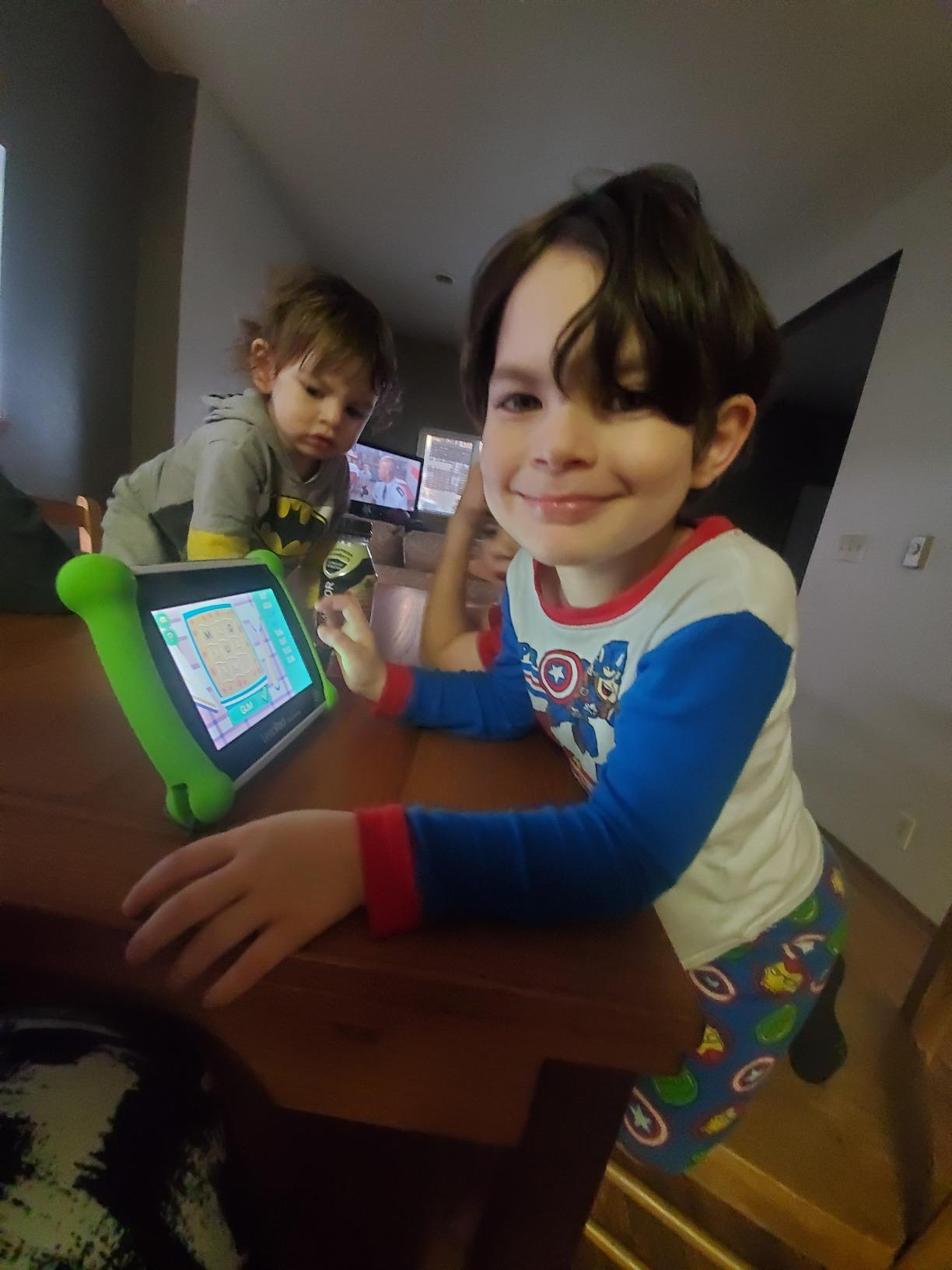
The interface is icon-led and the stylus input makes drawing and tracing the primary interaction rather than a secondary mode. A child who cannot yet read a menu can still work through a lesson, which is not true of an Android tablet with a standard launcher at the same age.
It also grows. A three-year-old uses letter recognition and shapes; a seven-year-old works on arithmetic and early coding in the same interface. For a family that wants one device to carry a child from preschool into the early primary years, that continuity is the reason to accept the subscription cost.
Why parents regret it after a year
Bundle maths carefully. The included content is generous but not unlimited, and the moment a child finishes what ships in the box, the spending decisions start. Families who plan for that from day one are rarely surprised; families who do not describe the same purchase as expensive.
You also cannot install standard Android apps outside the LeapFrog store. If a school issues a Google Classroom account, this tablet will not run it, and that limitation is not fixable with a setting.
4. HOTTABLET 7-Inch Android Kids Tablet – Best Low-Cost Entry Point
- Google Play certification with Netflix support
- Custom kid profiles with screen time limits
- Durable silicone stand case included
- Storage expands to 1TB
- Entry-level processor feels slow on heavier apps
- Small 7-inch 1024x600 screen limits reading comfort
- Kids mode ships with the password 0000
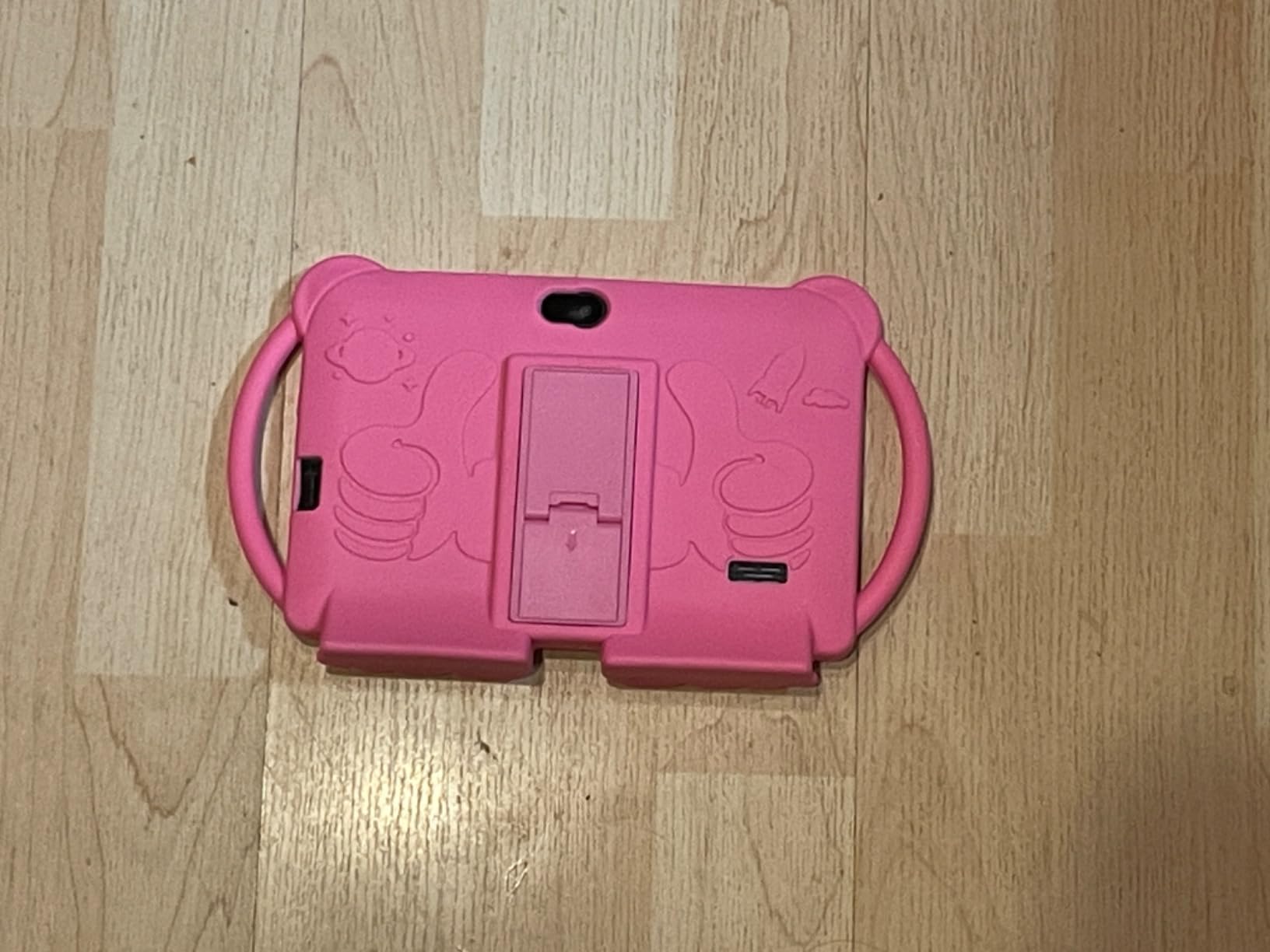
Some families need a first device for a child who is hard on equipment. This is that tablet. It runs Android 12 with a built-in kids mode, is Google Play certified, and supports Netflix through Widevine L1, which puts it ahead of several cheaper alternatives where the streaming apps are crippled.
It has a 7-inch 1024×600 IPS display with an eye-protection mode and 300 nits of brightness, a quad-core ARM Cortex processor, 4 GB of RAM with an expandable portion, and 32 GB of storage that takes a microSD card up to 1TB. A 3000mAh battery gives roughly eight hours of mixed use, and a silicone stand case is in the box.
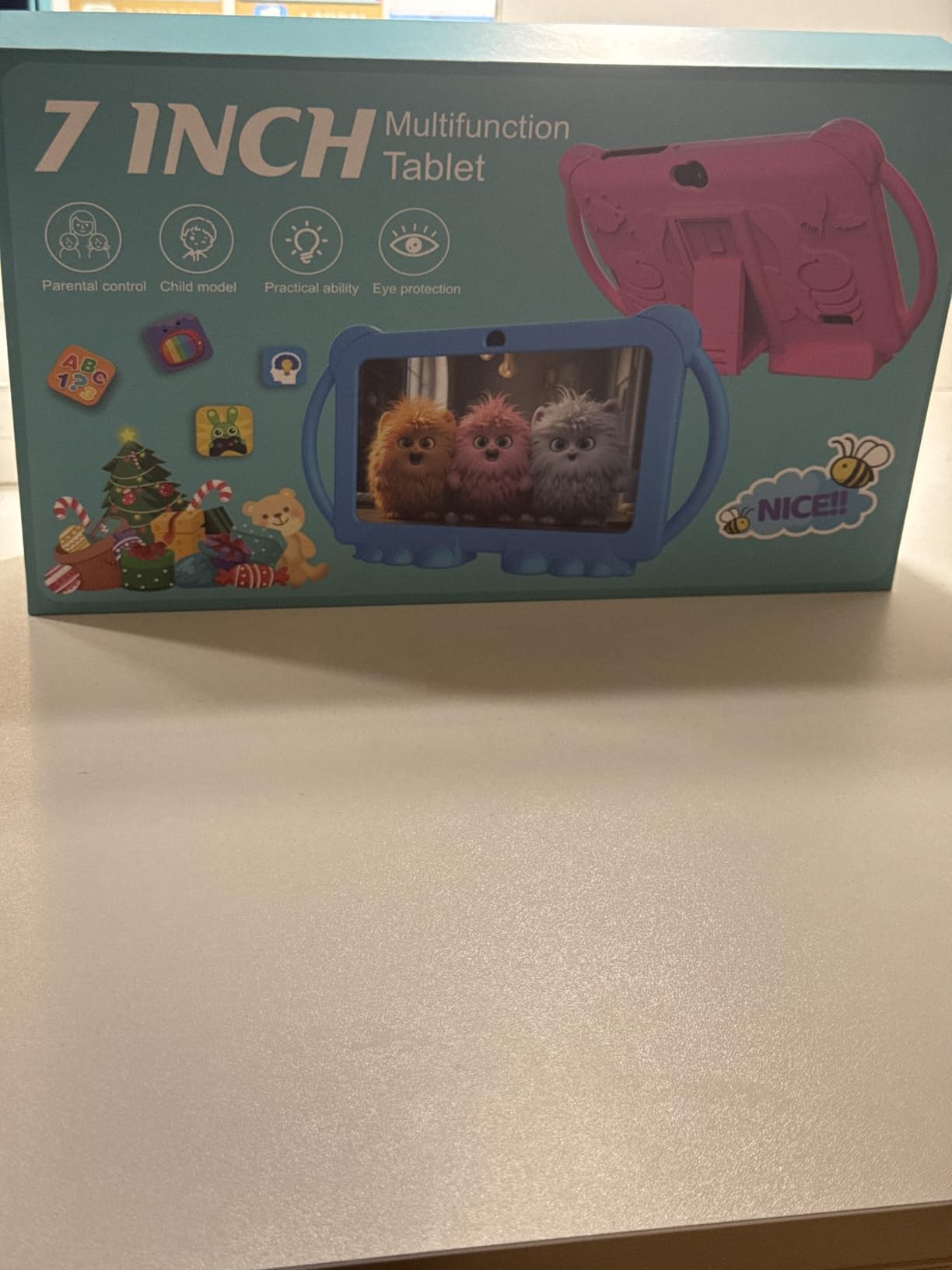
Reviewers consistently point to the same balance: the price, the access to Google Play, and the fact that the stand case is included rather than sold separately. Pre-installed iwawa learning and children TV content gives a working setup on first boot, and the kid profile system supports screen time limits and content filtering rather than a single on-off switch.
Two practical notes. The kids mode ships with a default password, and every reviewer in the feedback mentions changing it immediately, because leaving it as the factory setting defeats the point of the profile entirely. The other is performance: a quad-core entry-level chip is fine for reading and games but struggles with a video call running beside a lesson app.
Why it works as a shared or travel tablet
At 16 ounces with a 365-day warranty, this is a reasonable device to hand to a child in the car or on a long trip, where losing it would not be a major event. The stand case also means it can sit on a table during a video call without a separate prop.
For a child between five and eight doing letter practice and watching a documentary, it covers the job without a subscription. There is no included content package to expire, which for some households removes the ongoing cost entirely.
Why it is a poor choice for a serious learner
The 1024×600 panel is the weak point. It is noticeably softer than the 1280×800 screens on the COLORROOM and TABWEE, and on a reading-focused tablet that difference is visible, particularly for early literacy work where letter shapes have to be distinguishable.
The 2 GB plus expandable RAM configuration is also thin. If the plan involves Google Classroom, video calling and a learning app open at once, a full-size Android tablet will handle the workload far better, and our Android kids tablet comparison breaks down that tier in detail.
5. hahaland 5-Language Learning Tablet Toy – Best for Toddlers Aged 1 to 3
hahaland 5-Language Learning Tablet Toy for Toddler 1-3 with Speech Therapy
- Screen-free play that keeps toddlers engaged on car trips
- Five languages for multilingual households
- Lightweight and light enough to survive drops
- Auto power-off when idle
- Power button sits on the front where toddlers can press it
- Some icon buttons stop responding after a week or two
- Buttons are not labelled in every language
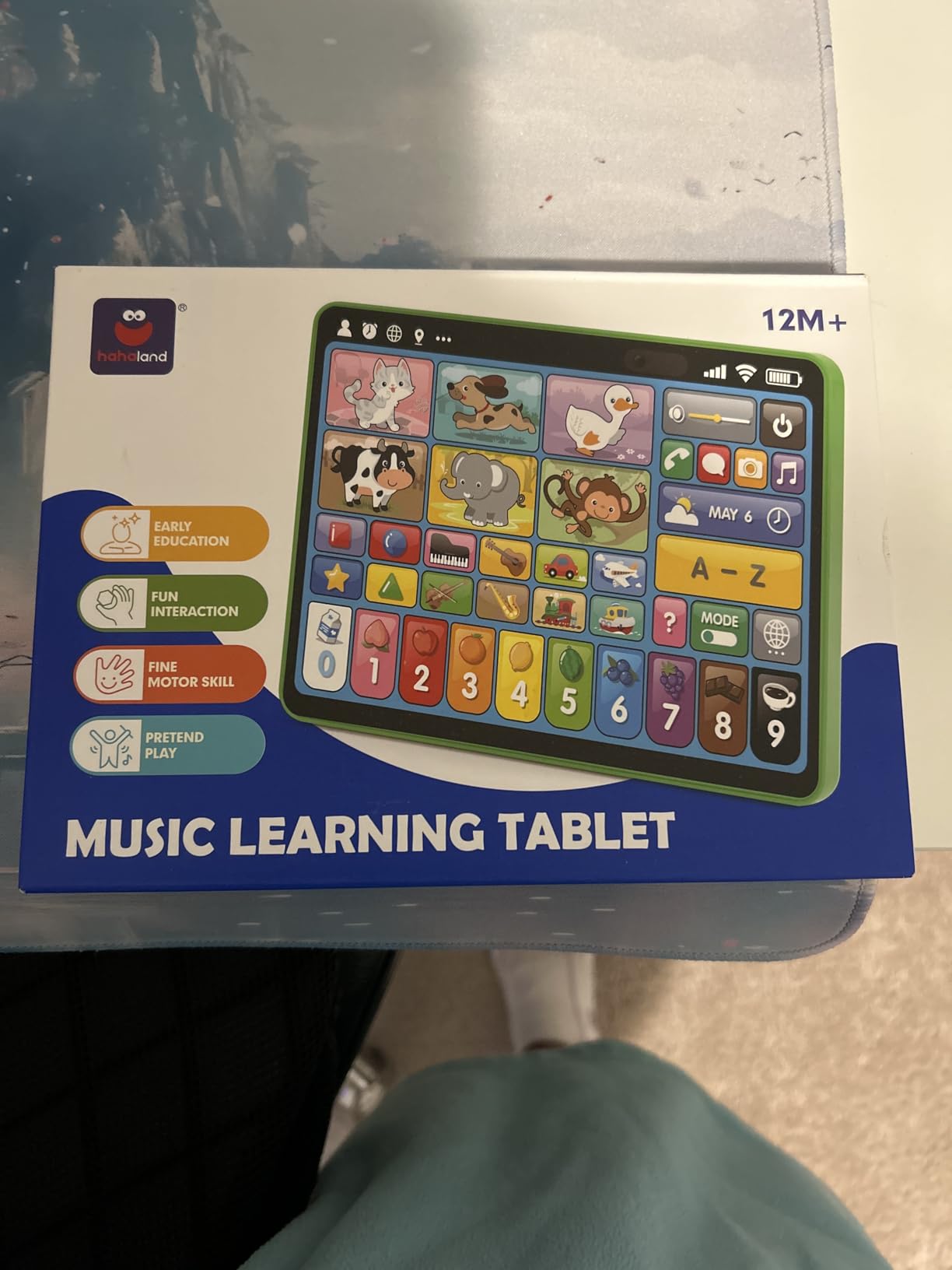
This is the one product here that is not a tablet, and that is the point. It is a plastic learning toy with 39 interactive icons and more than 90 activity modules covering animals, shapes, instruments, vehicles, letters, numbers and colours. There is no screen, no store, no browser and no way to reach anything a parent has not already put on the device.
It supports English, French, Spanish, German and Italian, with four play modes: Learning, Quiz, Music and Pretend Play. The build is non-toxic BPA-free ABS, it runs on batteries so it works anywhere including planes, and it is rated from twelve months upward.
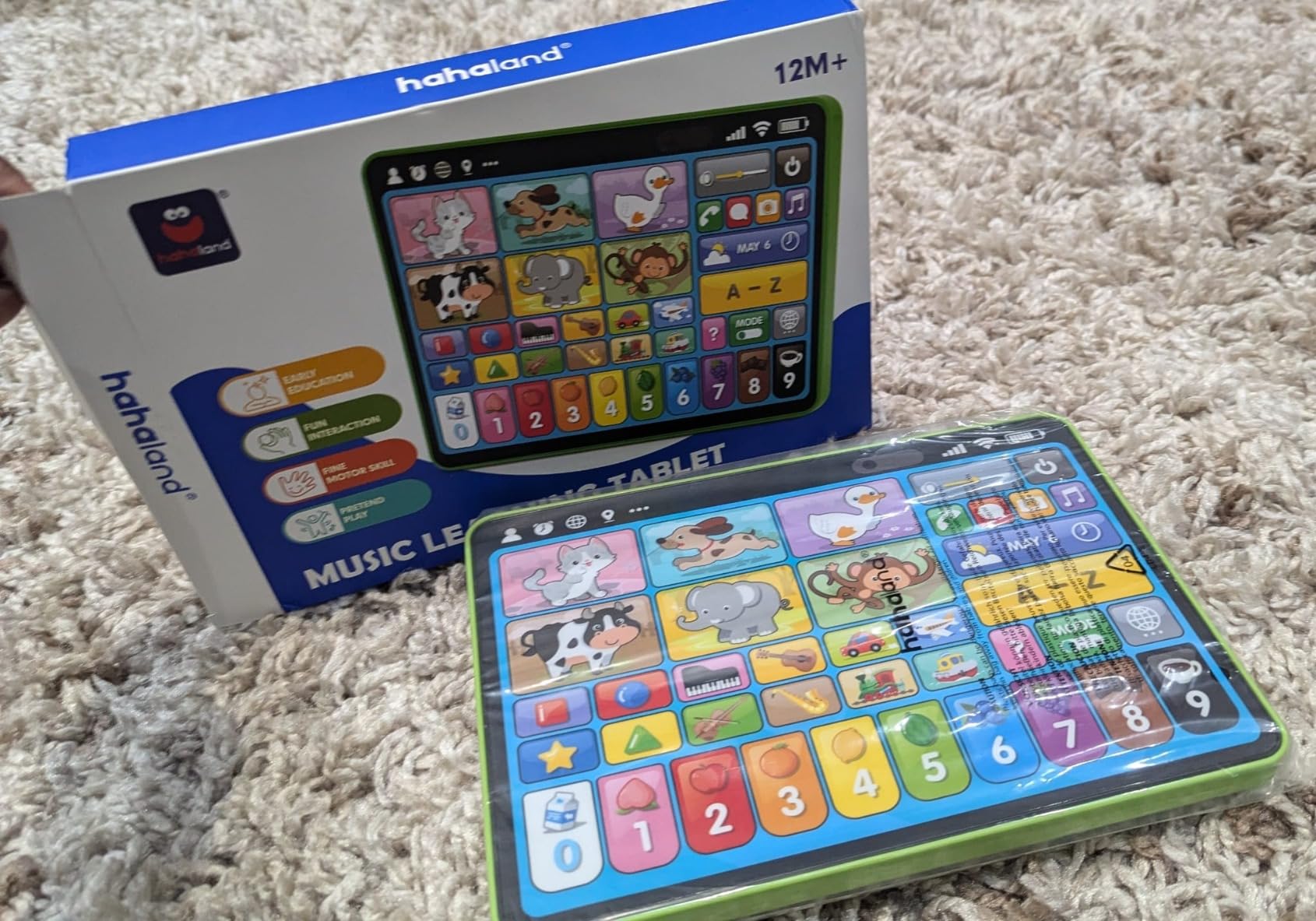
Owners describe it as the thing that survives being thrown in a bag and handed to a child mid-car-journey without a negotiation. The multilingual coverage is repeatedly mentioned as the strongest feature, particularly for families raising children across more than one language, because the same device teaches greetings and vocabulary in all five.
Build quality is functional rather than premium. The power button sits on the front where a toddler can find and press it, some owners report individual icon buttons becoming unresponsive after a week or two, and not every button carries a label in every language, which means some content may go unused.
Why a screen-free toy beats a tablet under three
For a child who is not yet reading, a tablet teaches the wrong skill: swiping to whatever appears next. A device with fixed physical buttons has no wrong path through it, which is why speech and language therapists working with very young children often recommend this format.
It also sidesteps screen-time arguments entirely. Families who want early learning without introducing daily screen habit have an option here that still teaches letters, numbers, shapes and colours in five languages.
Why it stops working at around four
There is no growth path. Content is fixed at purchase, there is no store and no expandable storage, so a child who has worked through every module in a few months has nothing new to move on to. The same limitation means a parent cannot add anything later.
Treat it as a first device rather than a learning tablet. Once a child is ready for structured reading and maths work, the LeapPad Academy or the Fire 7 Kids takes over without losing any momentum.
6. LeapFrog LeapPad Ultimate Ready for School – Best for Kindergarten Readiness
- Large bundle of school-readiness apps included up front
- Just-for-Me adapts difficulty to the child
- Browser limited to educator-approved sites
- Rugged bumper built into the body
- Brio OS is closed to everything except LeapFrog apps
- 1 GB RAM and 8 GB storage limit future content
- About 5 hours of average battery life
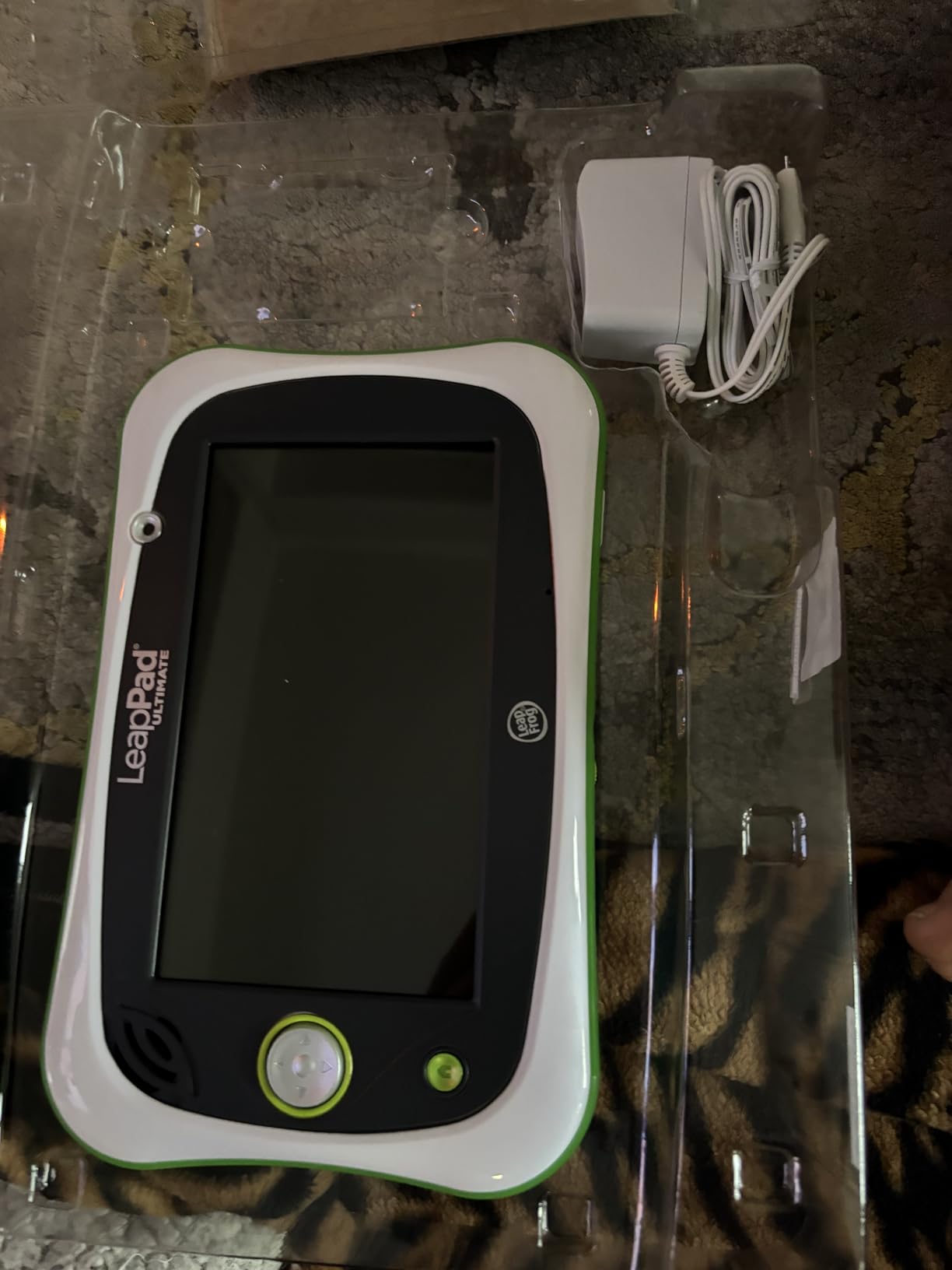
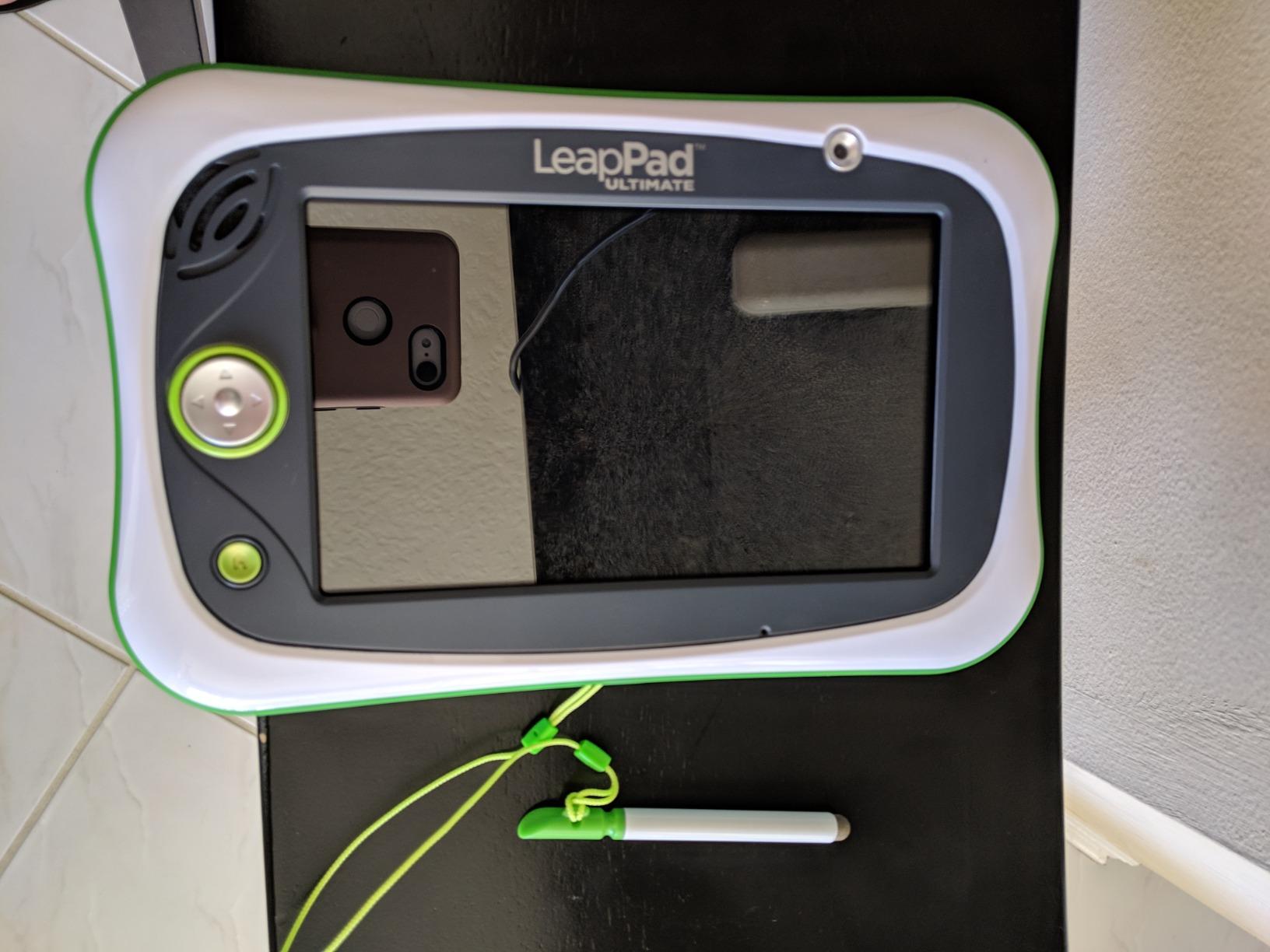
This is the most focused device in the roundup. It is built for ages three to six and does one job: getting a child ready for school. A large bundle of school-readiness apps, alongside reading, music, problem-solving and creativity apps, comes in the box, which removes the argument about what to choose first entirely.
The technical platform is old and it shows. A 1 GHz Allwinner quad-core processor, 1 GB of RAM and 8 GB of storage sit behind a 7-inch multi-touch capacitive shatter-safe display with the bumper built into the body. Front and rear 2 MP cameras, a kid-friendly browser limited to pre-selected educator-approved websites, and a lithium battery averaging around five hours.
What justifies the older hardware is the software design. Just-for-Me adaptive learning adjusts difficulty as a child improves, which is the kind of thing a parent cannot easily replicate with a stack of generic apps. At 4.4 stars, it also holds a stronger rating than the LeapPad Academy in this roundup.
The operating system, Brio OS, is completely closed. Only LeapFrog apps and cartridges run on it, and additional content is sold separately. Owners accept that trade for the safety, but it is a real limit for a child who will move to school in a year or two.
Why it works right before a child starts school
The bundled curriculum is the argument. Rather than a parent assembling reading, number and logic apps over several weekends, the sequencing is already done and the difficulty progression is built in. For a family preparing a child for kindergarten, that is worth more than a faster processor.
It also never exposes a child to the open web. The browser shows a fixed set of approved sites, which is a level of containment no Android tablet in this roundup can match without significant configuration.
Why the hardware will not age well
One gigabyte of RAM and 8 GB of storage is the limit here, and it constrains how much content can be added later. The five-hour battery also means a parent planning a long travel day needs a charger within reach.
Most importantly, there is no route forward. Once a child needs a real keyboard, a stylus, school apps or a screen they can write on at length, this device is finished, and the transition means starting again from scratch on a different platform.
7. LeapFrog My First Learning Tablet – Top Rated for the First Two Years
- Highest-rated model here with more than 18000 reviews
- Covers letters numbers shapes animals and colours
- Light-up sound-reactive design holds attention
- Greetings in French Portuguese and Japanese
- Runs on 3 AAA batteries rather than a rechargeable cell
- Fixed content with no app store or storage expansion
- Toy format rather than a real tablet
At 4.7 stars across more than 18,000 reviews, this is the highest-rated device we reviewed, and the number reflects a pattern of owners reporting the same result: toddlers engage with it immediately. There is no learning curve for a twelve-month-old because every action is a physical button with a light and a sound response.
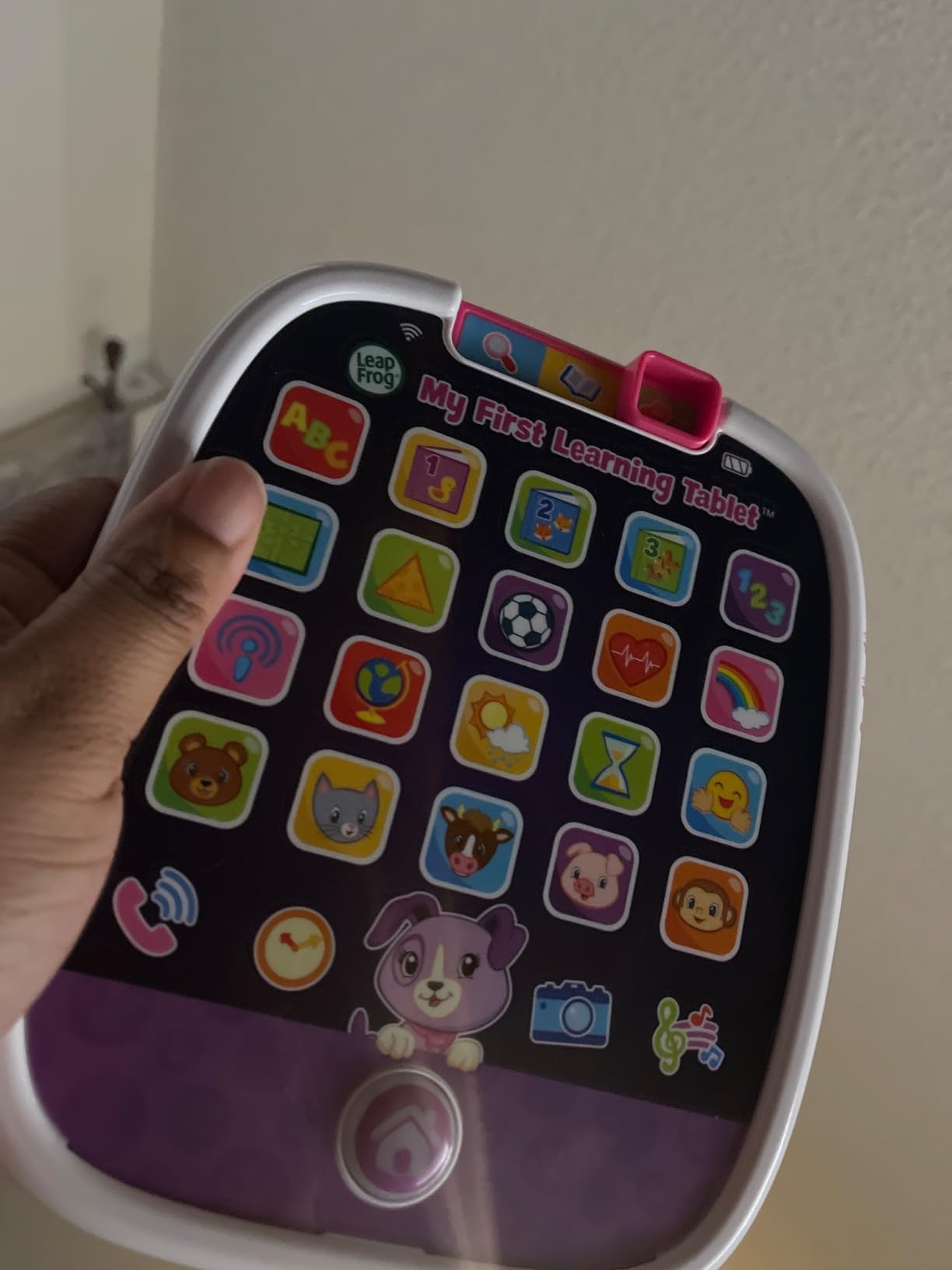
The content covers letters, numbers, shapes, animals, colours, weather, sports and health across Explore, Learn and Music modes, with twenty multicolour light-up icons. There is a camera and music playback, and role-play with Scout and Violet including greetings in French, Portuguese and Japanese, which gives very young children early exposure to more than one language.
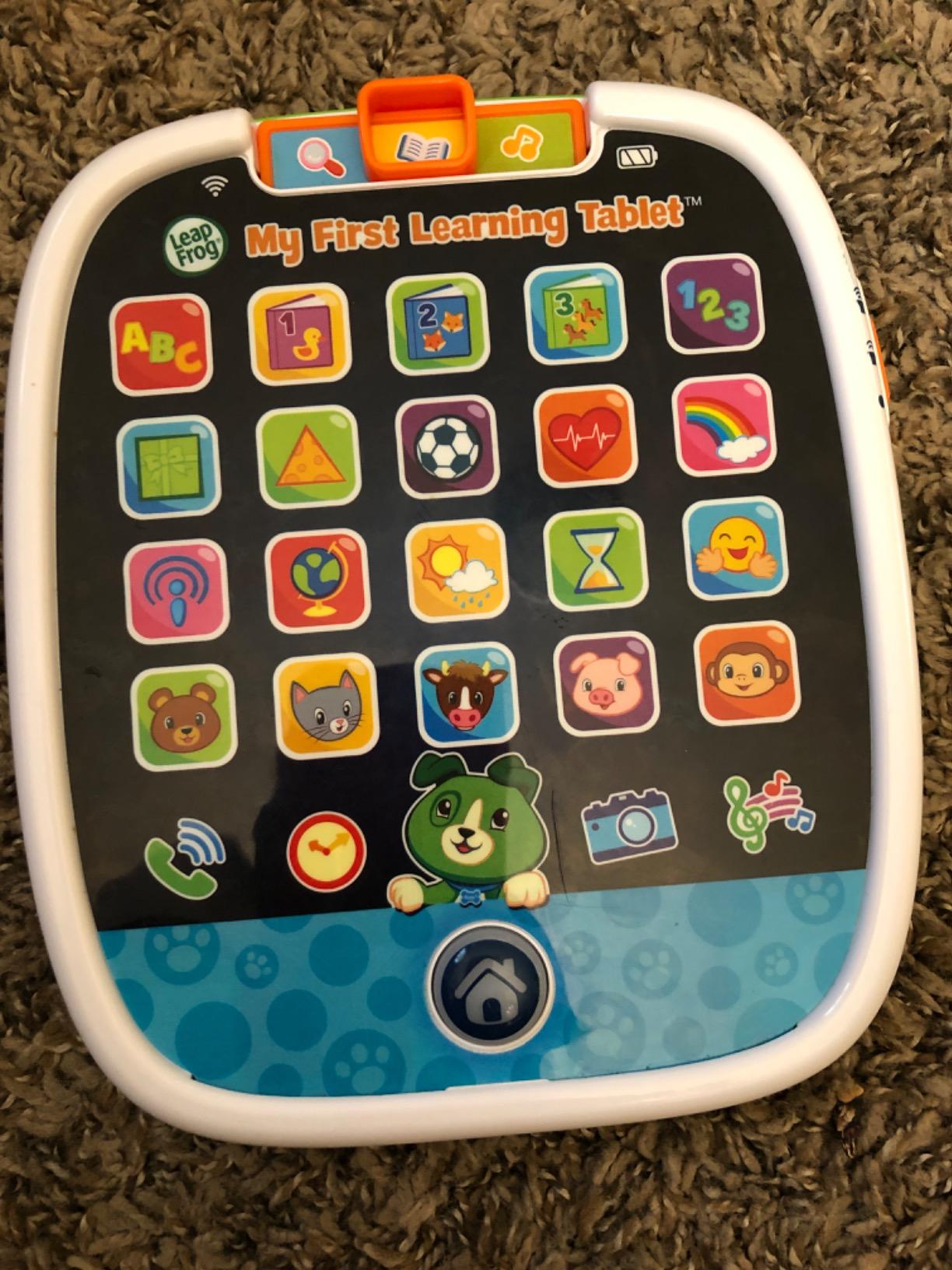
The design is deliberately simple and it works. A home button anchors the interface, and every press produces a light show, so a child who cannot yet read still understands that the device responded. Owners frequently describe it as a first birthday or second birthday present that genuinely holds attention on its own.
There is no subscription, no store and no account, which is a genuine advantage over every other learning device in this roundup. The compromises are the three AAA batteries, a plastic body with a 90-day warranty, and content that is fixed from the moment it is opened.
Why parents rate it highest in this roundup
It does the one thing a learning toy for this age has to do: hold a toddler’s attention without an adult intervening. the light and sound feedback is immediate, and because there is no menu to work through, there is no frustration.
It also never becomes a problem. No screen-time limit is needed, no content can be reached accidentally, and nothing is downloaded. For a family hesitant about devices under three, that is a clean way to start.
Why it is a bridge and not a tablet
There is no growth path whatsoever. No app store, no expandable storage, no way for a parent to add content, and a battery compartment that needs replacing cells rather than a single charge. At roughly 12 ounces it is one of the lightest devices here, which is correct for a toddler and wrong for a school-age child.
Plan it as the first eighteen months of learning, then move to a real tablet once the child is ready for structured work. Buying this expecting a tablet that lasts three years is the most common disappointment owners report.
8. zcobro 7-Inch Kids Tablet – Best for Offline Learning and Multi-Child Homes
- Preloaded offline educational content works without a connection
- Multi-child profiles with app approval
- Protective stand case included in the box
- 2-year warranty and Google Play access
- 2 GB RAM causes lag under heavier use
- Some units stopped working within months
- Warranty support is hard to reach when a unit fails
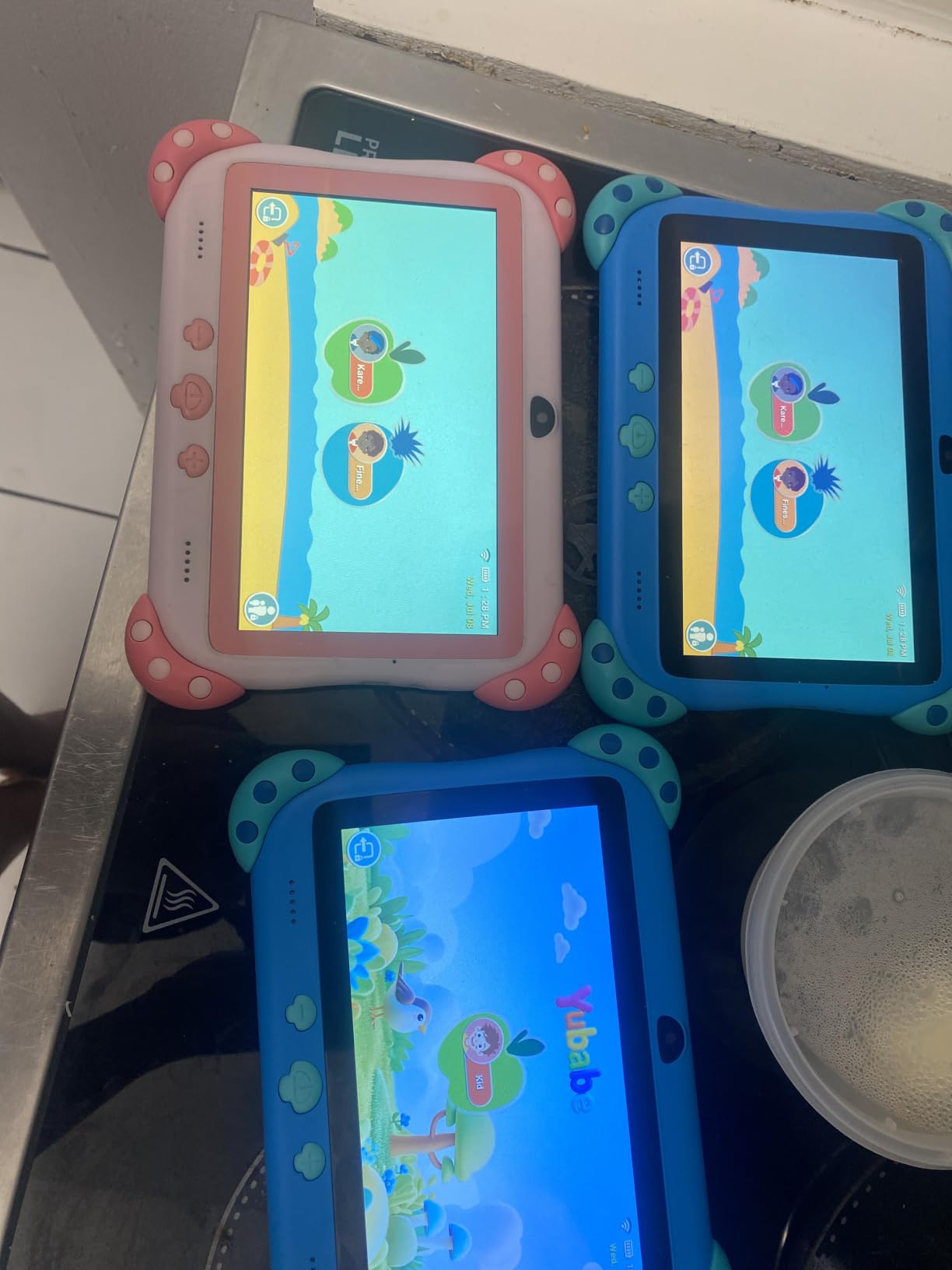
Most kids tablets assume a reliable connection. This one comes with Yubabe educator-endorsed content preloaded for offline use, which is the single feature that separates it from the other budget 7-inch options. For a family with unreliable broadband, a long car journey, or a child who travels regularly, content that works on a plane is genuinely useful rather than a nice-to-have.
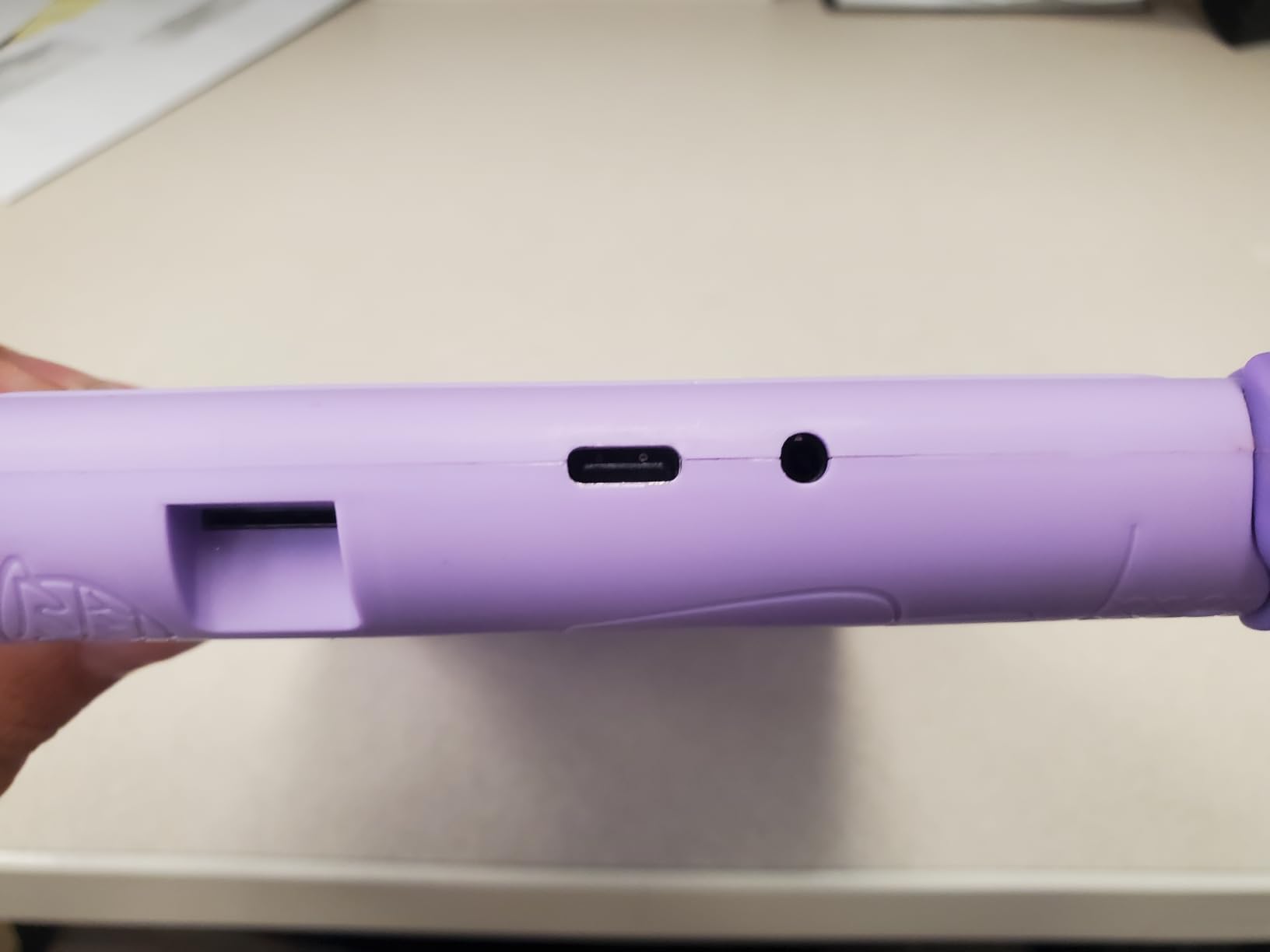
The rest is a competent budget Android tablet. A quad-core processor with 2 GB of RAM, 32 GB of storage expandable to 512 GB, a 7-inch 1024×600 IPS display with low blue light technology and auto brightness, a 3500mAh battery, dual stereo speakers, Wi-Fi 6 and Google Play certification. The silicone bumper case has an adjustable rear stand.
Parental controls are more granular here than the category usually offers. Multi-child profiles mean siblings can have separate settings rather than sharing one account, and app approval lets a parent decide what gets installed rather than blocking categories after the fact. For a family with two or three children on one device, that is the feature that decides the purchase.
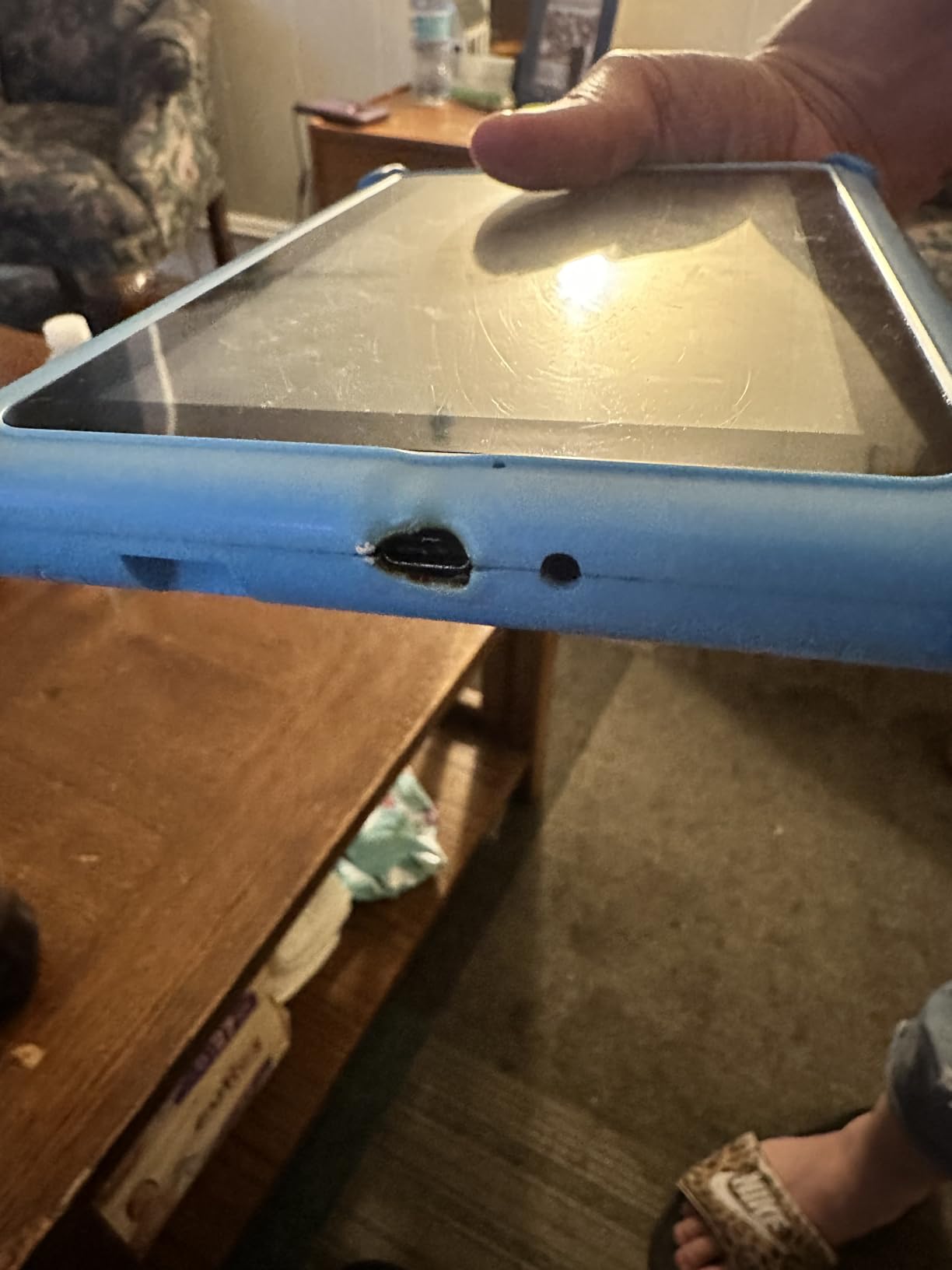
Reliability is the concern, and owners are direct about it. Several report devices that stopped working or would not power on within months, and difficulty reaching warranty support when that happens. The 2 GB of RAM also produces noticeable lag once heavier apps run.
Why offline content changes the decision for some families
Preloaded educational material that does not need a connection removes an entire failure mode. A child on a long drive, on a flight, or in a house with patchy internet still has something structured to work on rather than a home screen that will not load.
Multi-child profiles matter more than most buyers expect. A single shared profile with one time limit cannot serve a five-year-old and a nine-year-old, and setting one up on a generic tablet is manual work this device has already done.
Why we would not build a long-term setup on it
With 2 GB of RAM, an open video call plus a learning app is a realistic scenario on a school day, and that is the exact use case families raise on parenting forums. Expect the tablet to feel slow rather than to fail outright, but slow is enough to frustrate a child mid-lesson.
The support experience adds to the caution. A two-year warranty is only worth what the company honours, and the feedback here suggests the process is not smooth. If you buy it, keep the case on from the first day.
9. YINOCHE 7-Inch Android Kids Tablet – Best for Multilingual Households
- Preloaded IWAWA plus Montessori STEM and art content
- Supports more than 40 languages
- Google Play access for Khan Academy Kids
- Front and rear cameras for video calls
- Lowest-rated model in this roundup at 3.9 stars
- 2 GB RAM and a 1.5 GHz chip make it slow
- Generic 1024x600 LCD panel by current standards
Language support is the reason this tablet earns a place. It handles more than forty languages with offline educational apps, and the preloaded content runs through the IWAWA kids platform alongside Montessori, STEM, art and brain-training material. For a household raising a child across two or three languages, that coverage has no equivalent at this price on any other device here.
It is a GMS-certified Android tablet, so Google Play is available and a family can install Khan Academy Kids or YouTube Kids alongside the bundled material. Storage is 32 GB expandable to 512 GB, the battery is 3500mAh for around eight hours, and front and rear cameras make video calls to family straightforward.
Parental controls include screen time management, website filtering and app controls, which covers the basics a parent needs. The listing also carries a 30-day free exchange, a two-year warranty and lifetime technical support, which is a stronger written commitment than most devices in this tier.
At 3.9 stars it is the lowest-rated model we included, and the 16% share of one-star reviews in the feedback reflects real complaints rather than statistical noise. Two GB of RAM and a 1.5 GHz quad-core Allwinner chip make it slow with several apps open, and the listing itself is inconsistent about which Android version ships.

Why language coverage outweighs the rating for some families
Forty-plus languages with offline apps is a capability the other budget tablets do not have. A child learning two languages at home can move between them without a subscription or a network connection, and that is a genuine advantage no amount of processing power substitutes for.
It is also a documented device. At 3.9 stars with several thousand reviews, the weak spots are already visible rather than a surprise, so you know going in that this is a basic device with an unusually broad content library.
Why the specification list deserves scepticism
The listing describes two different Android versions in different fields, which is a sign that the product data has not been carefully maintained. The 1024×600 LCD panel is the oldest specification in this roundup, and it is visibly softer than the 1280×800 screens on the COLORROOM and TABWEE.
For a child doing daily reading practice, the softness matters. If reading is the primary goal, the best Android tablets for reading comparison covers the alternatives with better panels, and language options can often be added through free apps instead.
10. TABWEE K10 10-Inch Kids Tablet – Best With a Stylus for Ages 8 to 12
- 10-inch 1280x800 anti-glare eye-care display
- 16 GB RAM and 64 GB storage for the size
- Children's stylus pen included in the box
- TPU case with hidden adjustable stand and 4-year warranty
- Listing details conflict on Android version and RAM
- Only 443 reviews so limited long-term data
- Generic LCD panel rather than a higher-grade display
The TABWEE K10 is the pick for a primary or early secondary child who has outgrown a curated toddler interface and needs to write, draw and work through several apps at once. It runs an RK3562 quad-core processor with 16 GB of RAM and 64 GB of storage expandable to 2TB, which is the most memory in this roundup by a wide margin.
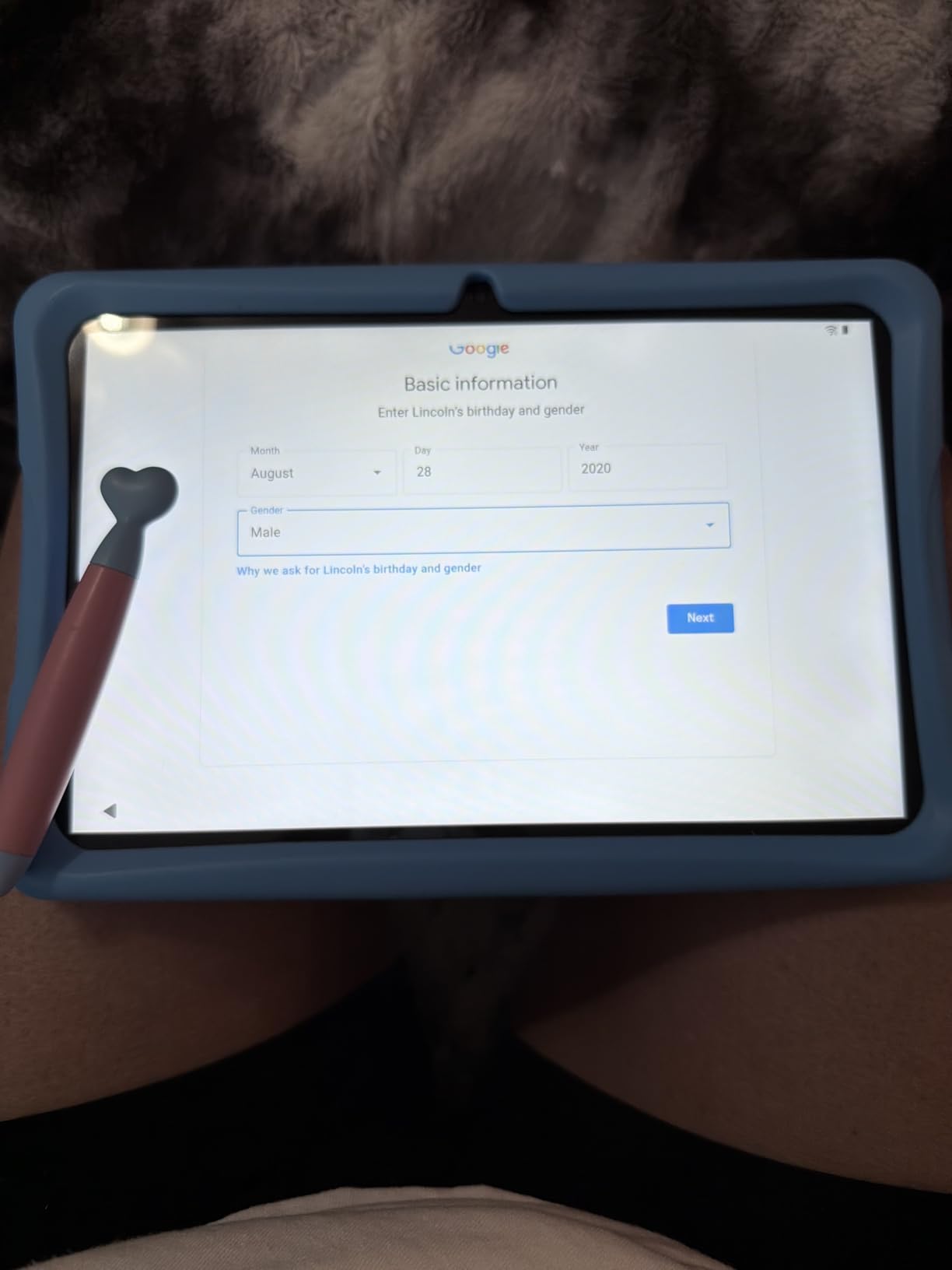
The display is a 10-inch 1280×800 anti-glare LCD with low blue light eye-care technology, and the box includes a children’s crayon stylus pen plus a TPU protective case with a hidden adjustable stand. Parental controls block unsafe sites and cap usage time, and a multi-user mode with a custom launcher and private workspace lets more than one child use it independently.
Including a stylus at this level is unusual and it is the reason this device earns its place. Handwriting practice, drawing and annotating a worksheet are all activities a capacitive screen handles badly without one, and for a child learning to write or working on maths problems by hand, that changes what the tablet is useful for.
The caveats are mostly about confidence in the data. The review base is the smallest here at 443, so there is not yet a long-term reliability picture. Owners also point out that the listing shows 16 GB of RAM in the title and 12 GB in the specification table, and the title and box contents reference different Android versions.
Why the stylus and memory matter at this age
A ten-year-old doing homework needs to write, not just tap. With a stylus in the box, this tablet supports handwritten answers, drawing and annotation, which is exactly the gap that makes generic tablets frustrating for school-age children. Our large drawing tablet guide covers that use case in more depth.
Sixteen gigabytes of RAM also changes behaviour under load. A video call, a browser and a learning app open at once is the normal state of an online school day, and that is a scenario where the 2 GB models in this roundup visibly struggle.
Why the listing inconsistency is worth raising with the seller
Conflicting specifications between the title and the specification table are common on marketplace listings and usually resolve in the child’s favour, but you should confirm what actually ships before relying on a memory figure. The Android version reference matters more, because a child profile depends on it.
With 443 reviews, treat this as an early listing. The hardware configuration on paper is strong for the tier and the four-year warranty is longer than most, but there is not yet the owner history that would let us place it with the same confidence as the Fire or the LeapPads.
How to Choose a Kids Learning Tablet: Nine Criteria Parents Check?
Most parents start by comparing screen size, which is the criterion that matters least. The decisions that actually go wrong are made earlier: buying a device that is too advanced for a child’s age, underestimating the ongoing content cost, and choosing a locked-down system when the child needs a specific app for school. Work through these nine in order and the shortlist usually makes itself.
1. Match the device to the age, not the price
Under three, a screen-free learning toy wins on every measure. Between three and six, a closed platform with a preset curriculum is the right call because a small child cannot work through a general app store on their own. From six to nine, a colour screen with reading and maths apps plus enforced time limits works. Above ten, treat it like a small adult tablet with a child profile, because the child will use it for real work.
The mistake is buying a preschool device for a seven-year-old and then fighting the restrictions every week. If a child is reading chapter books, they need a bigger screen and more storage than a LeapPad offers.
2. Check how hard the child profile actually is
Every tablet here has some form of parental control, and the difference between them is large. LeapFrog devices ship with a browser restricted to a fixed list of approved sites, which is the tightest containment available. Android tablets including the COLORROOM, HOTTABLET, zcobro and YINOCHE give you a standard kids mode that a determined older child can work around. Amazon Fire sits between the two.
Two practical checks. Confirm whether the app store is reachable from the child profile at all, and change any default password immediately, because several budget models ship with a trivial factory setting that defeats the entire profile.
3. Work out the three-year cost, not the purchase cost
The Fire 7 Kids includes a year of Amazon Kids+ and then converts to a monthly charge, and LeapFrog Academy is a paid annual subscription after the trial on both LeapPads. Those costs accumulate quietly across the three or four years a child actually uses a device, which is where a family budget gets surprised.
On the other side of that ledger, the Android tablets and the screen-free toy carry no ongoing content charge, though the app store will eventually lead you to paid subscriptions anyway. Write the recurring cost down next to the purchase decision and the comparison changes shape.
4. Treat durability and warranty as one decision
Dropped screens are the most common hardware failure parents report, and the fix is a combination of a case and a replacement guarantee rather than either one alone. The Fire 7 Kids and both LeapPads include either a built-in bumper or an included case with a two-year worry-free guarantee behind it.
Budget Android models generally include a silicone case but offer a shorter warranty, and the feedback on support quality varies widely. A longer warranty written on a listing is only useful if the company honours it, so treat that claim cautiously unless you find current owner reports to support it.
5. Judge the screen for reading, not for video
For young readers, sharpness and pixel density matter more than size. The 1280×800 panels on the COLORROOM and TABWEE are noticeably better for letter recognition than the 1024×600 screens on the HOTTABLET, zcobro and YINOCHE. Anti-glare or low blue light treatment also helps during evening reading practice.
Screen size follows from the child’s age rather than preference. A seven-inch panel is a two-hand device for a child under six and a cramped one for a ten-year-old doing schoolwork, so check that the weight still works too. The LeapPads at around 1.5 and 1.6 pounds feel very different in small hands from a 12-ounce toy tablet.
6. Check battery against the longest realistic session
Rated figures are measured under light use. The Fire 7 Kids claims up to ten hours, the COLORROOM eight to twelve hours, the HOTTABLET around eight, the LeapPad Academy has a smaller cell that owners describe as weak, and the LeapPad Ultimate averages about five. If your child will use it for a long car journey, plan on a charger rather than trusting the headline number.
7. Prefer expandable storage at 32 GB and below
Storage is the one specification that cannot be upgraded. Anything at 16 GB will feel full once a family loads books, videos and a handful of apps, so either choose 32 GB or above or check that the device takes a microSD card. Every expandable model here reaches at least 512 GB, and several reach 1TB or 2TB.
8. Confirm the app ecosystem before anything else
If your child’s school uses Google Classroom, a specific reading assessment app, or a video calling platform, that requirement overrides every other consideration. Fire tablets and both LeapPads will not run standard Android apps outside their own ecosystems, so they are disqualified for those families regardless of how good the included content is.
Google-certified Android models handle this, though a children’s mode still needs configuring before the first handover. If gaming matters more than coursework, our gaming tablet picks cover that angle.
9. Be cautious with unknown marketplace brands
The shopping results for this category are crowded with unbranded tablets listing identical specifications, generic product photography and thin review histories. Signs worth taking seriously include a rating near four stars or below with a meaningful share of one-star reviews, conflicting details between the title and the specification table, and a warranty claim that is written but not explained.
None of the picks above is a bare white label with no history, but two carry fewer than 1,000 reviews and both are transparent about the gaps. The safest approach with any unknown brand is to keep the case on, change all default passwords on day one, and confirm the warranty terms in writing before you rely on them.
Frequently Asked Questions
What are the best educational tablets for kids?
The best educational tablets for kids in 2026 are the Amazon Fire 7 Kids for most families, the LeapFrog LeapPad Academy for children aged three to eight who need structured curriculum, and the COLORROOM 10-inch tablet for families who need a full Android system with Google Kids Space. The Fire 7 Kids leads on included ad-free content, a kid-proof case and a two-year worry-free guarantee, while the LeapPad offers the deepest preloaded learning apps and the tightest browsing controls.
What is the best tablet for kids to study on?
For schoolwork, the best tablet for kids to study on is one that runs real Android apps and has a screen big enough to work on. The COLORROOM 10-inch Android 15 tablet and the TABWEE K10 both meet that standard, with 1280×800 displays, enough RAM for a video call running beside a learning app, and parental controls that cap usage time. The Fire 7 Kids is adequate for ages six to nine but its 7-inch screen becomes cramped for older students.
What is the best tablet for helping a child learn to read?
For learning to read, screen sharpness matters more than screen size. The COLORROOM and TABWEE 10-inch tablets use 1280×800 panels with anti-blue-light or anti-glare treatment, which makes letter shapes easier to distinguish during reading practice than the 1024×600 screens on cheaper 7-inch models. Free reading apps such as Reading Eggs and Khan Academy Kids work on any Google-certified Android tablet, while the Fire 7 Kids supports them through its own content library.
Which tablet is best for online learning or homeschooling?
For online learning and homeschooling, a Google-certified Android tablet is the practical choice because it can run Google Classroom, video calling apps and a parent’s preferred curriculum software. The COLORROOM 10-inch Android 15 tablet and the HOTTABLET 7-inch model are both Google Play certified. Fire tablets and LeapPads run curated child platforms instead and cannot install standard Android apps, so they suit younger children more than school-age students.
How much screen time should a child have each day?
Set a limit that fits your family’s routine and configure it in the parent dashboard on day one rather than negotiating later. The American Academy of Pediatrics publishes age-based screen-time guidance that many households adopt as a household rule. Every tablet reviewed here supports enforceable parent-side time limits, and the LeapFrog devices add the tightest content containment for younger children who cannot yet be trusted to stop on their own.
Our Final Verdict on the Best Kids Tablets for Learning
The best kids tablets for learning in 2026 come down to age. The Amazon Fire 7 Kids is the default recommendation because it combines the deepest review history in the category with a kid-proof case, a year of ad-free content and a two-year worry-free guarantee, which is the combination that survives contact with an actual child. Under three, start with the LeapFrog My First Learning Tablet, which needs no setup, no account and no supervision. Between three and six, the LeapPad Ultimate Ready for School and the LeapPad Academy give real curriculum in a sealed environment. From six upward, the COLORROOM 10-inch is the better long-term answer because it runs full Android and will not need replacing at the moment a child starts needing school apps.
Whichever you pick, set up the parent profile, change any default password and decide on the content subscription before the device leaves the box. Those twenty minutes of setup determine whether the tablet gets used for learning or becomes a tablet the child fights. If you are still weighing a full-size option, the best Android tablets for kids and Android tablets for reading guides cover the next step up in detail.