
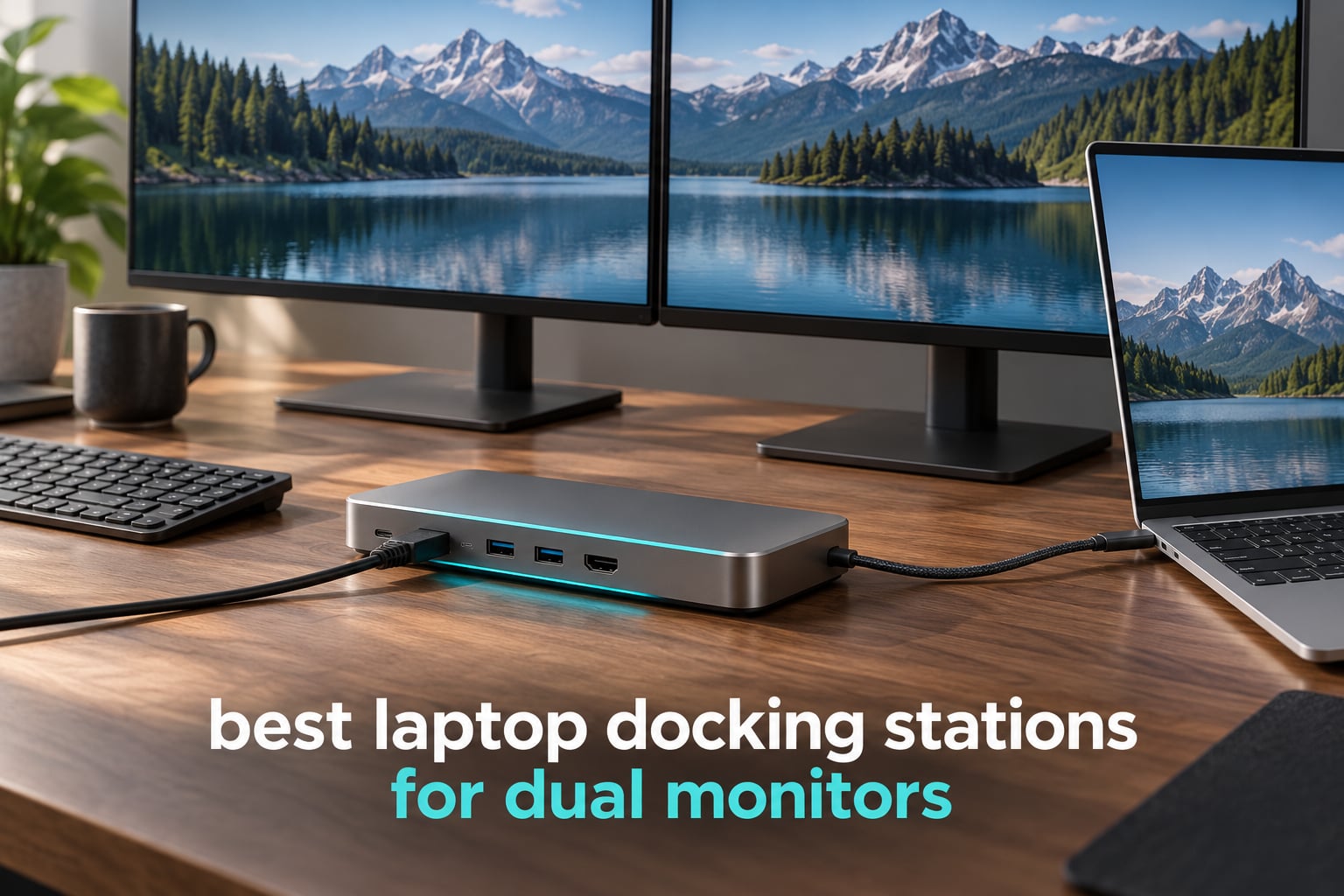
A laptop docking station turns a two-port ultrabook into a full desk workstation with one cable. You plug a single USB-C or Thunderbolt line into the side of the machine, and suddenly two monitors, wired Ethernet, a card reader, a keyboard and a charger all hang off the same box. For most people building a two-screen setup in 2026, that is the entire pitch: one cable, one desk, no guessing which charger goes with which laptop.
There is one catch that catches almost everybody out. A standard USB-C port with DisplayPort Alt Mode drives one or two external displays natively, which is fine on Windows, but a base-model M-series MacBook mirrors the second screen instead of extending it. On a MacBook Air or a MacBook Pro with a standard chip, a plain USB-C dock will show the same picture on both external monitors. The fix is either a dock with two truly native video paths or a DisplayLink dock that runs a small software driver. Every pick below is labelled for which of the two it is, and the WAVLINK is the only one here that gives a Mac genuine extended dual 4K@60Hz.
We spent weeks moving between these twelve docks on a mix of Windows and Mac laptops, reading long-term owner reports, and comparing the numbers that actually decide a two-monitor purchase: per-output resolution, refresh rate, delivered charging wattage and whether macOS extends or mirrors. If you want the wider background first, our general guide to docking stations for laptops covers the basics, and the laptop backpack roundup is worth a look if the dock travels with you.
Table of Contents
Top 3 Best Laptop Docking Stations for Dual Monitors (October 2026)

WAVLINK DisplayLink Dual 4K Dock
- DisplayLink dual 4K@60Hz
- 2x HDMI and 2x DisplayPort
- 6x USB-A

The Anker is our winner because it does the boring things right: two HDMI ports, three years of owner reports, 85W of pass-through charging and a body small enough to live in a laptop bag. If your laptop is a Mac that refuses to extend to a second screen, skip to the WAVLINK, which uses DisplayLink to force two real 4K@60Hz outputs. If you want dual 4K@60Hz on Windows for as little money as possible, the Selore covers the same ground with fewer ports.
Every Dock We Tested at a Glance in 2026
| Product | Specifications | Action |
|---|---|---|
| Anker 8-in-1 USB-C Dock |
|
Check Latest Price |
| Selore Dual HDMI USB-C Dock |
|
Check Latest Price |
 Plugable Universal Dual HDMI Dock Plugable Universal Dual HDMI Dock |
|
Check Latest Price |
 MOKiN 14-in-1 Dock MOKiN 14-in-1 Dock |
|
Check Latest Price |
 MOKiN 13-in-1 with 160W Power MOKiN 13-in-1 with 160W Power |
|
Check Latest Price |
 HODO 8-in-1 Multi-Display Dock HODO 8-in-1 Multi-Display Dock |
|
Check Latest Price |
 UGREEN 7-in-1 Aluminum Dock UGREEN 7-in-1 Aluminum Dock |
|
Check Latest Price |
 Acer 9-in-1 USB-C Dock Acer 9-in-1 USB-C Dock |
|
Check Latest Price |
 VVB 14-in-1 Dock VVB 14-in-1 Dock |
|
Check Latest Price |
 ABIWAZY 15-in-1 Dock ABIWAZY 15-in-1 Dock |
|
Check Latest Price |
| WAVLINK DisplayLink Dual 4K Dock |
|
Check Latest Price |
 LIONWEI 13-in-1 Dock LIONWEI 13-in-1 Dock |
|
Check Latest Price |
Every dock in the table ships with a USB-C host cable, and all of them run on Windows 10 and 11. The column that matters most is not in the table: nine of the twelve mirror on macOS rather than extending. We call that out under every review, because it is the difference between a dock that works for you and a dock that looks broken.
1. Anker 8-in-1 USB-C Dock — Best Overall for Dual Monitors
Anker Laptop Docking Station Dual Monitor, 8-in-1 USB C Hub with 4K HDMI
- Huge base of long-term owner reports across three-plus years
- Compact and light at 3.2 ounces so it travels in a laptop bag
- Single-cable expansion with HDMI
- Ethernet
- card reader and 85W pass-through charging
- Plug-and-play with no drivers
- Dual-display mode caps at 4K@30Hz per screen
- macOS shows mirrored content on both external monitors
- A 100W PD wall charger is not included
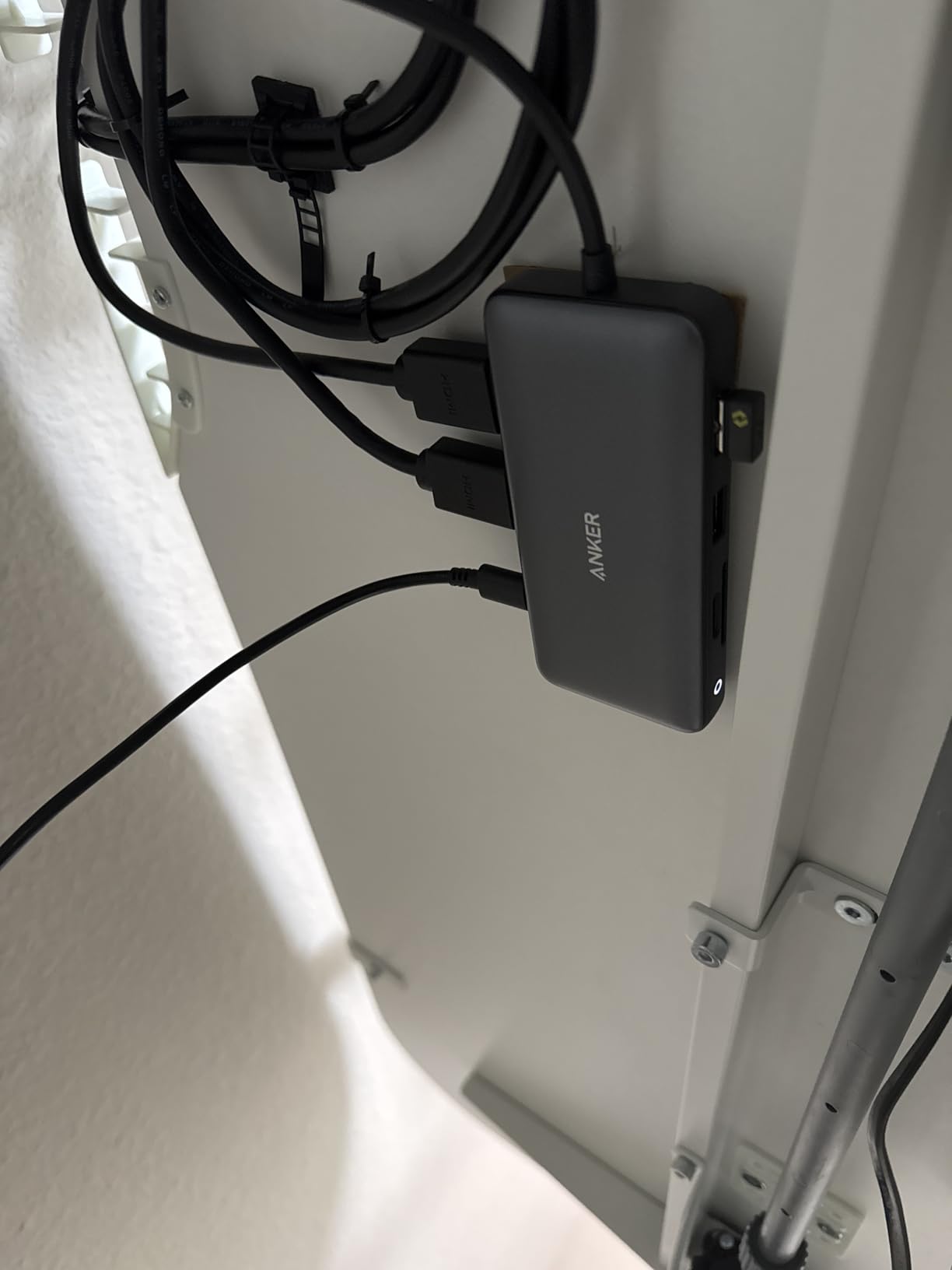
This is the dock I keep reaching for. It weighs 3.2 ounces, measures about 4.65 inches long, and gives you two HDMI ports, two USB-A data ports, a 1Gbps Ethernet jack and an SD plus microSD reader. For a two-monitor Windows desk it does everything the job asks and adds the peripherals you would otherwise cable separately.
The honest limit is refresh rate. One screen reaches 4K@60Hz, but running both HDMI ports at once drops each to 4K@30Hz. That is perfectly fine for documents, code, spreadsheets and two windows of browser, and it is not fine for a high-refresh gaming panel.
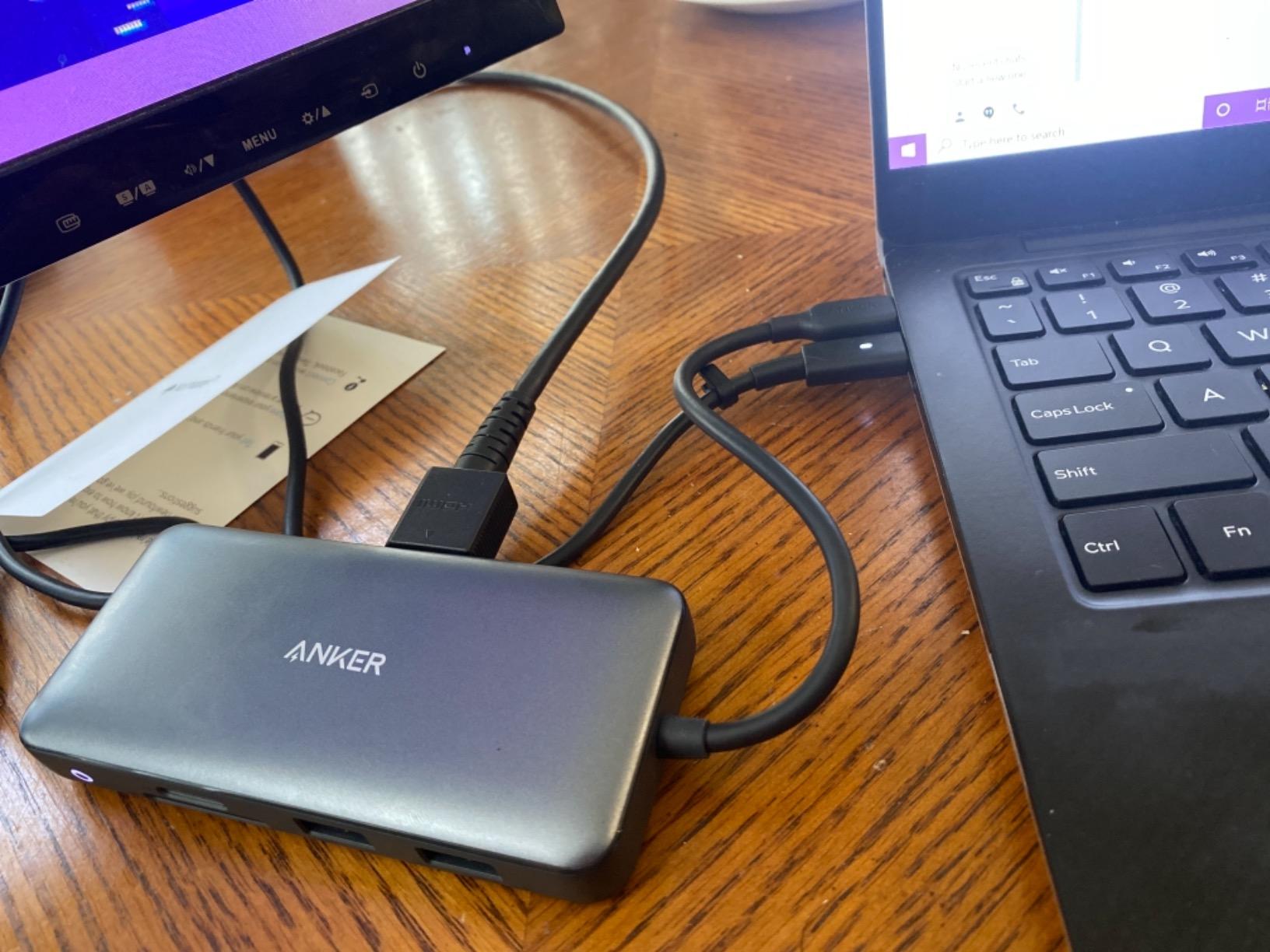
Charging is the part people misread. The dock passes through up to 85W, but it does not ship a wall charger, so you need your own 100W USB-C brick and a C-to-C cable. Buy the 65W charger that came with the laptop and pass-through charging simply will not engage. Once paired with a 100W supply, the cable handles video, data and power at once and the desk stays genuinely single-cable.
What makes this the winner is not the spec sheet, it is the volume of long-term owner reports. Across more than 35,000 reviews the recurring theme is durability, with many people describing three or more years of daily service. Reviewers do report that it can run warm during extended heavy use, and the card reader speed is modest, but neither has caused widespread failure.
Does it extend or mirror on a MacBook?
It mirrors. On macOS both external monitors display identical content, which is the behaviour of every native Alt Mode dock in this roundup. Windows users get true extended dual-screen from the same box, and ChromeOS works as well. Linux is listed as unsupported, so if your daily driver is anything other than Windows or macOS, keep looking.
How much charging headroom do you get?
85W of pass-through is enough for a thin-and-light laptop running two external displays, and it will charge a 14-inch performance machine at a reasonable rate. It is not enough for a large workstation that is also charging through a second brick. Budget for a 100W charger in your purchase, because none is included.
2. Selore Dual HDMI USB-C Dock — Best Budget Pick for Two 4K Screens
- Dual 4K@60Hz output on both HDMI ports at a low price
- Windows extends the desktop across both screens
- 100W PD pass-through frees a laptop port
- Aluminum body and a two-year replacement warranty
- macOS mirrors and cannot extend to two displays
- Power adapter and charging cable are not included
- Adapter body blocks both USB-C ports on some laptops
This is the most affordable way I have found to get two genuine 4K@60Hz monitors out of a single USB-C cable. Both HDMI ports run at 4K@60Hz on Windows using MST, and the aluminum body is a step up in feel from the plastic dongles at this level. More than 22,000 reviews give it one of the strongest track records in the roundup.
It is also the first place to check the macOS warning. macOS supports mirroring only, so two Mac displays show the same image. The second USB-C port is data-only, which is easy to miss when you are plugging in a drive and expect video.
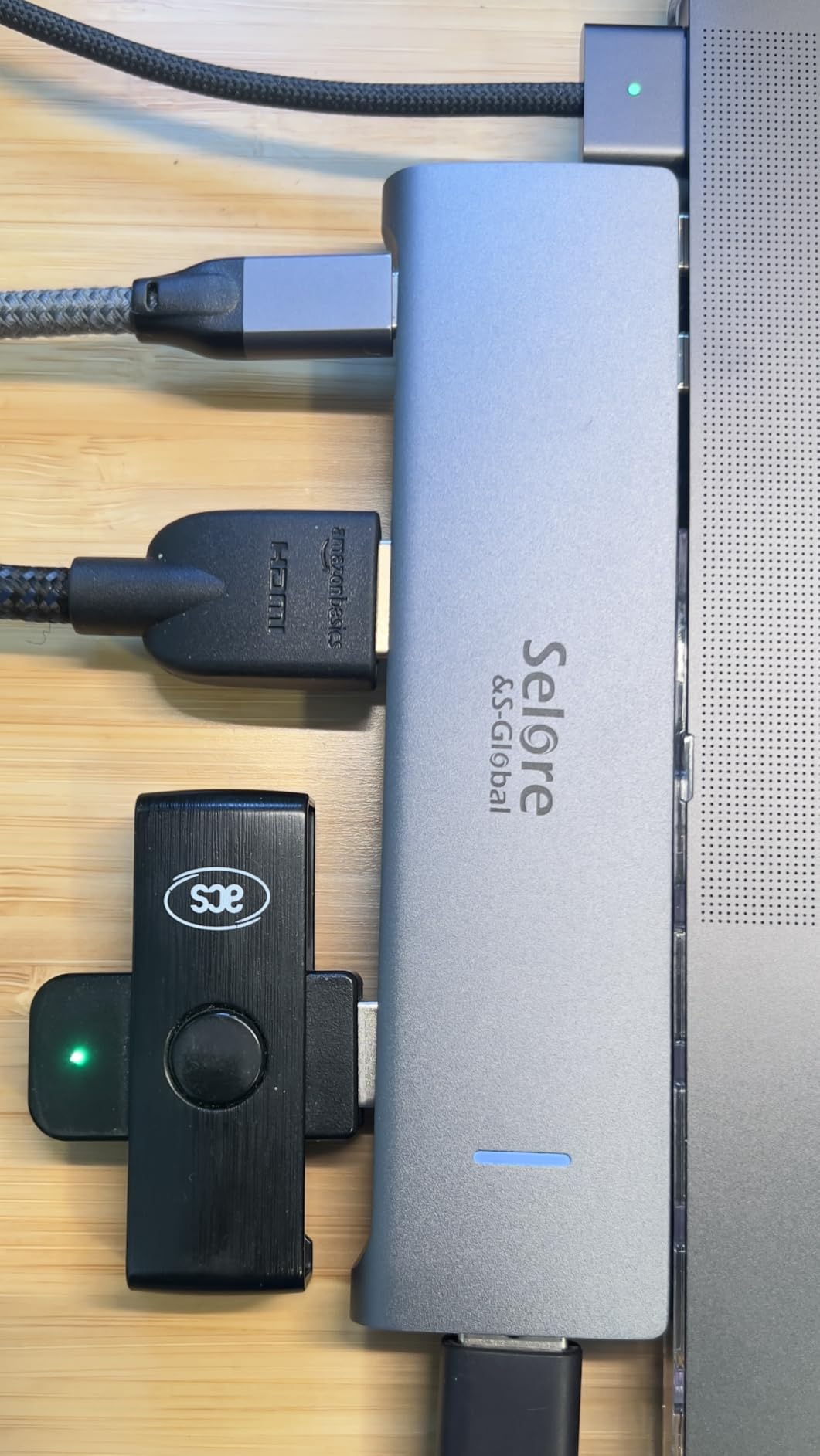
Form factor is the practical issue. The dongle body can physically block both USB-C ports on a thin laptop, and owners using a MacBook case report conflict with the case itself. Owners also report occasional signal drop-outs after sustained heavy use with several displays and peripherals attached, so for a desk that runs eight hours a day of video calls, a boxed dock with its own weight sits more securely.
Nothing in the box. You need your own power adapter and charging cable to use the 100W PD input, and the dock itself is the only thing that arrives. Budget for that before you compare it against docks that bundle a brick.

Is dual 4K@60Hz real or just marketing?
Real on Windows. Both HDMI outputs reach 4K@60Hz simultaneously through MST, which is unusual at this price. Your laptop port must be a full-featured USB-C port or a Thunderbolt port, because a plain charge-only USB-C port cannot carry video at all.
Is it worth stepping up a tier?
Yes, if you need Ethernet, a card reader or more than three USB ports. There is no Ethernet here and no headphone jack, so a second monitor plus a wired network means two cables. If dual 4K@60Hz on Windows is your only requirement, this is the value pick.
3. Plugable Universal Dual HDMI Dock — Best Proven Enterprise Workhorse
- Large port count with 6 USB ports and Gigabit Ethernet
- Stable dual-monitor operation from a single cable
- Two-year warranty with lifetime US-based support
- Hybrid USB 3.0 and USB-C host cable included
- Maximum dual resolution is 1920x1200 with no 4K
- Does not charge the host laptop
- macOS needs a manual DisplayLink driver install
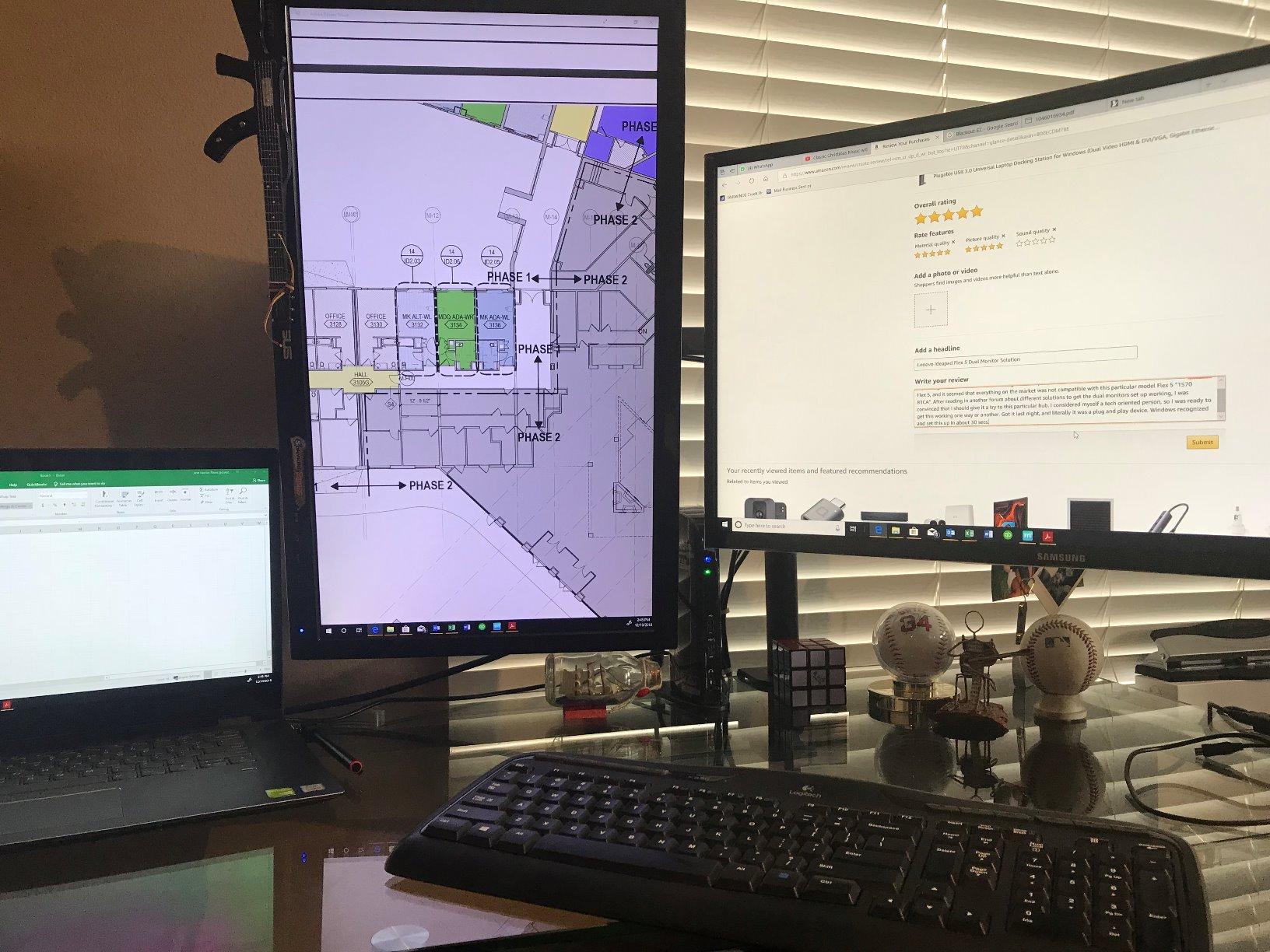
The Plugable UD-3900 is not the dock for a 4K desk. It is the dock for an office where reliability outranks pixel count. Twelve ports, six USB ports, Gigabit Ethernet, and separate headphone and microphone jacks, all driven by a hybrid USB 3.0 and USB-C host cable that plugs into older and newer laptops alike.
The resolution ceiling is the whole story. Two monitors run at 1920×1200 at 60Hz with a driver required, a single HDMI output reaches 2560×1440 at 50Hz, and 4K is not supported at all. There is no HDCP either, so protected streaming content will not display.

It is also a DisplayLink design, which cuts both ways. On Windows 10 and 11 it is plug-and-play, on ChromeOS 100 or later you install the driver, and on macOS 14 or later you install it manually. The driver is the bridge that allows two extended screens from a single stream, and the same driver has to survive macOS and Windows updates. Support teams in the r/sysadmin threads we read describe fleets moving through several dock generations and prioritising exactly this kind of longevity.
The dock does not charge the host laptop at all, so it lives next to your charger rather than replacing it. At 13 ounces and 7.7 inches tall it is also the bulkiest unit here, which is fine under a monitor riser and awkward in a laptop bag.
Who should actually buy this?
Anyone running two 1080p or 1200p monitors in an office, a lab or a shared hot desk, and any IT team that wants one dock across a mixed fleet. The two-year parts and labour warranty with lifetime support is a real advantage when a hundred machines share one model.
When should you skip it?
Skip it for 4K panels, for any Mac user who does not want to install a driver, and for anyone who expects the dock to power the laptop. It also has no HDCP, so streaming services that protect their output will simply refuse to play.
4. MOKiN 14-in-1 Dock — Best Mix of HDMI and DisplayPort Outputs
MOKiN Laptop Docking Station Dual Monitor 4K HDMI USB C Hub for Dell/HP/Mac
- Four video outputs give real choice when matching monitor connectors
- Two monitors extend simultaneously on Windows
- Wired Gigabit Ethernet and 100W laptop charging in one unit
- Privacy lock button cuts video and data at the hardware level
- Extended output limited to two displays outside mirror mode
- macOS has limited extended support for the extra outputs
- Power adapter is not included
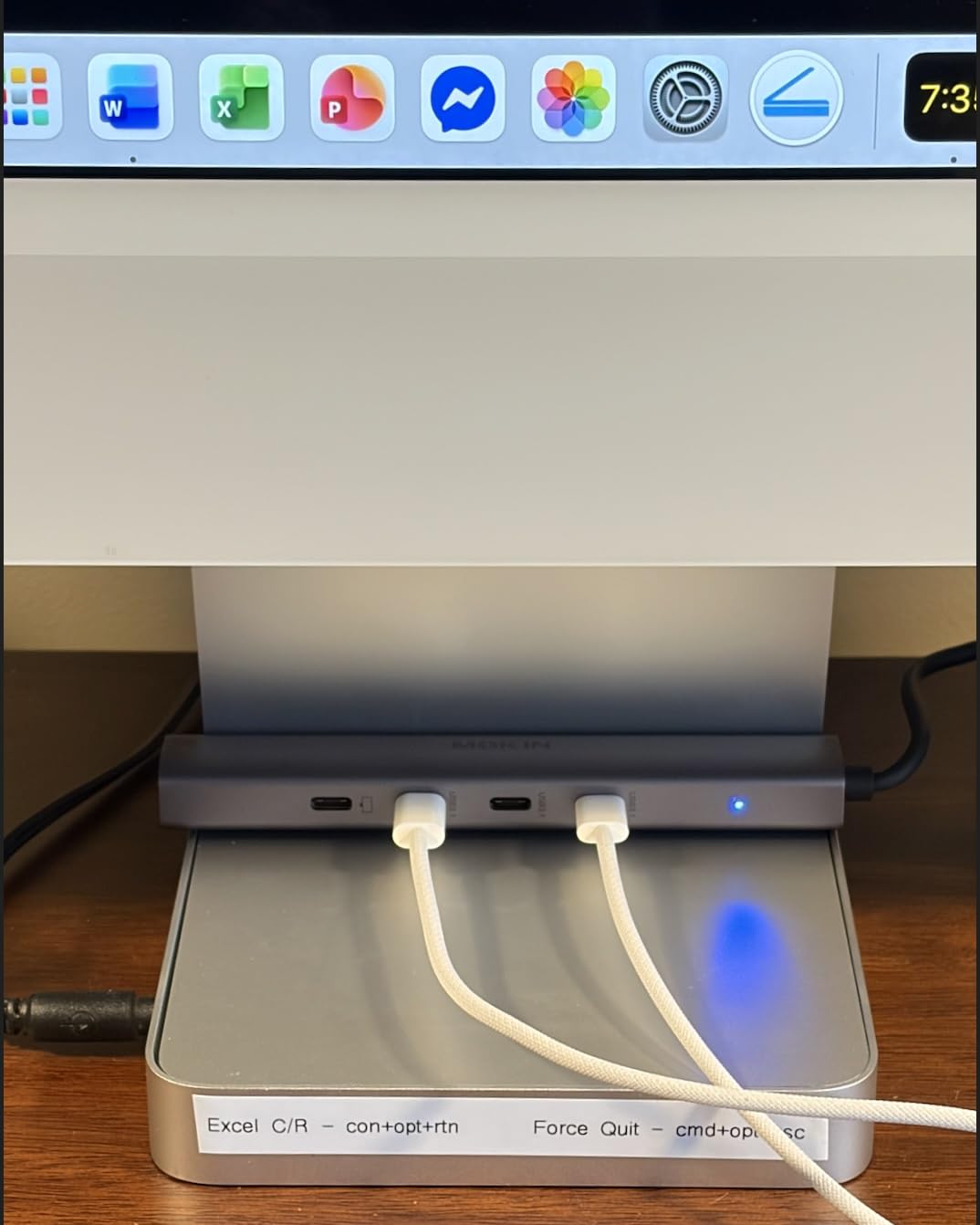
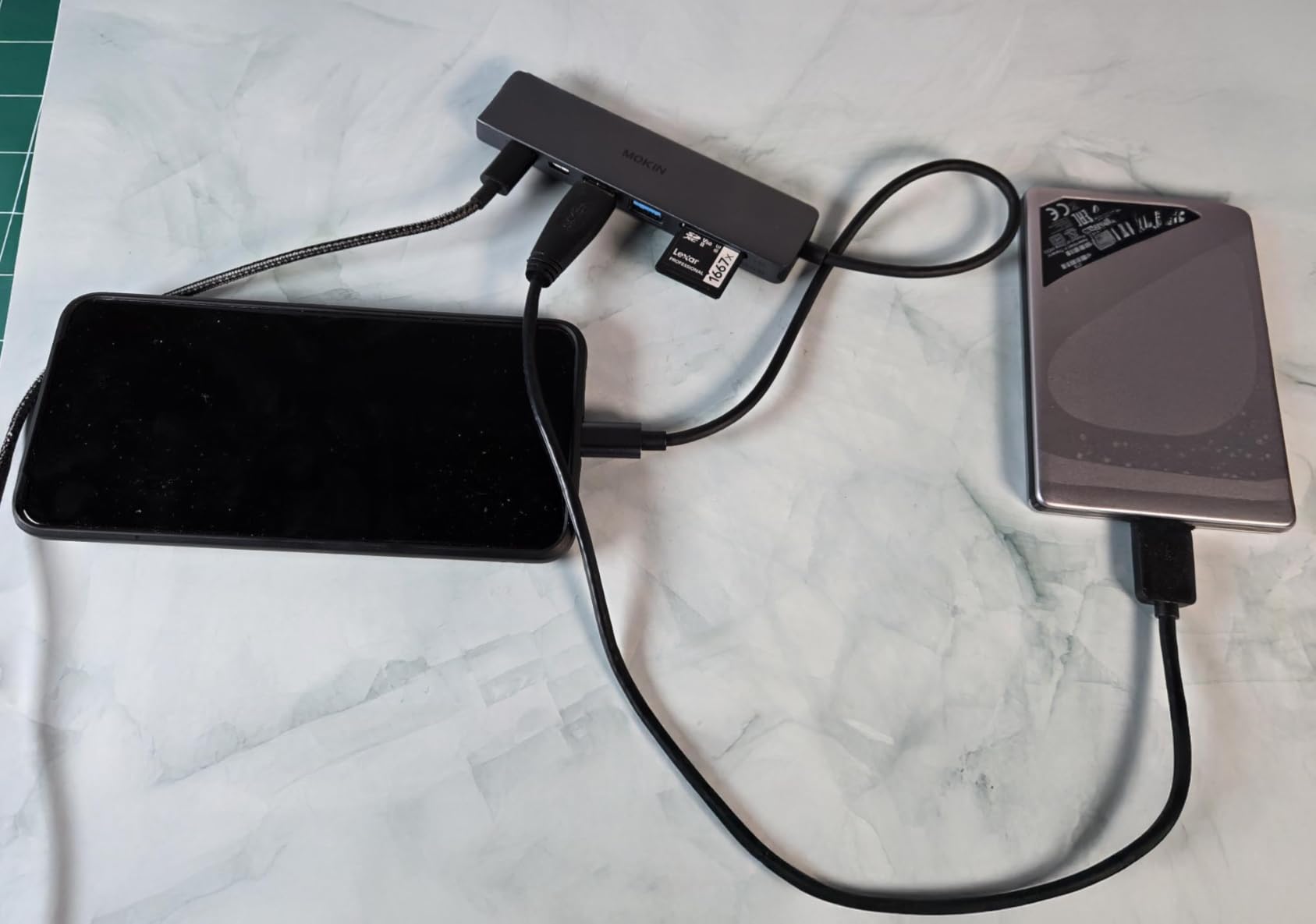
Port density is the pitch here. Two HDMI, two DisplayPort, RJ45 Ethernet, two USB-C 3.0, one USB-A 3.0, two USB-A 2.0, SD and microSD slots, and a 100W USB-C PD input, all in one unit. Most competitors give you two video outputs; this one gives you four and lets you decide which two you plug in.
That matters when your monitors disagree about connectors. One 1440p panel might have DisplayPort only while the secondary screen is HDMI-only, and with two of each you never force a strange adapter or a downscaled signal.
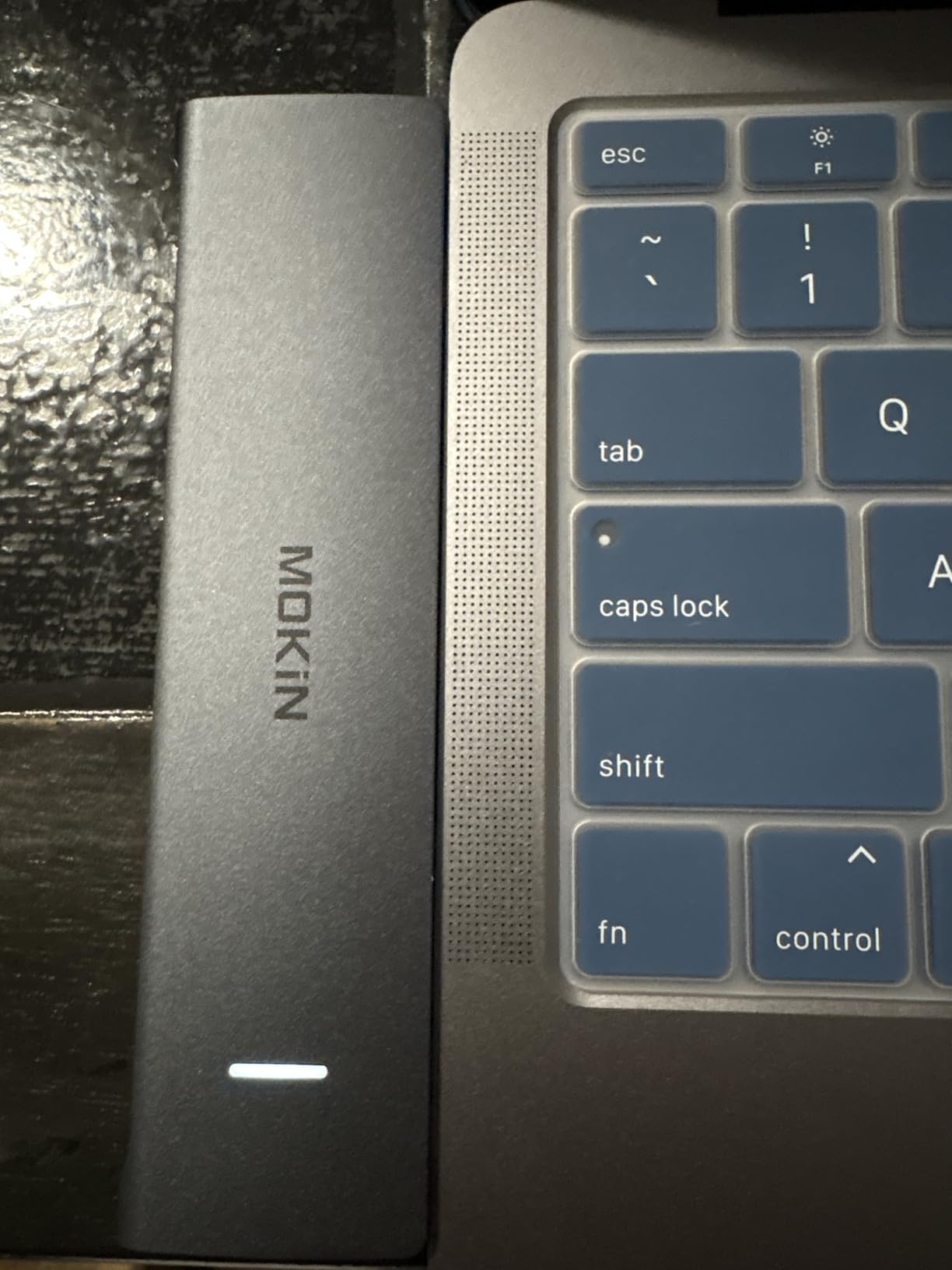
Understand the multi-screen rules before you buy. Two monitors can be extended at the same time, but adding a third pushes the dock into single-stream transport mode where displays mirror. macOS has limited extended-display support for the extra outputs, which is the usual caveat on this class of hardware. Owners also report that mixed HDMI and DisplayPort refresh rate combinations can be finicky, so match the connector to the panel you care about most.
The privacy lock button is a genuinely useful detail that most docks at this level lack. Press it and the dock cuts video and data transmission, which matters in a shared office or a hotel desk. The 1000Mbps Ethernet port and 5Gbps USB data move large files quickly. No power adapter is included, so plan on sourcing a 100W charger.
Does four video outputs mean four screens?
No. Two displays extend at once. A third or fourth output forces mirror mode rather than adding desktop space. Treat this as a dual-monitor dock with excellent connector flexibility rather than a quad-display machine.
Is it a good fit for a MacBook?
Only as a mirror. macOS users are limited in extend mode with the extra outputs, and a base-model M-series MacBook will not give you two distinct native displays through any Alt Mode dock. Mac owners who need a real second screen should read the WAVLINK review instead.
5. MOKiN 13-in-1 Dock with Built-In 160W Power — Best All-In-One Desk Box
MOKiN Docking Station Dual Monitor with 2 HDMI/Built in 160W Power
- Highest rating in the group at 4.6 across more than 5000 reviews
- Built-in power supply removes the external brick from the desk
- 160W total covers the laptop plus multiple peripherals
- 10Gbps data ports and Gigabit Ethernet built in
- macOS only mirrors the two external monitors
- Some long-term owners report the integrated Ethernet controller failing
- Heavier desk footprint than a dongle-style hub
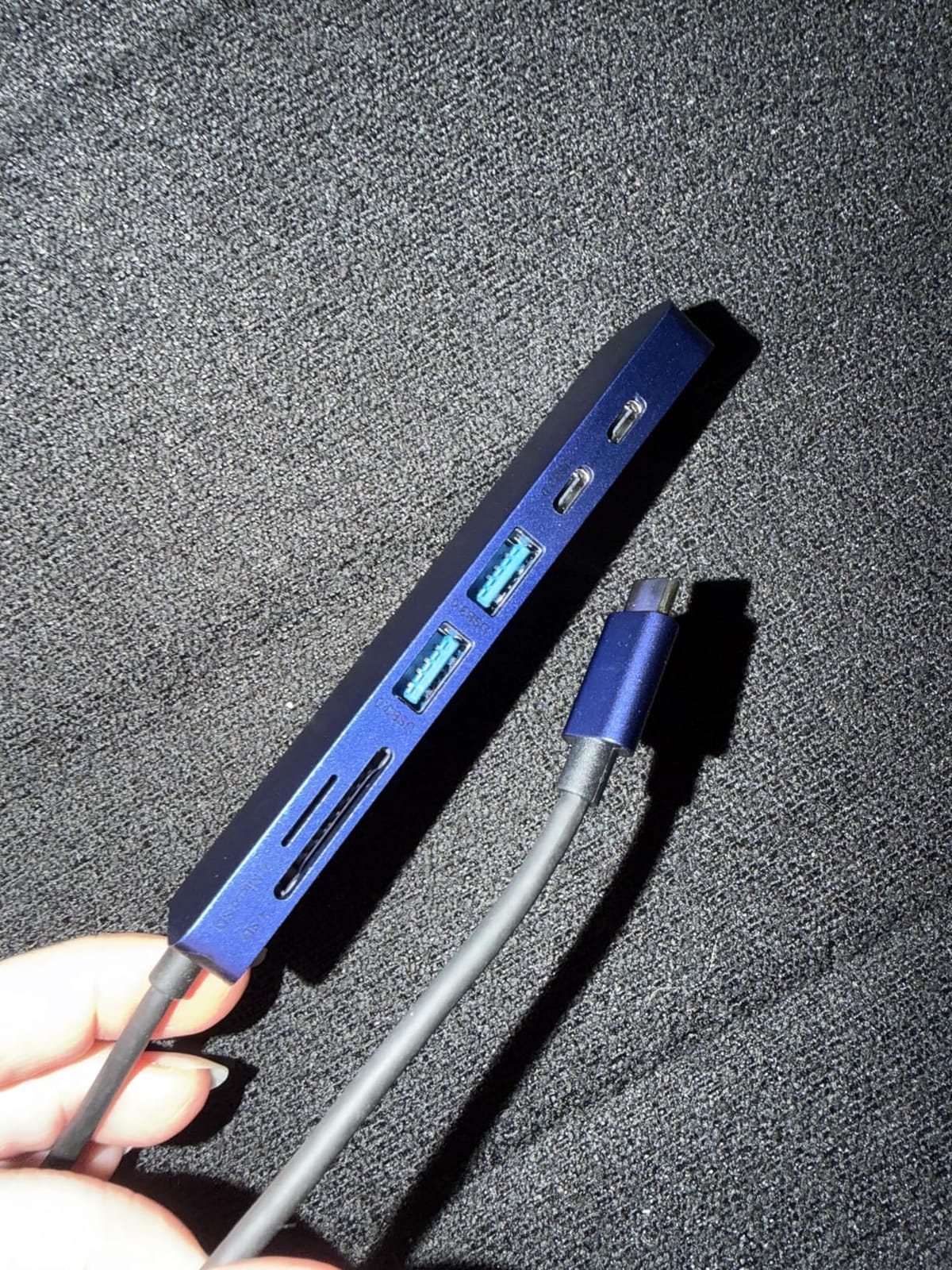
This is the only dock here with a power supply inside the box. A built-in AC supply delivers 160W in total, split between up to 100W of power delivery to the laptop, two 100W USB-C ports and one 12W USB-A port. That single design choice removes the bulky external brick that ruins most tidy desk setups, which is the exact complaint that shows up again and again in buyer reviews.
Video is dual HDMI at 4K@60Hz. Windows supports extend and mirror; macOS is mirror-only. Data runs at 10Gbps through USB 3.2 Gen 2 ports, two USB-C and one USB-A, and there is a built-in Gigabit Ethernet port plus a 3.5mm audio jack.
The 2.26-inch LCD on the front is unusual and more useful than it sounds. It shows connection status and the live power wattage, so you can see at a glance whether the laptop is actually taking charge and at what rate. Owners consistently single out that readout and the multi-year durability as the reasons they keep buying the same model.
One long-term weakness is worth flagging. A number of owners report the integrated Gigabit Ethernet controller failing silently after extended service, so if wired networking is your main reason for buying a dock, test it early. The data and fast-charging ports also do not carry video or PD pass-through, which is normal but catches people out.
Does 160W actually charge a laptop under load?
Yes. Up to 100W goes to the host laptop with two displays attached, which comfortably covers a performance notebook that would otherwise drain its battery while charging through a thin 65W adapter. The remaining budget covers peripherals on the USB-C ports.
Is it the right choice on macOS?
Only if you are happy with two mirrored external monitors plus the laptop screen. For an extended macOS desktop you need a DisplayLink design. On Windows this is the most complete single-box answer in the roundup.
6. HODO 8-in-1 Multi-Display Dock — Best for Hot Desking and Shared Screens
USB C Docking Station Dual Monitor for HP,Laptop Docking Station 3 Monitors
- Four video outputs cover dual
- triple and quad display layouts
- 100W PD keeps the desk on a single cable
- Works across a wide range of Dell
- HP
- Lenovo and Surface laptops
- Compact and inexpensive for the number of outputs
- All USB data ports are USB 2.0 at roughly 480Mbps
- VGA output caps every connected display at 1080p
- macOS shows identical content on all external monitors
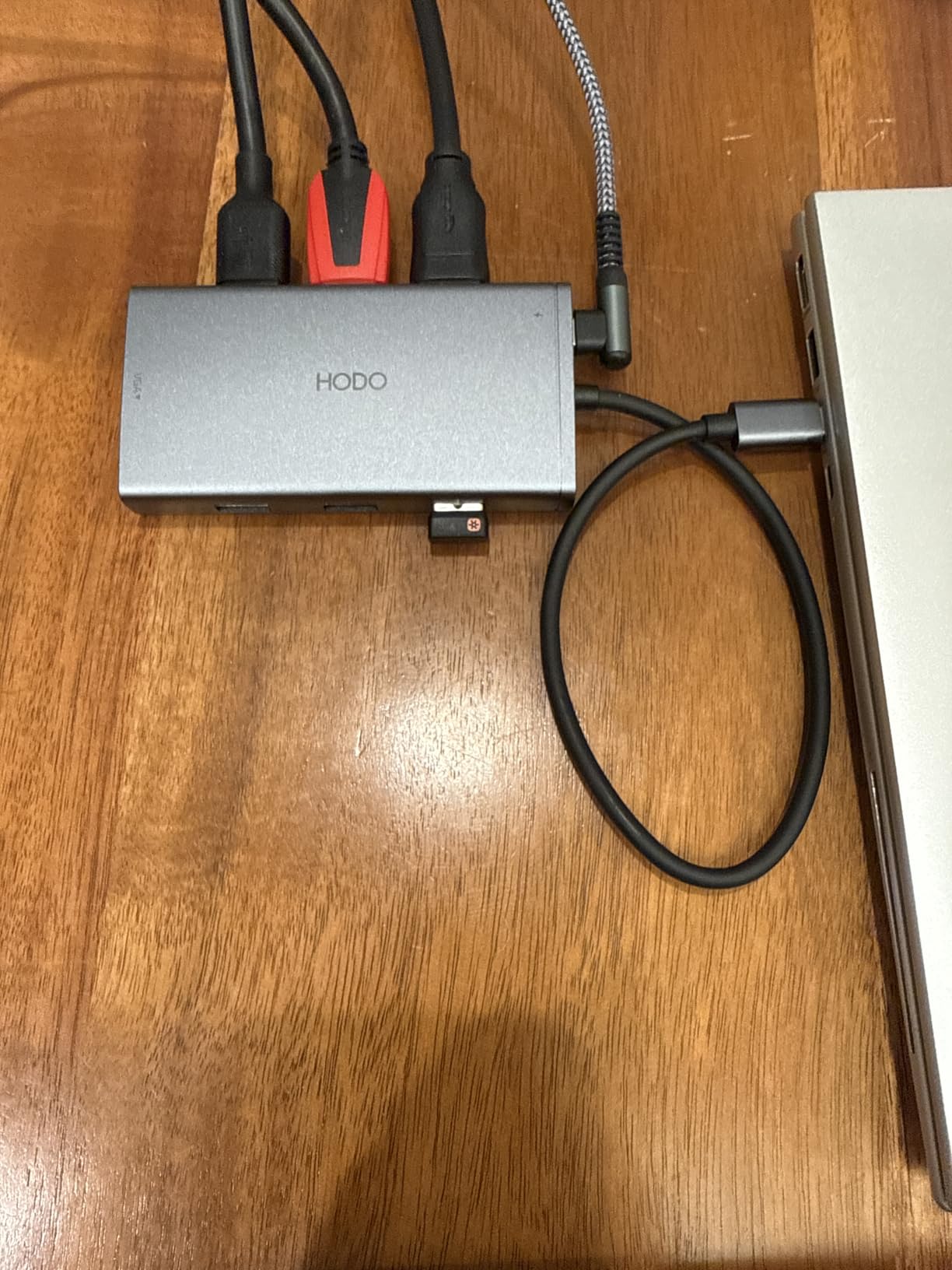
Four video outputs, and one of them is VGA. That sounds like a strange choice in 2026 until you picture a hot desk in a small office, a training room or a shared family table, where the second display might be an old 1080p panel with a VGA input and nobody wants to carry a spare cable.
The main pair are strong. One HDMI port runs 4K@60Hz, the second runs 4K@30Hz, and the DisplayPort output runs 4K@60Hz. Plugging in the VGA port drops every connected display to 1080p, so treat VGA as an emergency fallback rather than a third monitor.
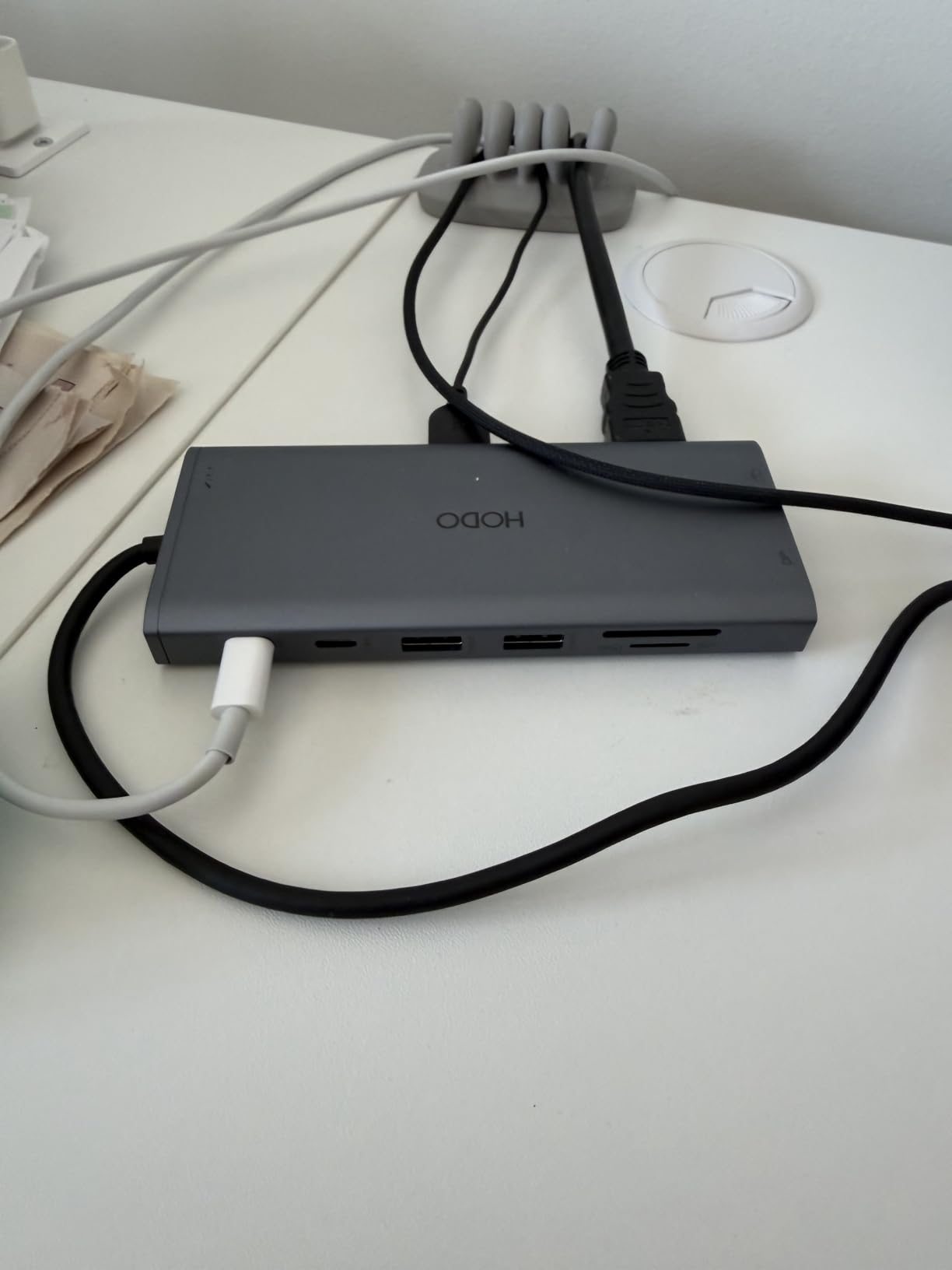
Power delivery is unusually capable for a dock this small. It takes 100W in and delivers a regulated 87W to the laptop, and it needs at least a 65W adapter, which is not included. Lower-wattage chargers trigger system warnings on the host, which is the single most common complaint in reviews after the macOS mirroring issue.
Be aware of the data side. All three USB ports are USB 2.0, so transfers top out around 480Mbps, which is fine for a keyboard, a mouse and a printer but painful for a multi-gigabyte file copy. The dock also lists a long set of unsupported Dell, HP, Lenovo and Surface models, so check your exact machine before ordering. It needs a full-featured USB-C port with DisplayPort Alt Mode, and on macOS all external monitors show identical content regardless of mirror or extend mode.
Is a triple-monitor setup realistic here?
On Windows, yes, within limits. The HDMI, DisplayPort and VGA outputs can drive three screens, but the VGA screen and often the whole set will sit at 1080p. For a genuinely mixed desk where all three panels should look sharp, the MOKiN 14-in-1 with two HDMI and two DisplayPort is a better fit.
What is the USB 2.0 limit in practice?
It shows up the moment you copy large media files or plug in a fast external SSD. Expect a few tens of megabytes per second instead of the several hundred a USB 3.2 port delivers. For a two-monitor desk with a keyboard and mouse, the limitation never enters the conversation.
7. UGREEN 7-in-1 Aluminum Dock — Best Lightweight Dock for Travel
UGREEN USB C Docking Station Dual Monitor, 7-in-1 Aluminum Dock with 2xHDMI
- Dual 4K@60Hz output on both HDMI ports
- Four 10Gbps data ports are unusually fast for a 7-in-1 hub
- Slim aluminum body at 91 grams suits travel and small desks
- 100W pass-through charging keeps the laptop powered
- No Ethernet port
- macOS mirrors both external monitors instead of extending
- Charger and 100W cable are not included
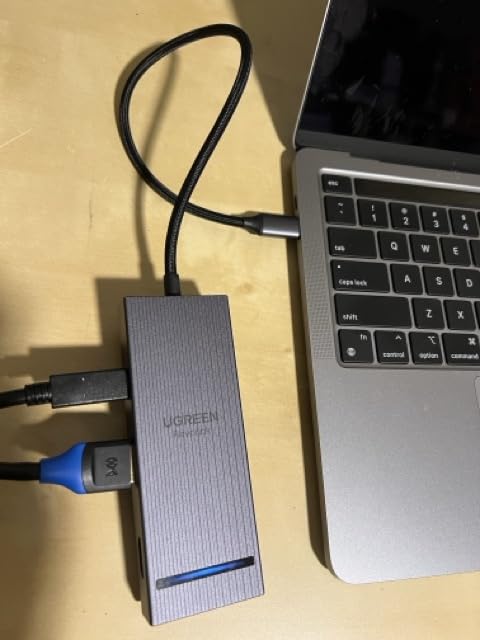
At 91 grams this is the one I would put in a laptop bag next to the charger. The aluminum body is slim and there is no separate power brick to forget, because the dock itself is a 7-in-1 block with two HDMI ports, two 10Gbps USB-A ports, two 10Gbps USB-C ports and a 100W PD input.
Two 4K@60Hz monitors is the headline, and it holds up as long as the laptop port supports DisplayPort 1.4. That caveat matters: on older machines without DP1.4 the dual 4K@60Hz claim does not apply. Check your laptop specification before assuming.
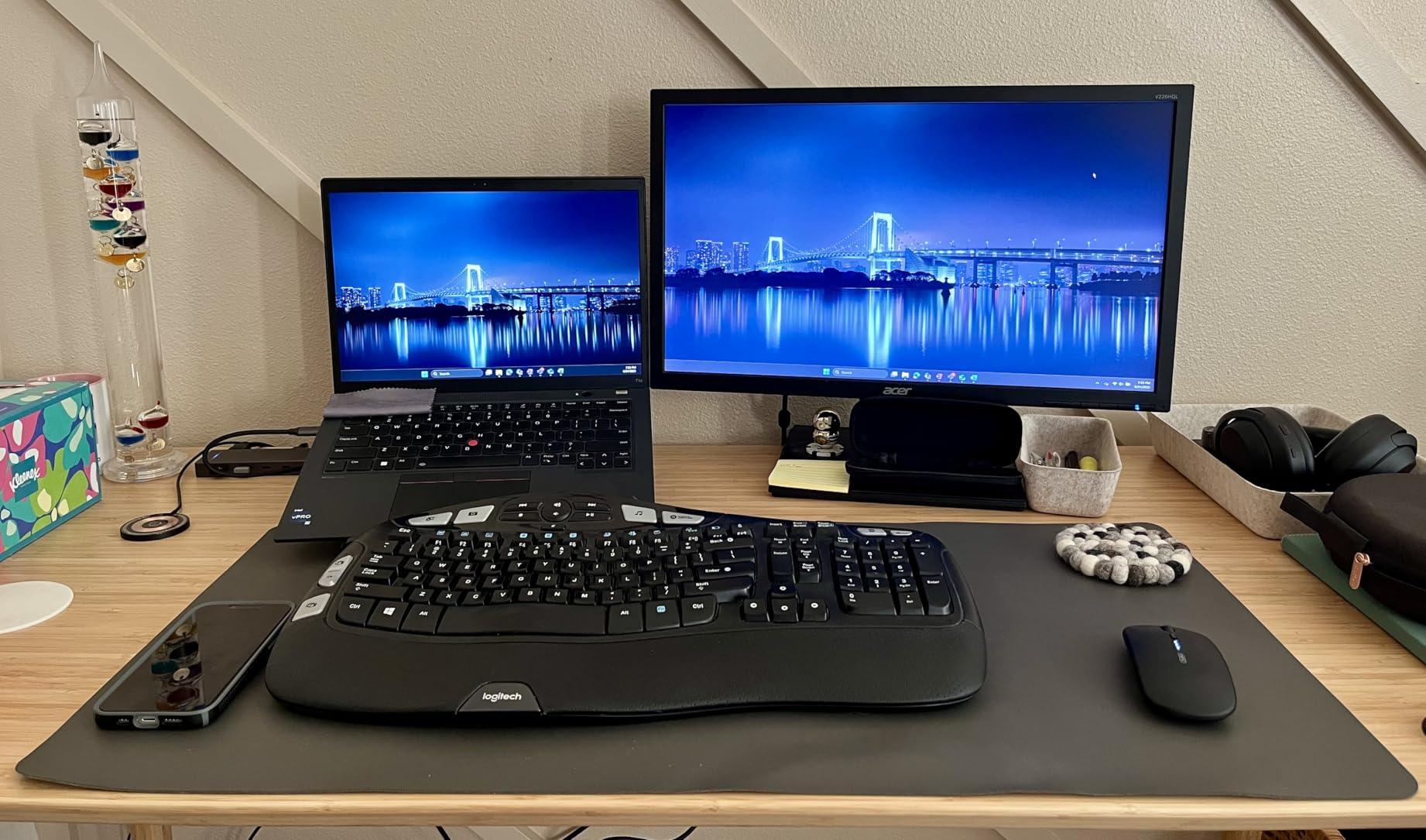
Four 10Gbps data ports in a body this small is the detail that separates it from cheaper hubs, and owners use it to move large project files quickly. Two things to know: the 10Gbps ports are data-only, so they will not charge a phone or carry video, and you need a 10G-rated cable to hit 10Gbps, because the cable in your drawer usually will not.
There is no Ethernet port. If your two-monitor desk also runs a wired network, you are back to two cables, and that is the deciding factor for a lot of office setups. Windows extends to a genuine dual screen; macOS is limited to mirrored output. The 100W PD port is charge-only and needs a 100W or greater charger and cable, neither of which is included.
Will it fit a travel kit?
Yes. At 91 grams with a flat aluminum body it disappears into a bag sleeve, and it draws power from your laptop charger rather than needing its own. That makes it the natural companion to a lightweight notebook when you move between a home desk and an office.
What do you give up versus a full dock?
Ethernet, card readers and audio. Everything from the 8-in-1 tier upward adds those. If your monitors hang off Wi-Fi or you already have a USB-Ethernet adapter, this is the cleanest option; if the desk has a wired jack, add that cost to your decision.
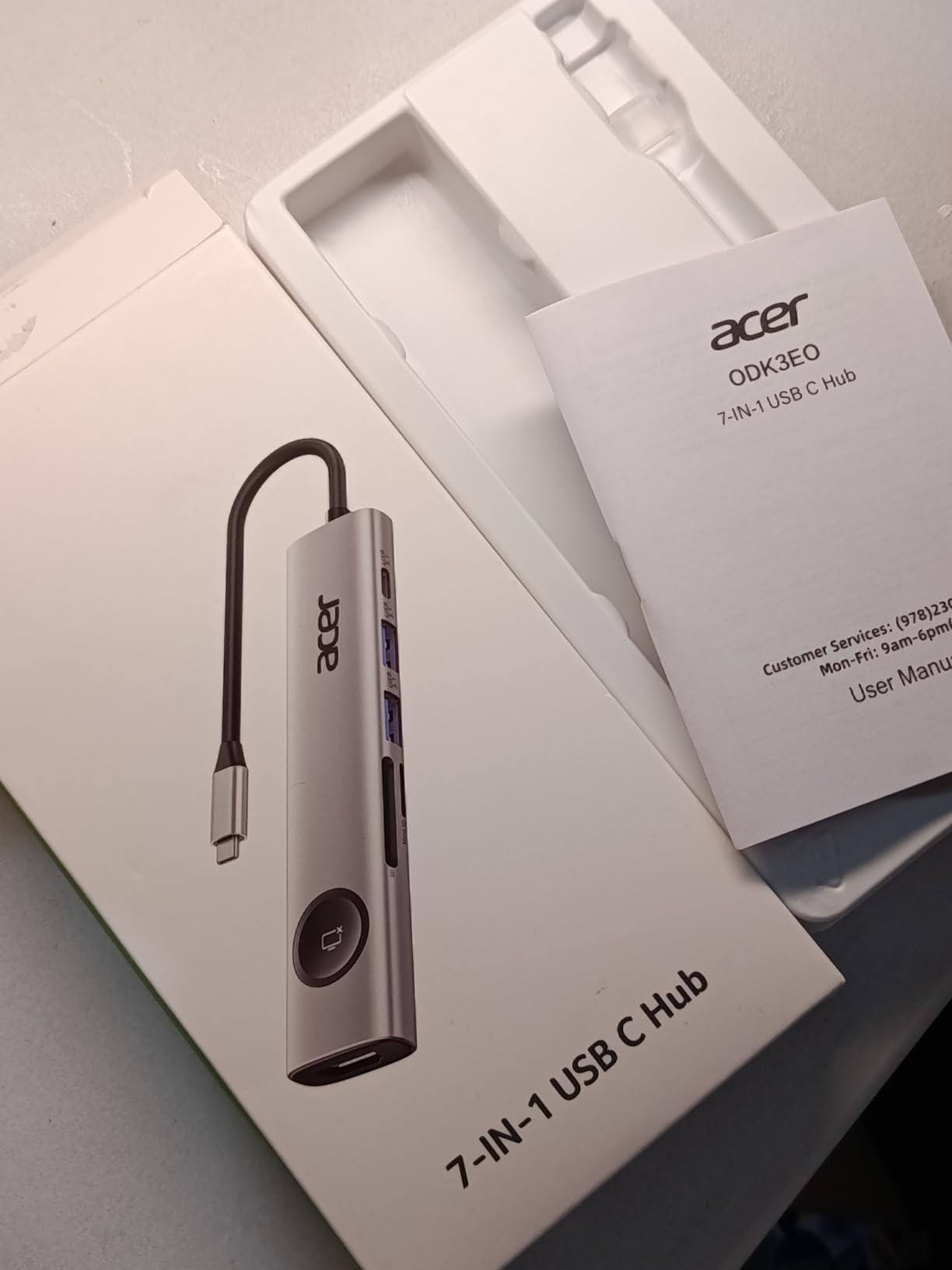
8. Acer 9-in-1 USB-C Dock — Best Built-In Screen Lock
Acer USB-C Docking Station Dual Monitor, 9-in-1 Laptop Dock with 2 HDMI
- Genuine dual 4K@60Hz on both HDMI ports
- Slim aluminum body with a short built-in host cable
- 5Gbps USB data alongside SD and microSD readers
- Lock button blanks the screens in one press
- Lowest rating in the group at 4.1 with flickering reported
- Some units run very hot during long sessions
- macOS cannot extend to two distinct external displays
The Acer does something several more expensive docks do not: it runs two 4K@60Hz monitors on both HDMI ports and adds 100W power delivery with up to 90W reaching the laptop. Around that you get three 5Gbps USB-A ports, one 5Gbps USB-C data port, and SD plus microSD readers.
It is also the lowest-rated dock we tested, at 4.1, and the reviews explain why. The most common complaints are flickering HDMI output and intermittent USB disconnects, and a number of owners mention the unit running very hot enough to warm the underside of the laptop during long sessions. Some 2.4GHz wireless mouse receivers also need an extension cable to stay in range.
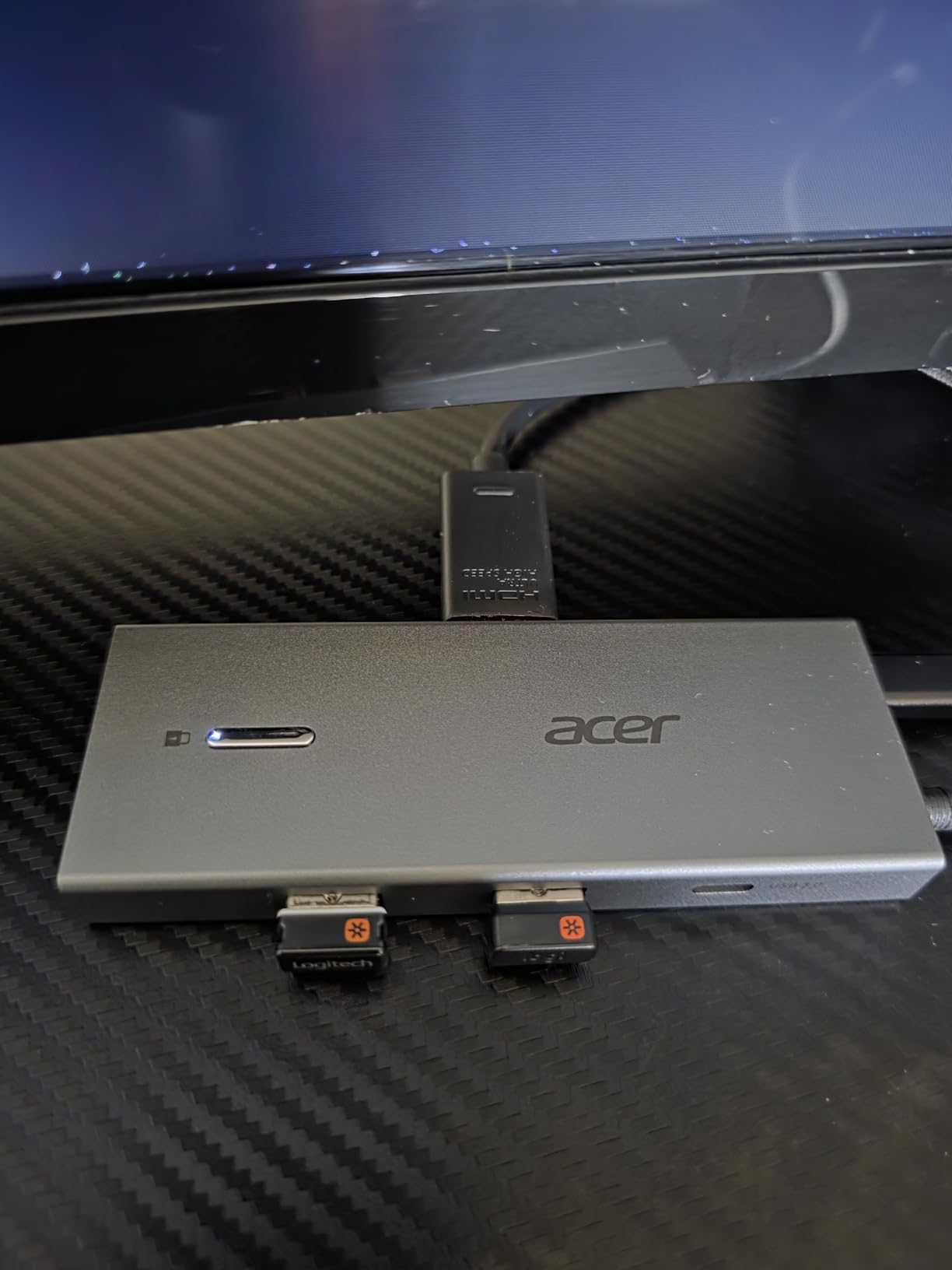
The lock button is the feature that lifts it. A single click on Windows or a three-second hold on Mac blanks both external displays, which is a fast way to stop a screen-sharing app from broadcasting your work when you step away. Almost nothing else in this roundup does that at the hardware level.
Two practical notes. PD passthrough needs a 100W or greater adapter, and using the 65W OEM charger that shipped with the laptop triggers low-charging warnings on the host. The built-in host cable is short and stiff, and there is only one USB-C data port, so a multi-monitor desk with several USB peripherals will feel the port count.
Is dual 4K@60Hz worth the rating risk?
If your monitors are 4K and you want 60Hz on both, this is one of the few affordable docks that claims it on both ports. If your screens are 1080p or 1440p, the Acer’s flickering and heat reports are harder to justify when higher-rated options cost only a little more.
Can I fix the heat?
You can reduce it by leaving the dock uncovered and off the floor of a closed desk, and by using a 100W or greater adapter rather than pushing a laptop through a 65W brick. If the unit is genuinely hot enough to warm the laptop chassis, that is a hardware fault and not a configuration problem.
9. VVB 14-in-1 Dock — Best Long Host Cable and Port Count
USB C Laptop Docking Station Dual Monitor HDMI USB C Hub Multiport Adapter
- Fourteen ports including dual HDMI
- DisplayPort
- Ethernet and audio
- 10Gbps ports move large files quickly
- Longer-than-average host cable reaches awkward desk positions
- 100W PD frees the laptop from its own charger
- Dual-monitor mode drops to 4K@30Hz on one screen
- Runs warm with many devices attached
- macOS mirrors every external display
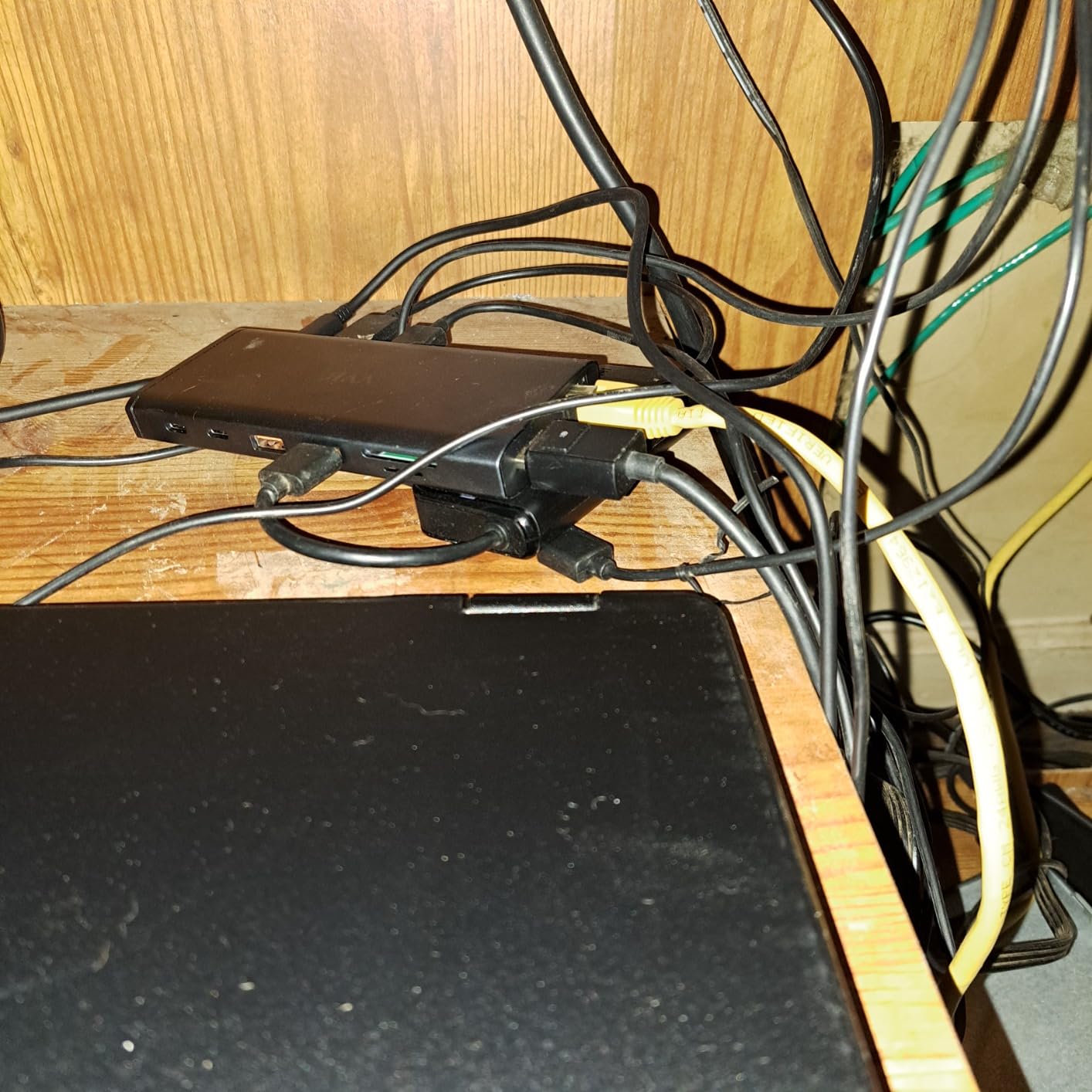
The VVB is one of the densest units in the group at fourteen ports, and it includes two HDMI ports, a DisplayPort, 1Gbps Ethernet, a 3.5mm microphone and audio jack, SD and microSD readers, and both 10Gbps USB-C and USB-A 3.1 data ports alongside older 2.0 ports. The included host cable is longer than most, which matters when the dock sits behind a monitor.
Video behaviour is where you need to read carefully. With dual monitors connected and DisplayPort 1.4 on the laptop, one screen runs 4K@30Hz and the other 1080p@60Hz. A triple-monitor arrangement drops everything to 1080p. Single HDMI 1 or DisplayPort output reaches 4K@60Hz.
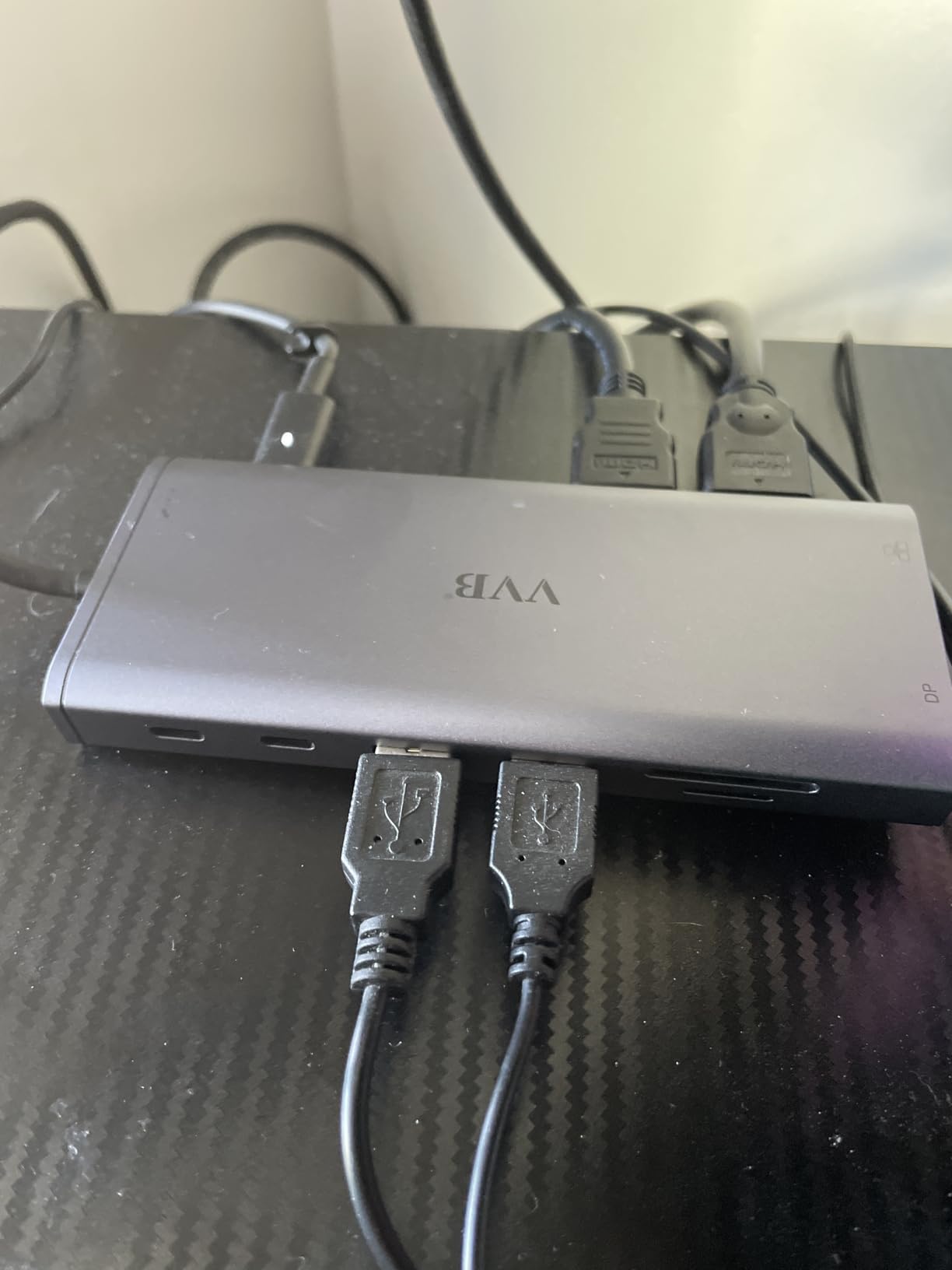
That means this is a dock for people who want peripherals first and pixel density second. Fourteen ports covering monitors, network, storage, audio and charging in one unit genuinely reduces desk clutter, and owners report that the longer host cable reaches laptop ports that a short captive cable cannot.
There are trade-offs. It runs warm, especially with several devices and PD charging active. Some owners report an internal connection loosening after months of use, and the headphone jack produces a pop on connect with basic audio quality. On macOS every external display shows the same image, and the USB-C data ports carry no video signal. The charging cable and adapter are not included.
Is 4K@30Hz on one screen a problem?
For text, browser and code work it is almost invisible. For video timelines, photo editing or anything with fine detail at 60Hz it is noticeably softer than the other panel, and you would be better served by a dual-4K@60Hz dock such as the Selore or the Acer.
What does the 3.5mm jack actually do?
It handles a microphone and headphone connection so you can use a wired desk headset instead of a Bluetooth one for calls. Owners describe the audio as basic, with a pop on connect, so it is a convenience feature rather than an audio upgrade.
10. ABIWAZY 15-in-1 Dock — Best Single Screen at Very High Refresh
USB C Docking Station Dual Monitor, ABIWAZY 15 in 1 Laptop Docking Station
- DisplayPort reaches 8K@30Hz or 4K@144Hz on a single screen
- Highest-rated budget all-in-one with a 4.5 average
- Screen switch button blanks displays for privacy and power saving
- Reliable dual-monitor behaviour on Windows
- macOS is limited to mirrored output on all external monitors
- Runs very hot and the host cable is short
- SD and microSD slots cannot be used at the same time
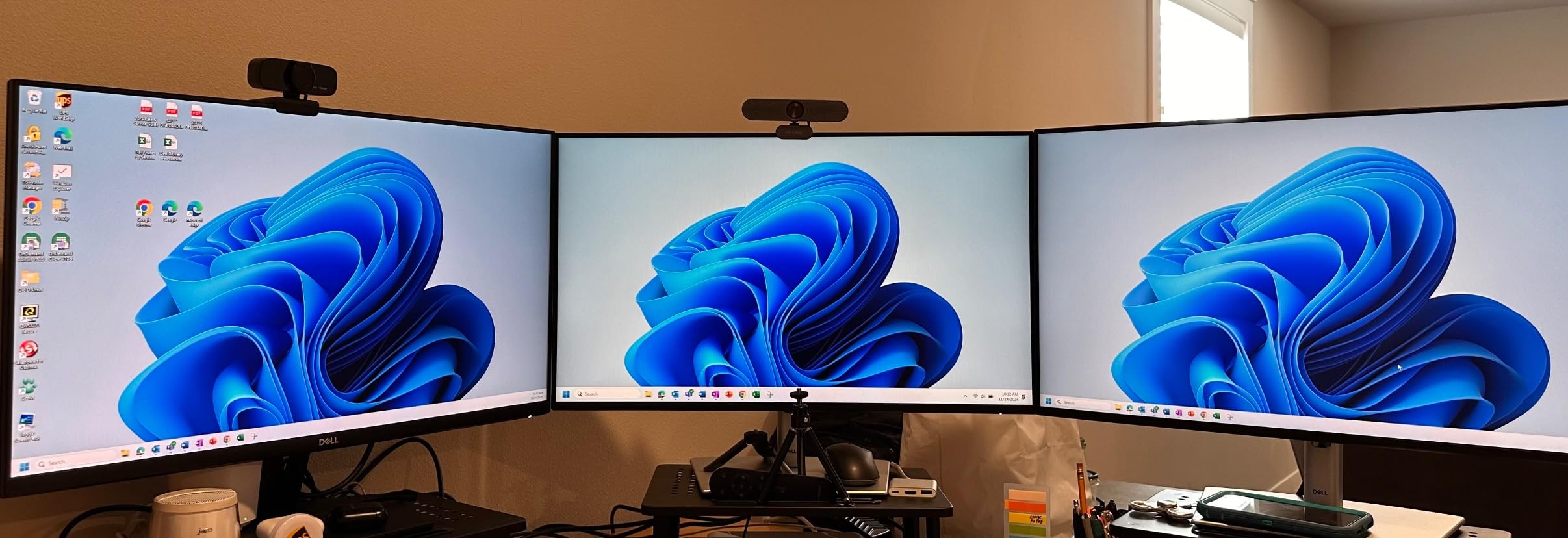
This dock is unusual in the opposite direction from most of its competitors. Its two HDMI ports run 4K@60Hz, but the DisplayPort output is specified for 8K@30Hz or 4K@144Hz when driven by a single monitor from a DisplayPort 1.4 source. That is the highest refresh number any dock here reaches, and it makes the ABIWAZY the one to consider if you own a high-refresh panel.
It is also a 15-in-1: 100W PD, 1Gbps Ethernet, SD and microSD, a 3.5mm microphone and audio jack, and a mix of USB-C and USB-A 3.0 and 2.0 ports in an aluminum body weighing 5.6 ounces. The screen switch button with a status light blanks the displays in one press.
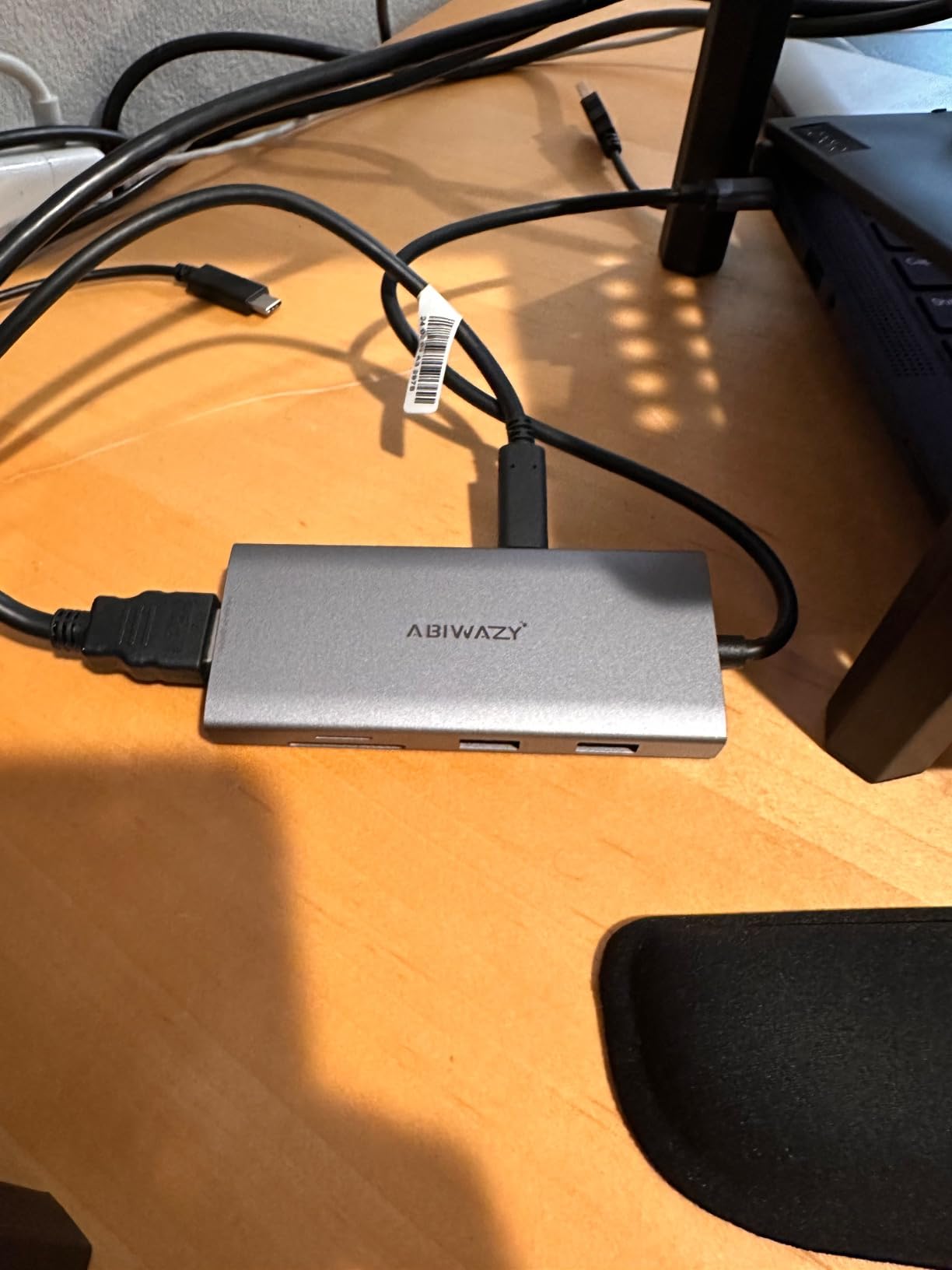
Understand the trade before you buy. That 4K@144Hz figure applies to a single display on DisplayPort. A third display is possible only when the source supports DisplayPort 1.4 with DSC, and macOS is limited to single-stream transport, meaning both external monitors mirror. One of the two USB-C ports is charge-only, and the SD and microSD slots cannot be read at the same time.
Owners report the unit running very hot during use, which is worth knowing on a desk where the dock sits directly on the surface. The host cable is short, and a few users report it disturbing Windows power management and sleep settings. Power delivery takes 100W in and delivers 87W regulated to the laptop, with a charger above 65W recommended.
Can it drive two high-refresh monitors at once?
Not at 144Hz. Dual-monitor output runs at 4K@60Hz on both HDMI ports. The 4K@144Hz path is a single-screen feature through DisplayPort, so this suits a setup with one demanding panel and one ordinary one.
Is the heat a return risk?
It is the most common complaint in reviews, so test it in your own desk position early. Docks that run hot near a laptop baseplate can shorten battery lifespan over months, and a ventilated shelf solves the problem for almost every owner who raised it.
11. WAVLINK DisplayLink Dual 4K Dock — Best for MacBooks
WAVLINK Displaylink Docking Station Dual 4K@60Hz Monitor for Mac, Windows
- Only dock here that gives a Mac two true 4K@60Hz extended displays
- Flexible mix of two HDMI and two DisplayPort outputs
- Six USB 3.0 Type-A ports plus Gigabit Ethernet and audio
- Works with USB-A
- USB-C
- USB4 and Thunderbolt hosts
- Requires a DisplayLink driver installation on macOS
- Does not charge the host laptop
- Not suitable for gaming or DRM-protected streaming
If you own a base-model MacBook Air or a MacBook Pro with a standard chip, this is the dock that solves the problem the other eleven cannot. DisplayLink technology drives two external monitors at 4K@60Hz from a single USB connection, which is exactly the extended dual display that macOS will not grant through native DisplayPort Alt Mode.
The port layout is generous: two HDMI and two DisplayPort outputs so you can run dual HDMI, HDMI plus DisplayPort, or dual DisplayPort. Alongside them sit six USB 3.0 Type-A ports, Gigabit Ethernet and a 3.5mm audio jack. Compatibility covers Windows 10 and later, macOS 11 and later including Apple Silicon M1 through M5, and ChromeOS 100 or later.
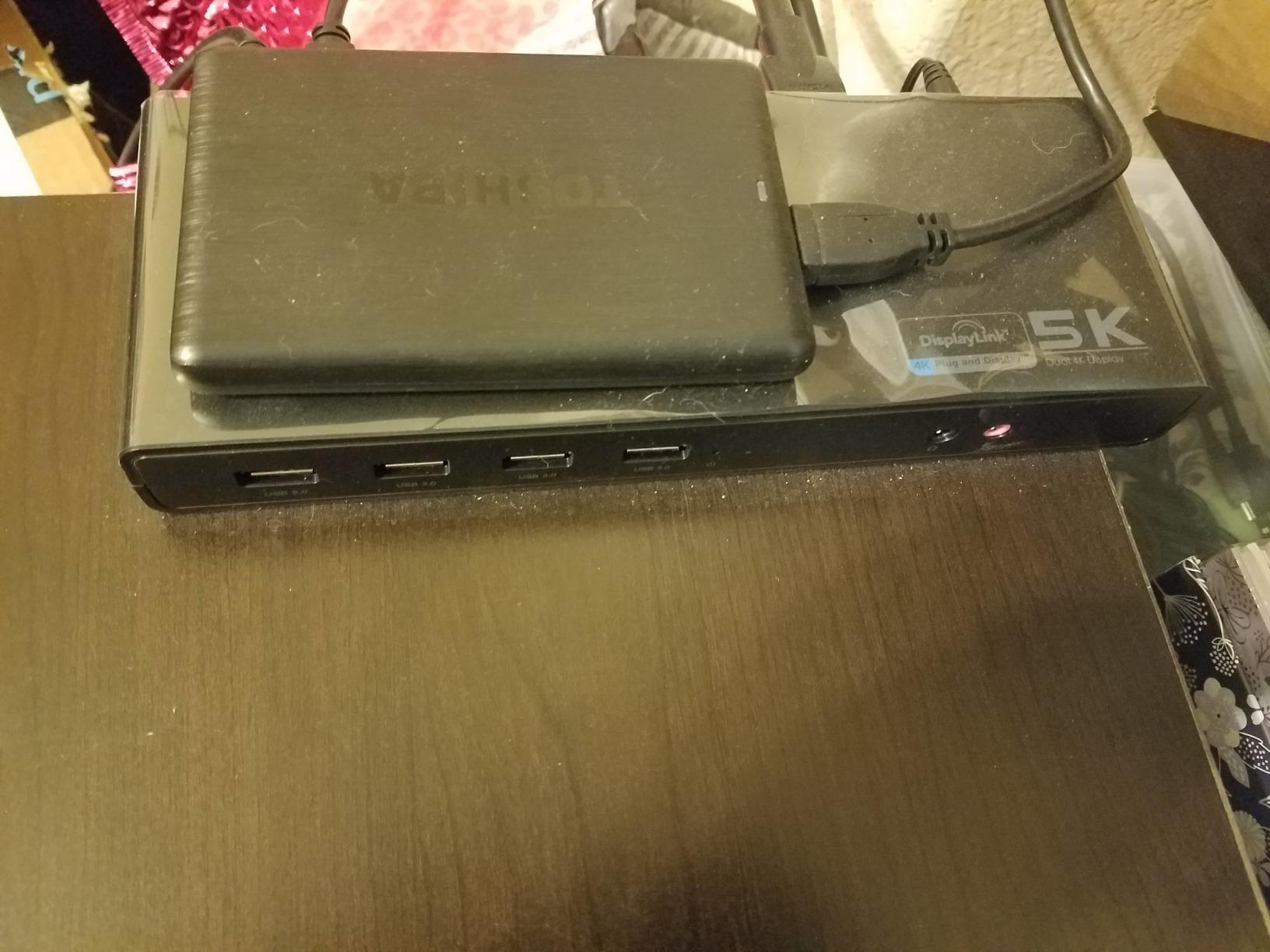
The trade is the driver. You install DisplayLink software, and that driver is what compresses and sends the video over USB. It has to be kept current through macOS and Windows updates, and users worry about lag, CPU usage and breakage after an OS release. In practice the extra latency is slight compared with native outputs, and reviewers report the driver as a one-time setup that runs quietly afterwards.
It does not charge the laptop, so you keep your own charger. It is also not designed for gaming, high-frame-rate video editing, or DRM-protected streaming, so a streaming service that protects its output will not play through it. At 8.9 inches long and 8.8 ounces it is the largest unit here, built to sit on a desk rather than in a bag.
Do I really need DisplayLink on a Mac?
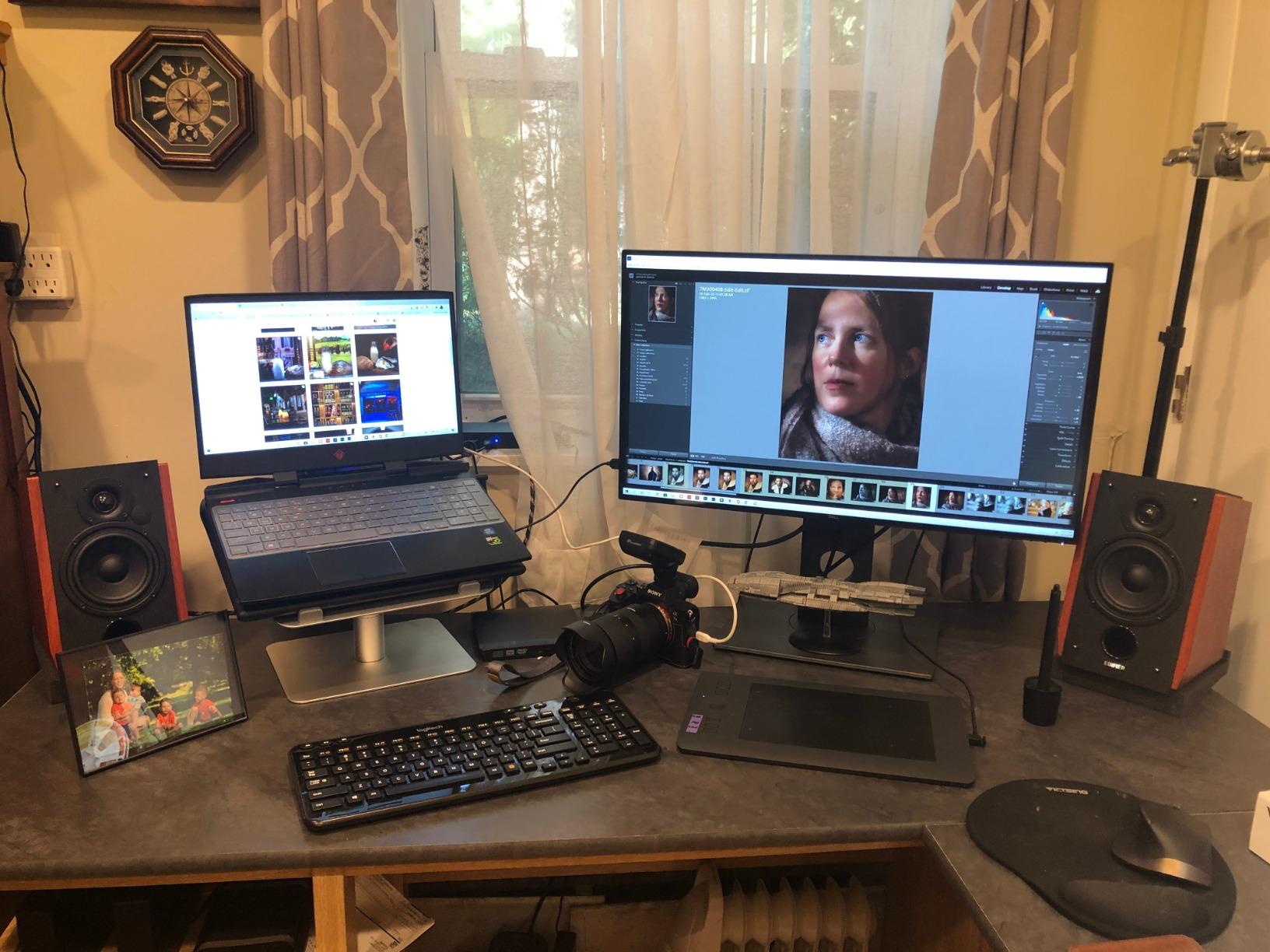
You need it if you want two external screens that extend rather than mirror. That is the behaviour of current base M-series Macs through a plain USB-C dock. Buying the most capable native dock does not change this, because the limit is in the laptop, not the dock.
What breaks with DisplayLink?
Gaming, high-frame-rate video work and protected streaming all fall outside what the technology handles well. Linux is also listed as unsupported. For a MacBook that lives on a desk for documents, browser, mail and light creative work, none of that matters.
12. LIONWEI 13-in-1 Dock — Best Triple Display on Windows
Docking Station Dual Monitor 4K HDMI 13-in-1 USB C Hub for Laptop MacBook
- Triple-display potential on Windows with two HDMI and a DisplayPort
- 10Gbps data alongside 100W pass-through charging
- Compact 140g body with Gigabit Ethernet and audio jack
- Works across Dell
- HP
- Lenovo
- Samsung and MacBook
- macOS can extend only a single monitor
- Dock draws 13W so laptop charging drops to 87W
- Not supported in Linux
The LIONWEI rounds out the roundup with a broad feature set and a very large review base. Thirteen ports: two 4K HDMI, a DisplayPort, two USB-C ports where one handles 100W PD and the other runs 10Gbps data, a 10Gbps USB 3.1 port, three USB 3.0, two USB 2.0, a 3.5mm audio and mic jack, and Gigabit Ethernet. It weighs 140 grams.
On Windows it is the only dock here with genuine triple-display potential, because it supports both MST and SST for mirror and extend. HDMI and DisplayPort outputs reach 4K@60Hz from a DisplayPort 1.4 source. Thirteen thousand reviews give it one of the better track records in the group.
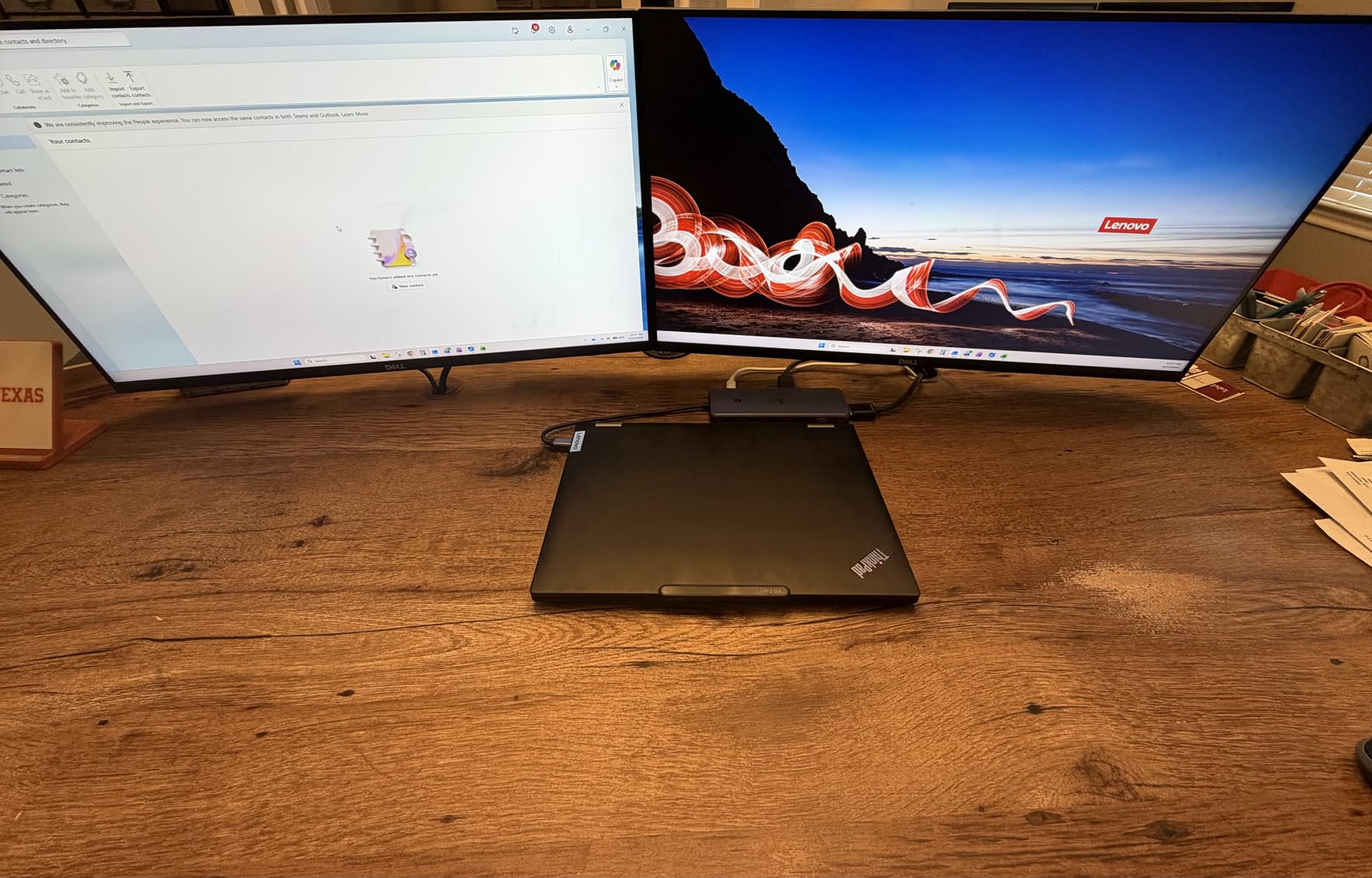
Two details deserve attention. The USB-C 3.1 port handles data transfer and charging simultaneously at 10Gbps, which is the reason to buy this over a seven-in-one hub. And the dock itself consumes 13W, so of the 100W PD budget only 87W actually reaches the laptop. That is still ample for a thin-and-light machine, and for most 14-inch performance laptops running two displays, but it is a real reduction worth knowing.
macOS can extend only a single monitor, and the dock is not supported in Linux. The practical effect of thirteen ports in one body is that you spend the first week unplugging and replugging things, and the second week never touching the laptop ports again.
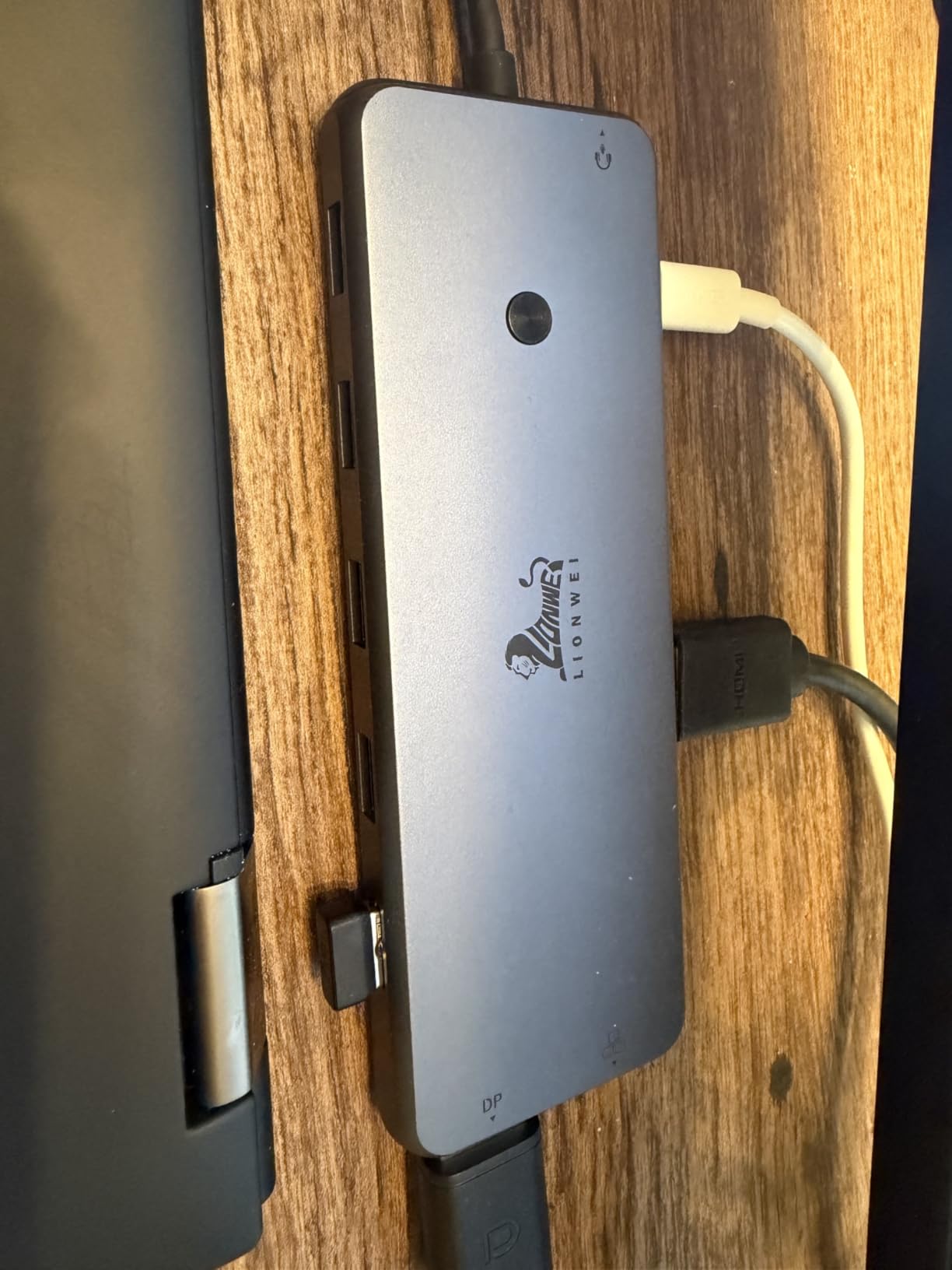
Is this a dual-monitor or a triple-monitor dock?
Both on Windows, which is unusual at this level. Two monitors at 4K@60Hz is its core job, and the DisplayPort output adds a third screen when your laptop supports DisplayPort 1.4. On macOS it is a dual-monitor dock at best, with a single extended display.
Why does the charging figure say 87W?
Because the dock draws 13W for itself out of the 100W power delivery budget before anything reaches the laptop. If your notebook is a large workstation and you expect to charge it from full to full while driving two displays, look for a dock with a higher total output, such as the built-in 160W MOKiN.
How to Choose a Laptop Docking Station for Dual Monitors?
Native outputs or DisplayLink: the MacBook question
A USB-C port with DisplayPort Alt Mode carries a native video stream that Windows splits across two displays using MST, or multi-stream transport. macOS does not extend a base M-series MacBook across two external screens that way, so both monitors mirror. DisplayLink solves this by sending compressed video over the USB data lanes and rendering it in software, which requires a driver. On a Mac, that is not a workaround, it is the only route to two extended displays. On Windows, prefer native.
USB-C, Thunderbolt or DisplayLink: which standard do you need
For two 4K@60Hz monitors, a full-featured USB-C port with DisplayPort 1.4 support is the minimum. Thunderbolt 4 or 5 adds headroom for two high-refresh displays, faster storage and external network adapters, and it is the right choice if you plan to add a third screen or edit video. DisplayLink is a third path: more flexible about which laptops it can extend, but with a driver, slight added latency, and no support for protected streaming. Threads on r/UsbCHardware consistently converge on native Thunderbolt 4 docks for Windows performance and name DisplayLink as a fallback for MacBooks.
Power delivery: will the dock charge your laptop?
Check three numbers: the wattage the dock accepts, the wattage it passes to the laptop, and whether a charger is included. Several docks here accept 100W and deliver 87W because the dock itself consumes the rest. A dock that charges nothing, such as the Plugable or the WAVLINK, needs your laptop charger to stay plugged in, which defeats the single-cable goal. And if you use a 65W adapter where the dock expects 100W, the host laptop will warn you rather than quietly charge slowly.
Refresh rate and resolution ceilings
Manufacturers quote the best single-screen number, and the dual-screen number is often far lower. The Anker runs 4K@60Hz on one screen and 4K@30Hz on two. The VVB drops to 4K@30Hz on one screen when a second is attached. The Selore and the Acer hold 4K@60Hz on both. If you game, work in a timeline, or read small text on a 4K panel, buy for the dual-screen figure, not the headline.
Ports, Ethernet and card readers
Count what you actually own rather than what is possible. Six USB-A ports and Gigabit Ethernet covers a keyboard, mouse, external drive, printer and a wired network in one box. Card readers matter if you shoot photos or cut video on external media. A 3.5mm jack is worth having if you take calls with a wired headset, and a hardware screen-off button is a genuine privacy feature in shared spaces.
How to set up dual monitors through a dock
Connect the host cable, then the monitors, then the power. On Windows, open Settings, go to System, then Display, and choose Extend rather than Duplicate. On macOS, open System Settings, then Displays, and press Option while clicking Arrange to reveal the extended-desktop option. Install the DisplayLink driver first if your dock needs one, and reboot after installing. If the second monitor is not detected, swap the cable ends, confirm your laptop port supports DisplayPort Alt Mode, and update the dock firmware.
Docks We Would Skip for a Two-Monitor Desk
Some docks are sold as dual-monitor machines and quietly fail the job. A single HDMI output with a second USB-C port that carries data but no video is the most common trap, and two of the docks in this roundup have a USB-C port that cannot drive a display at all. A dock whose only extra video output is VGA will drag every connected screen to 1080p. A dock that draws power from the laptop only, with no pass-through charging, forces a second cable. And any dock that runs hot enough to warm the laptop chassis is a poor choice for a desk you sit at all day. We have left all of these out of the twelve above and flagged the specific limits on each card.
Frequently Asked Questions
What is the best laptop dock for connecting to two monitors?
The Anker 8-in-1 USB-C Dock is the best all-round choice. It gives you two HDMI ports, 1Gbps Ethernet, SD and microSD readers, two USB-A ports and 85W of pass-through charging from one cable, with more than 35,000 reviews behind it. It reaches 4K@60Hz on one screen and 4K@30Hz on two, so it suits work monitors rather than high-refresh gaming panels.
Can a USB-C dock support two monitors?
Yes, on Windows, as long as your port is a full-featured USB-C port with DisplayPort Alt Mode or a Thunderbolt port. The dock splits one video stream across two outputs using MST. On a base M-series MacBook, a plain USB-C dock mirrors the second monitor instead of extending it, so you need a DisplayLink dock such as the WAVLINK for a true extended dual-screen macOS setup.
What is the best docking station for two monitors?
For Windows users the Anker 8-in-1 dock is the safest all-round answer, while the Selore gives you dual 4K@60Hz output with fewer ports. For MacBook owners the WAVLINK DisplayLink dock is the only one here that delivers two genuine extended 4K@60Hz displays, at the cost of installing a driver. High-refresh single-screen users should look at the ABIWAZY with its DisplayPort 4K@144Hz path.
Do I need a docking station for dual monitors?
You need one if your laptop has two or three ports or if you want a single-cable desk. Without a dock you run a separate HDMI or DisplayPort cable, a charger and an Ethernet cable, and you plug each one in every morning. A dock also gives you a stable desk setup you can move between laptops, plus USB-A ports that modern thin laptops have dropped entirely.
Will a docking station charge my laptop?
Only if it has Power Delivery and you supply the right charger. Most docks here accept 100W and deliver between 85W and 90W to the laptop, with the remainder powering the dock itself. A few, including the Plugable and the WAVLINK, do not charge the laptop at all. Nearly every dock ships without a wall charger, and using a 65W adapter where 100W is expected triggers a warning on the host.
The Best Laptop Docking Stations for Dual Monitors
The Anker 8-in-1 remains the pick for most people: two HDMI ports, real charging, a compact body and the largest body of long-term owner reports in the group. Windows users chasing two 4K@60Hz panels on a smaller budget should take the Selore, and anyone with a base M-series MacBook should look at the WAVLINK DisplayLink dock, because native USB-C will not extend to a second screen on that hardware. Work out whether your monitors need 60Hz on both at 4K, and whether your laptop charges through the dock, before you buy anything else on this list.